19
2.4.2 VIEWING ACTIVITY RECORDS
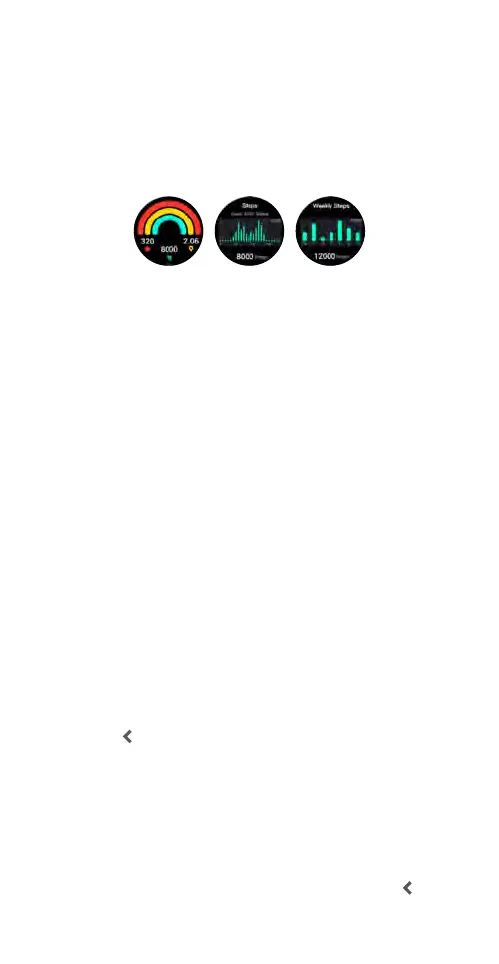
Viewing activity records on the smartwatch
Swipe right on the smartwatch home screen to reveal
the applications list. Tap Daily Activities to reveal the
recorded data for (left to right) calories, steps and
distance. Swipe up to show more information about
Steps.
Viewing activity records in the Ryze Fit App
The App allows you to upload health and workout
data from a connected smartwatch and enables easy
viewing of historical statistics. Sync the connected
smartwatch data to the App regularly. Open the Home
tab, swipe down the middle of the smartphone screen
and release your finger to synchronise data between
the smartwatch and the App.
Method 1: Go to Home tab. Tap the Steps ring to review
daily, weekly and monthly statistics on Steps.
Method 2: Go to Me tab. Tap Weekly Report. Swipe
down the middle of the smartphone screen and release
your finger to load data.
2.4.3 SETTING DAILY REMINDERS
Setting up a sedentary reminder with the Ryze Fit App
Set yourself a reminder to get up and walk around to
reach your daily steps goal.
Open the App and ensure that your smartwatch is
paired to the App. Go to the Device tab and tap
Sedentary reminder. In the following screen, turn on the
reminder switch, set the timing and reminder interval.
Tap
at the upper left to save the settings.
Setting up a drink reminder with the Ryze Fit App
Set yourself a reminder to drink water at set intervals to
keep yourself hydrated and healthy.
Open the App and ensure that your smartwatch is
paired to the App. Go to the Device tab and tap Drink
reminder. In the following screen, turn on the reminder
switch, set the timing and reminder interval. Tap
at the
upper left to save the settings.



 To Next Page