13
icon. Tap Date & Time. Tap Date to set the date and tap
to confirm selection. Tap Time to set the time and tap
to confirm selection.
To reset the smartwatch for automated date and time
sync with the App, first unpair the smartwatch from the
App and then pair it again with the App.
Setting time format with your smartwatch
Swipe down on the smartwatch home screen to reveal
the quick settings panel. Find and tap the
Settings
icon. Tap Date & Time and turn on/o the setting for 24H
format.
2.2 WIDGETS
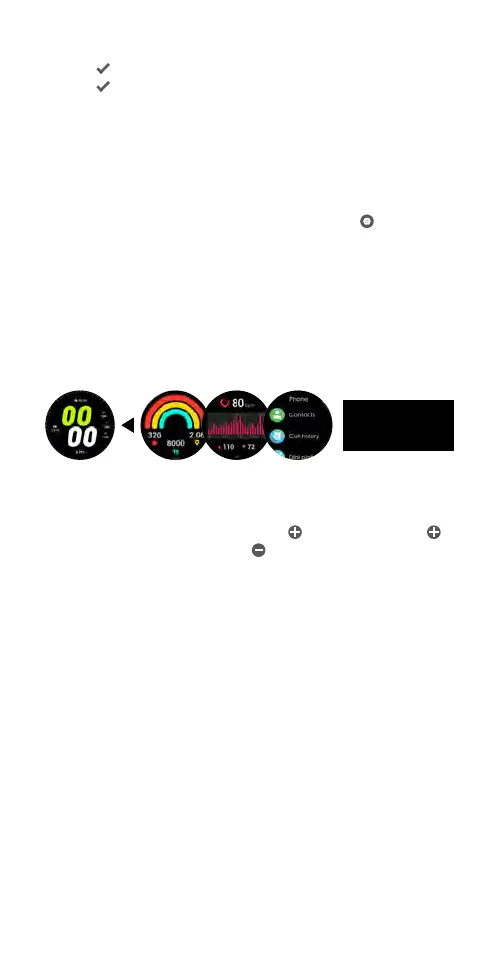
Widgets are a collection of shortcuts to applications
that are located at the right side of the smartwatch
home screen. The listing and order of widgets can be
customised via the smartwatch.
Managing widgets with your smartwatch
1) Swipe left on the smartwatch home screen until the
end of the widgets list. Tap
to edit the list. Tap
to add a widget. Tap
to remove a widget.
2) To rearrange the order of the widgets, first remove
the widgets and then add them back in the order
that you prefer. Press the upper button twice to
return to home screen.
2.3 SETTINGS
2.3.1 WATCH FACES OPTIONS
Within the Ryze Fit App, you will find a Watch Face
Market that features a collection of watch faces for
your preferred use.
Changing the watch face with your smartwatch
To view the available watch faces, tap and hold the
home screen for about 2 seconds. Then swipe from left
to right to view the collection. Tap on your watch face
choice to confirm selection.
Swipe left to
view widgets



 To Next Page