EasyManua.ls Logo

Samsung BD-C5900 - Component Connection

Samsung BD-C5900
85 pages
Print Icon
To Next Page IconTo Next Page
To Previous Page IconTo Previous Page
Loading...
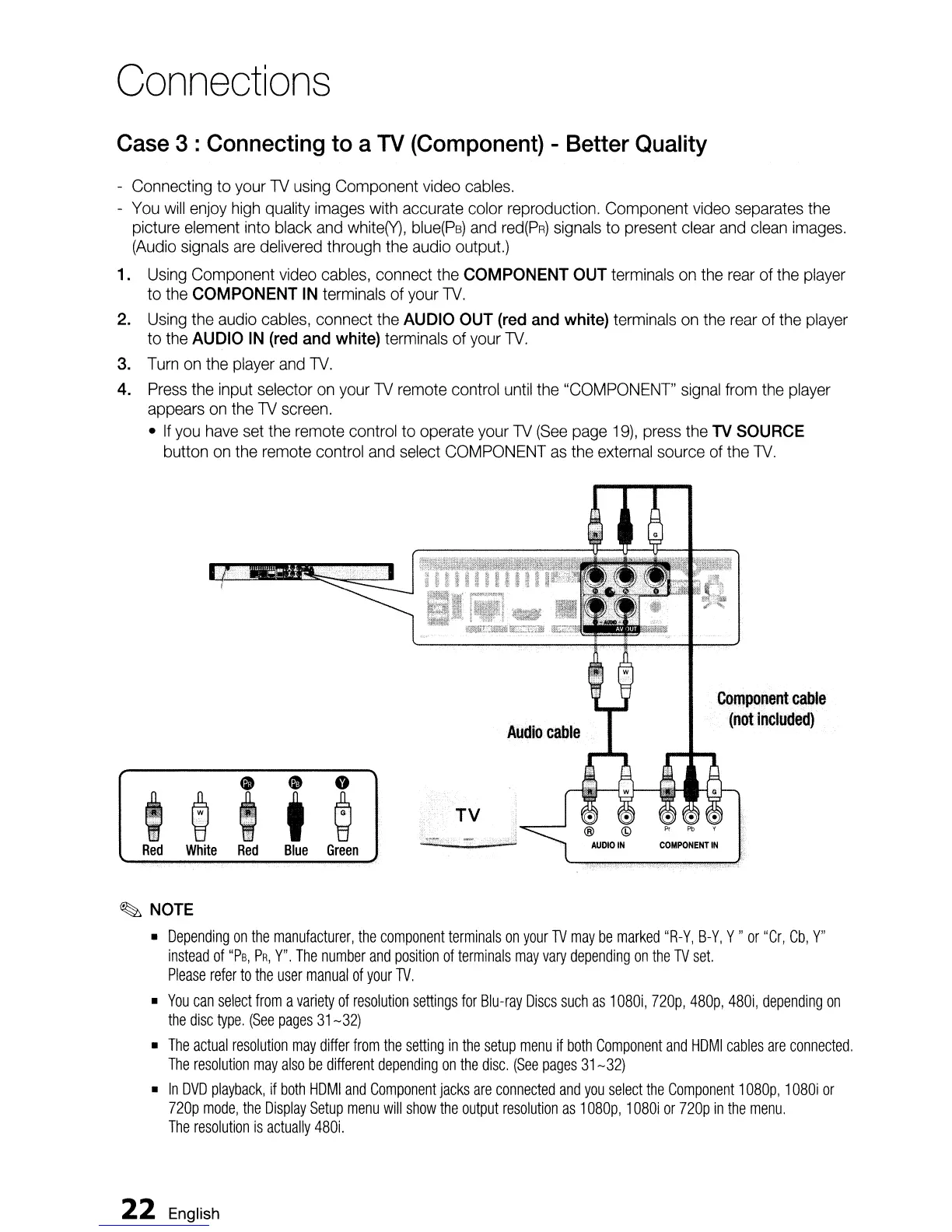
Connections
Case
3 :
Connecting
to
a
TV
(Component)
- Better
Quality
- Connecting
to
your
TV
using
Component
video
cables.
-
You
will
enjoy
high
quality
images
with
accurate color reproduction. Component
video
separates
the
picture
element
into
black
and
white(y),
blue(PB)
and
red(PR)
signals
to
present
clear
and
clean
images.
(Audio
signals
are
delivered
through
the
audio
output.)
1.
Using
Component
video
cables,
connect
the
COMPONENT
OUT
terminals
on
the
rear
of
the
player
to
the
COMPONENT
IN
terminals
of
your
TV.
2.
Using
the
audio
cables,
connect
the
AUDIO
OUT
(red
and
white)
terminals
on
the
rear
of
the
player
to
the
AUDIO
IN
(red
and
white)
terminals
of
your
TV.
3.
Turn
on
the
player
and
TV.
4.
Press
the
input selector
on
your
TV
remote
control
until
the
"COMPONENT"
signal
from
the
player
appears
on
the
TV
screen.
•
If
you
have
set
the
remote
control
to
operate
your
TV
(See
page
19),
press
the
TV
SOURCE
button
on
the
remote
control
and
select
COMPONENT
as
the
external
source
of
the
TV.
t @i i
~
Red
White
Red
Blue
Green
Audio
cable
Component
cable
(not
included)
COMPONENT
IN
~
NOTE
•
Depending
on
the
manufacturer,
the
component
terminals
on
your
TV
may
be
marked
"R-Y,
B-Y,
Y"
or
"Cr,
Cb,
Y"
instead
of
"Ps,
PR,
Y".
The
number
and
position
of
terminals
may
vary
depending
on
the
TV
set.
Please
refer
to
the
user
manual
of
your
TV.
•
You
can
select
from
a
variety
of
resolution
settings
for
Blu-ray
Discs
such
as
1080i,
nop,
480p,
480i,
depending
on
the
disc
type.
(See
pages
31-32)
•
The
actual
resolution
may
differ
from
the
setting
in
the
setup
menu
if
both
Component
and
HDMI
cables
are
connected.
The
resolution
may
also
be
different
depending
on
the
disc.
(See
pages
31-32)
•
In
DVD
playback,
if
both
HDMI
and
Component
jacks
are
connected
and
you
select
the
Component
1080p,
1
080i
or
nop
mode,
the
Display
Setup
menu
will
show
the
output
resolution
as
1080p,
1
080i
or
nop
in
the
menu.
The
resolution
is
actually
480i.
22
English

Table of Contents