o
01
en
~
c:
"'0
:
:'
i,"
:
Auto
_,
.'.
I
*
Settings.,,'~;~;3';~·g>
····~-"ois;i'7Tc:;~~!it.~iitfil\jr€~,·~fT0'"T~~'-·~
Audidllntemet
Protocol
Setup
, Auto..... ' I!
Sy~~"":'"
.
Netwl
~~,~
DNS
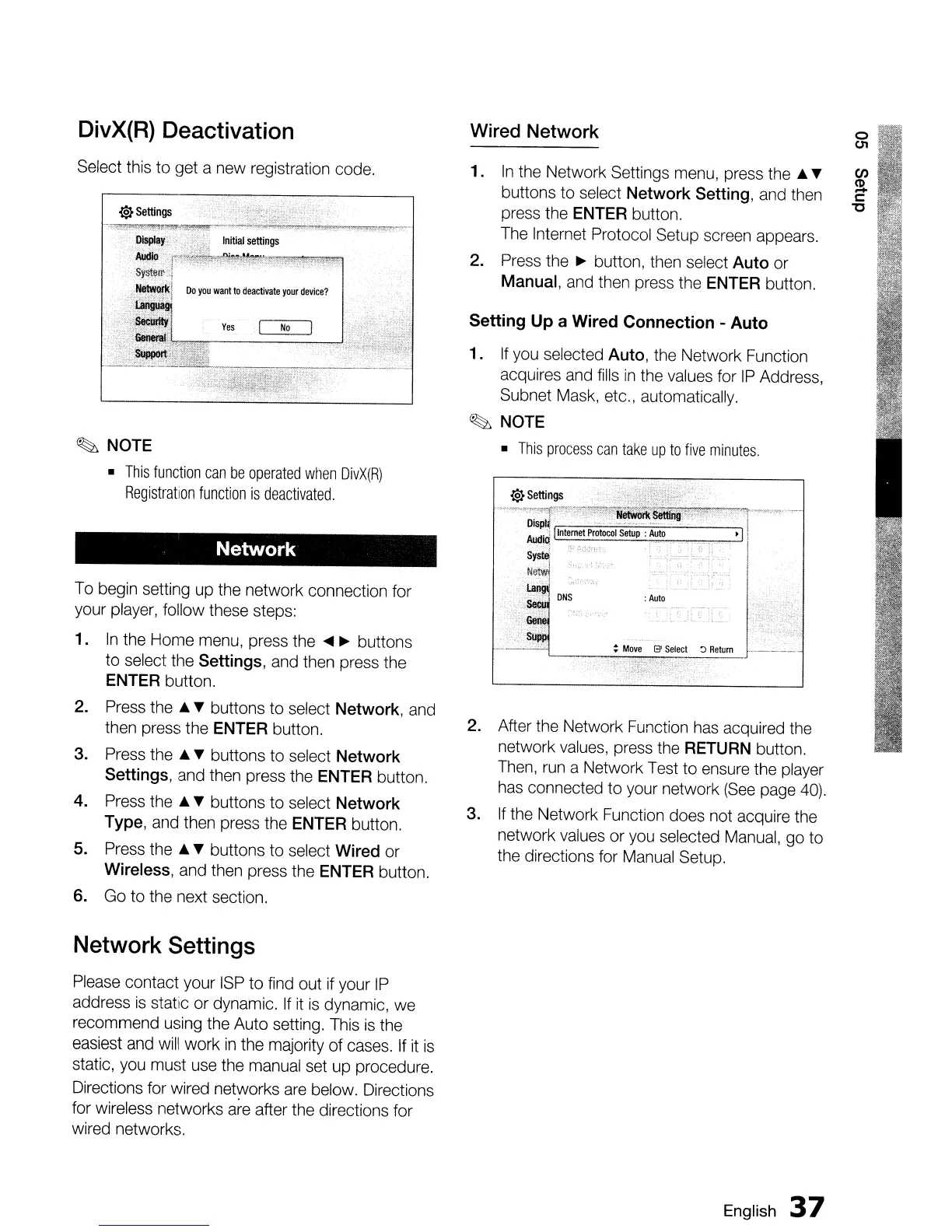
2. After the Network Function has acquired the
network values, press the RETURN button.
Then, run a Network Test
to
ensure the player
has connected
to
your network (See page 40).
3.
If
the Network Function does not acquire the
network values
or
you selected Manual, go to
the directions for Manual Setup.
Wired Network
Setting
Up
a
Wired
Connection
-
Auto
1.
If you selected
Auto,
the Network Function
acquires and fills
in
the values for
IP
Address,
Subnet Mask, etc., automatically.
~
NOTE
•
This
process
can
take
up
to
five
minutes.
1.
In
the Network Settings menu, press
the.
'Y
buttons
to
select
Network
Setting,
and then
press the ENTER button.
The Internet Protocol Setup screen appears.
2. Press the
~
button, then select
Auto
or
Manual,
and then press the ENTER button.
Yes
No
Wi
Settings
.
"_-:,!ij~~~~~lliEE<
.'
..••.
't"!'T:'--rfi!t.,~~
...
..,~,-
.-
.
..,
4
~
~""-,-:
.........
7.oll.~=<_~"~q·E!=_,;:;,""
.•
=,".c_=,"",,
•
..........,.
llisJiIay'
}~~,
Initial
settings
'~
'~f~~~~~~<;(:,r~1i~~';';~;;;'~~:~;:{;'
SY.$t~d!;i
NQtWork1
Do
you
want
to
deactivate
your
device?
""',':',1
...
~
Network
~
NOTE
•
This
function
can
be
operated
when
DivX(R)
Registration
function
is
deactivated.
To begin setting
up
the network connection for
your player, follow these steps:
1.
In
the Home menu, press the
~
~
buttons
to select the
Settings,
and then press the
ENTER button.
2. Press the •
'Y
buttons
to
select
Network,
and
then press the ENTER button.
3.
Press the •
'Y
buttons
to
select
Network
Settings,
and then press the ENTER button.
4. Press the •
'Y
buttons
to
select
Network
Type,
and then press the ENTER button.
5. Press the •
'Y
buttons
to
select
Wired
or
Wireless, and then press the ENTER button.
6. Go
to
the next section.
Select this
to
get a
new
registration code.
DivX(R) Deactivation
Network Settings
Please contact your ISP
to
find out if your
IP
address
is
static
or
dynamic.
If
it
is
dynamic, we
recommend using the Auto setting. This
is
the
easiest and will
work
in
the majority of cases. If it
is
static, you must use the manual set
up
procedure.
Directions for wired networks are below. Directions
for wireless networks are after the directions for
wired networks.
English
37


 To Next Page