EasyManua.ls Logo

Samsung BD-C5900 - Selecting Audio Language; Selecting Subtitle Language; Selecting Picture Setting

Samsung BD-C5900
85 pages
Print Icon
To Next Page IconTo Next Page
To Previous Page IconTo Previous Page
Loading...
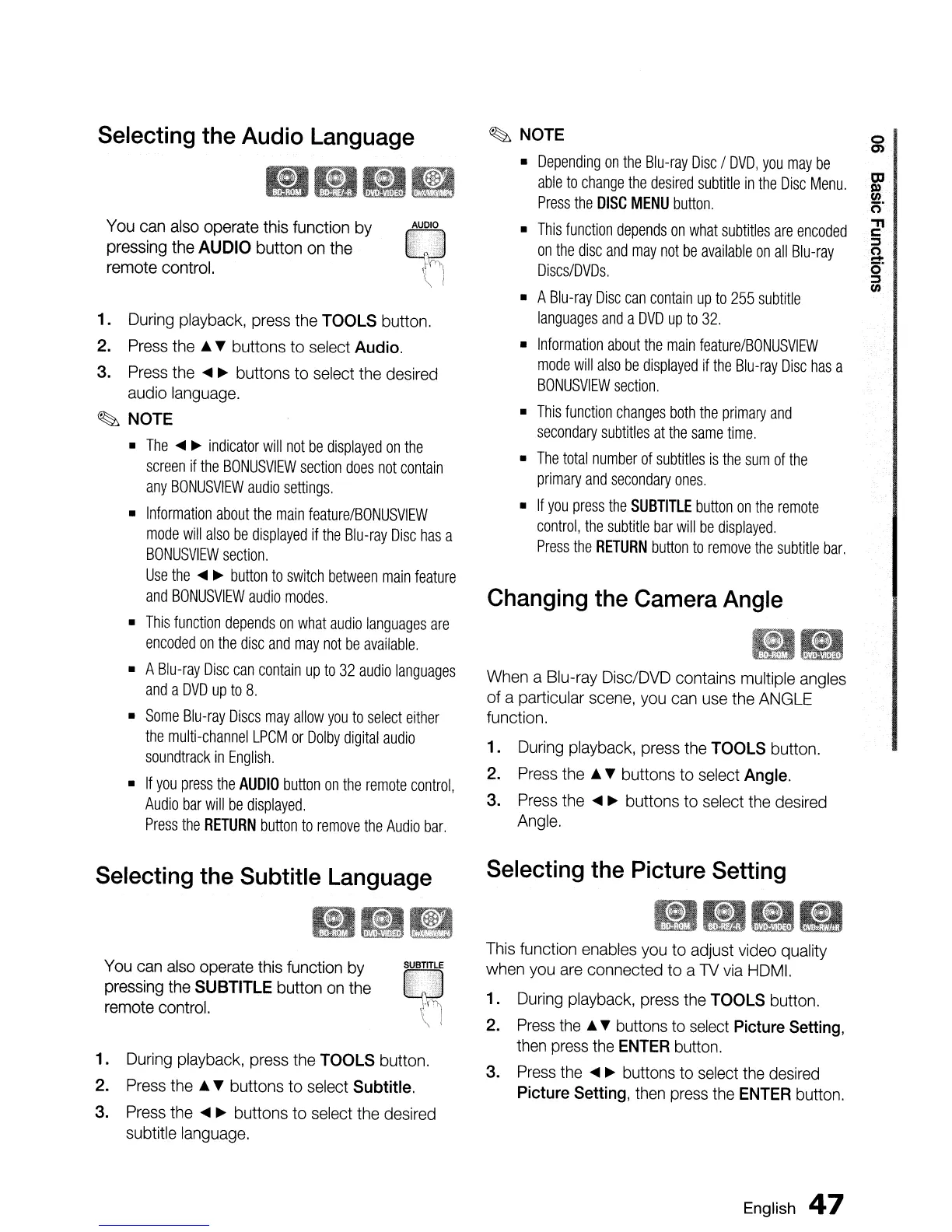
Selecting the
Audio
Language
••••
You
can
also
operate this function
by
pressing the
AUDIO
button
on
the
remote control.
1.
During
playback,
press
the
TOOLS button.
2.
Press
the &
'f'
buttons to select
Audio.
3.
Press
the
....
~
buttons to select
the
desired
audio
language.
~
NOTE
•
The
....
~
indicator
will
not
be
displayed
on
the
screen
if
the
BONUSVIEW
section
does
not
contain
any
BONUSVIEW
audio
settings.
•
Information
about
the
main
feature/BONUSVIEW
mode
will
also
be
displayed
if
the
Blu-ray
Disc
has
a
BONUSVIEW
section.
Use
the
....
~
button
to
switch
between
main
feature
and
BONUSVIEW
audio
modes.
•
This
function
depends
on
what
audio
languages
are
encoded
on
the
disc
and
may
not
be
available.
• A
Blu-ray
Disc
can
contain
up
to
32
audio
languages
and
a
DVD
up
to
8.
•
Some
Blu-ray
Discs
may
allow
you
to
select
either
the
multi-channel
LPCM
or
Dolby
digital
audio
soundtrack
in
English.
•
If
you
press
the
AUDIO
button
on
the
remote
control,
Audio
bar
will
be
displayed.
Press
the
RETURN
button
to
remove
the
Audio
bar.
Selecting
the
Subtitle
Language
•
1.
During
playback,
press
the TOOLS button.
2.
Press
the &
'f'
buttons to select Subtitle.
3.
Press
the
....
~
buttons to select
the
desired
subtitle
language.
~
NOTE
•
Depending
on
the
Blu-ray
Disc
I
DVD,
you
may
be
able
to
change
the
desired
subtitle
in
the
Disc
Menu.
Press
the
DISC
MENU
button.
•
This
function
depends
on
what
subtitles
are
encoded
on
the
disc
and
may
not
be
available
on
all
Blu-ray
Discs/DVDs.
• A
Blu-ray
Disc
can
contain
up
to
255
subtitle
languages
and
a
DVD
up
to
32.
•
Information
about
the
main
feature/BONUSVIEW
mode
will
also
be
displayed
if
the
Blu-ray
Disc
has
a
BONUSVIEW
section.
•
This
function
changes
both
the
primary
and
secondary
subtitles
at
the
same
time.
•
The
total
number
of
subtitles
is
the
sum
of
the
primary
and
secondary
ones.
•
If
you
press
the
SUBTITLE
button
on
the
remote
control,
the
subtitle
bar
will
be
displayed.
Press
the
RETURN
button
to
remove
the
subtitle
bar.
Changing
the
Camera
Angle
When
a Blu-ray Disc/DVD contains multiple
angles
of a particular
scene,
you
can
use
the
ANGLE
function.
1.
During
playback,
press
the
TOOLS button.
2.
Press
the
&
'f'
buttons to select
Angle.
3.
Press
the
....
~
buttons to select
the
desired
Angle.
Selecting
the
Picture
Setting
......
This
function
enables
you
to adjust
video
quality
when
you
are
connected to a
TV
via
HDMI.
1.
During
playback,
press
the
TOOLS button.
2.
Press
the
& 'f'
buttons
to
select
Picture
Setting,
then
press
the
ENTER
button.
3.
Press
the
....
~
buttons
to
select
the
desired
Picture
Setting,
then
press
the
ENTER
button.
English
47
o
en

Table of Contents