EasyManua.ls Logo

Samsung BD-C5900 - Network Services; Using Internet@TV; Getting Started with Internet@TV

Samsung BD-C5900
85 pages
Print Icon
To Next Page IconTo Next Page
To Previous Page IconTo Previous Page
Loading...
Network
Services
You
can
enjoy
various
network
services
such
as
Internet@TV
or
SO-LIVE
by
connecting
the
player
to
the
network
system.
Using Internet@TV
Connect
this
player
to
the
network
to
download
various
for
a
fee
or
free-of-charge
applications.
Internet@TV
brings
useful
and
entertaining
content
and
services
directly
from
the
web
to
your
player
such
as
news,
weather
forecasts,
stock
market
quotes,
games,
movies
and
music.
Getting
Started
with
Internet@TV
4.
When
you
have
agreed
on
the
service
agreement,
the
Internet@TV
service
will
start
being
updated.
It
takes
several
minutes.
When
the
update
is
completed,
you
will
see
the
Internet@TV
menu
screen,
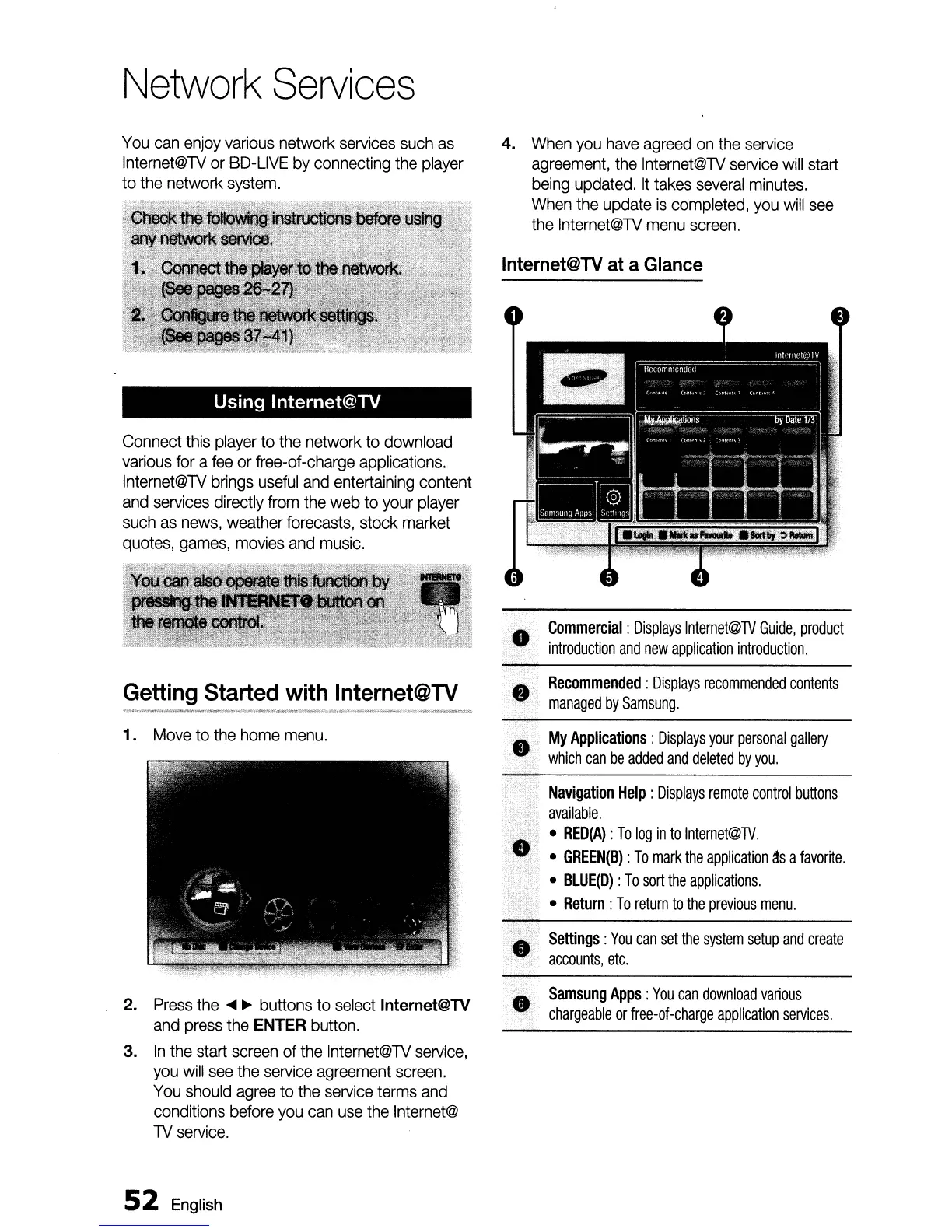
Internet@TV at a Glance
Commercial:
Displays
Internet@TV
Guide,
product
introduction
and
new
application
introduction,
.'
Recommended:
Displays
recommended
contents
managed
by
Samsung.
'...
My
Applications:
Displays
your
personal
gallery
which
can
be
added
and
deleted
by
you.
;."
~~:~~~,:
~~~
can
set
the
system
setup
and
create
Samsung
Apps
:
You
can
download
various
••
chargeable
or
free-of-charge
application
services.
1.
Move
to
the
home
menu.
2.
Press
the
....
~
buttons to
select
Internet@TV
and
press
the
ENTER
button.
3.
In
the
start
screen
of
the
Internet@TV
service,
you
will
see
the
service
agreement
screen.
You
should
agree
to
the
service
terms
and
conditions
before
you
can
use
the
Internet@
TV
service.
52
English
Navigation
Help:
Displays
remote
control
buttons
available,
•
RED(A):
To
log
in
to
Internet@TV.
•
GREEN(B)
:
To
mark
the
application
~s
a
favorite.
•
BLUE(D):
To
sort
the
applications.
•
Return:
To
return
to
the
previous
menu.

Table of Contents