Setup
12. To test the connection, press
the.
button
to select Network Test, and then press the
ENTER button.
Setting Up the Wireless
Network
Connection
- Manual
If
the Auto Setting does not work, you need to
enter the Network settng values manually.
To get the Network setting values from most
Windows computers, follow these steps:
1. Right click the Network icon on the bottom
right of the screen.
2.
In
the pop-up menu, click Status.
3.
On
the dialog that appears, click the Support
tab.
4.
On
the Support tab, click the Details button.
The Network settings are displayed.
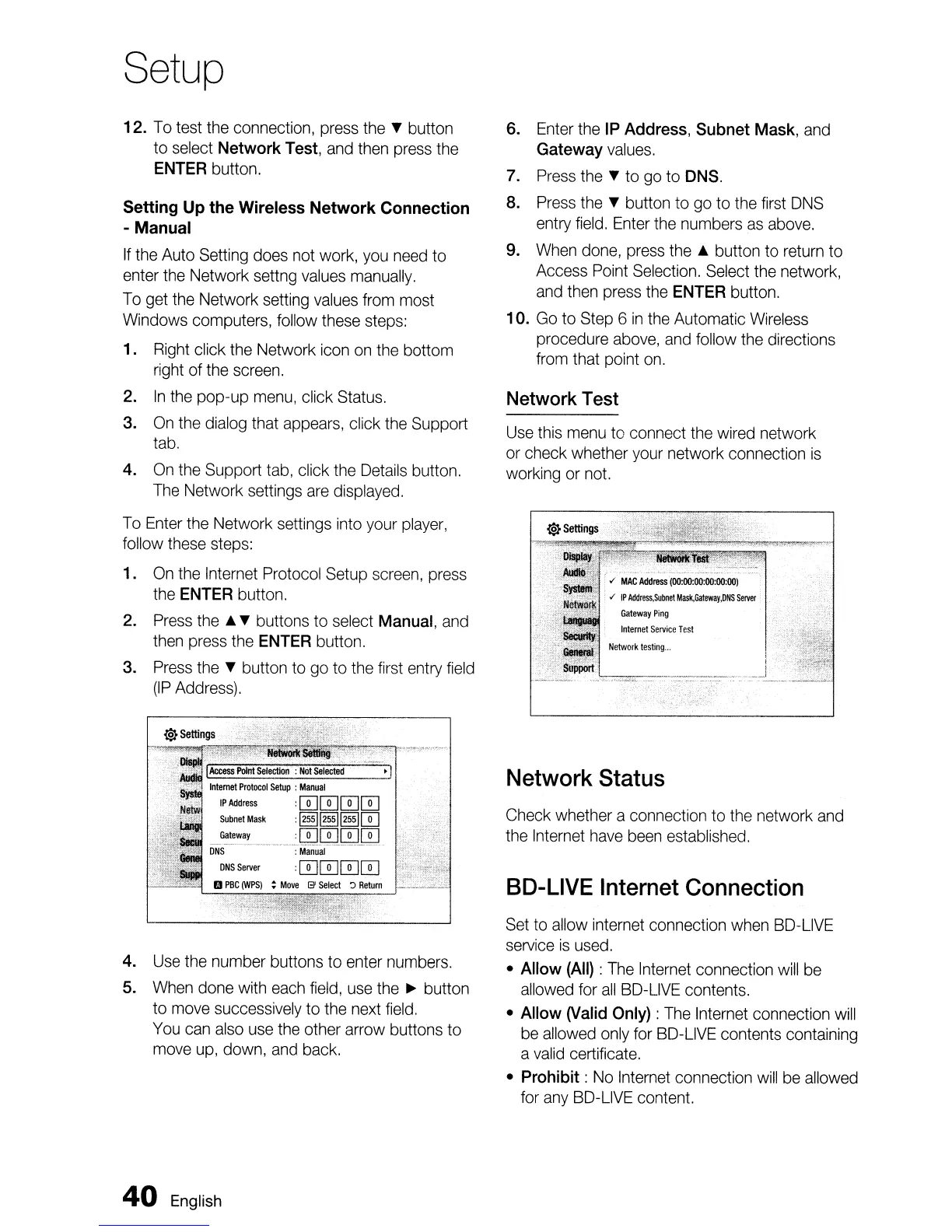
To Enter the Network settings into your player,
follow these steps:
1.
On
the Internet Protocol Setup screen, press
the ENTER button.
2. Press
the'"
• buttons to select Manual, and
then press the ENTER button.
3. Press
the.
button to
go
to the first entry field
(IP
Address).
4.
Use the number buttons to enter numbers.
5. When done with each field, use the
~
button
to move successively to the next field.
You can also use the other arrow buttons to
move up, down, and back.
40
English
6. Enter the IP Address, Subnet Mask, and
Gateway values.
7. Press
the.
to go to DNS.
8. Press
the.
button to go to the first DNS
entry field. Enter the numbers
as
above.
9. When done, press the
...
button to return to
Access Point Selection. Select the network,
and then press the ENTER button.
10. Go to Step 6
in
the Automatic Wireless
procedure above, and follow the directions
from that point on.
Network Test
Use this menu to connect the wired network
or check whether your network connection
is
working or not.
./
MAC
Address
(00'00:00'00:00:00)
'"
IP
Address.Subnet
Mask,Galeway.DNS
Server
Gateway
Ping
Internet
Service
Test
Network
lesting
...
..
--,-.t,
._
Network Status
Check whether a connection to the network and
the Internet have been established.
SO-LIVE
Internet
Connection
Set to allow internet connection when
BD-L1VE
service
is
used.
•
Allow
(All)
: The Internet connection will be
allowed for
all
BD-L1VE
contents.
• Allow (Valid Only) : The Internet connection will
be allowed only for
BD-L1VE
contents containing
a valid certificate.
• Prohibit: No Internet connection will
be
allowed
for any
BD-L1VE
content.


 To Next Page