EasyManua.ls Logo

Samsung BD-C5900 - BD-LIVE Service; Software Upgrade Notification; Using the AllShare Function

Samsung BD-C5900
85 pages
Print Icon
To Next Page IconTo Next Page
To Previous Page IconTo Previous Page
Loading...
Network
Services
BD-L1VETM
Using
the
AIIShare
Function
Once
the
player
is
connected to
the
network,
you
can
enjoy
various
movie-related
service
contents
using
a
BO-L1VE
compliant
disc.
1.
Check
the
size
of
the
remaining
memory.
The
memory
device
must
have
at
least
1
GB
of
free
space
to accommodate
the
BO-L1VE
services.
2.
Insert
a
Blu-ray
disc
that supports
BO-L1VE.
3.
Select
an
item
from
various
BO-L1VE
service
contents
provided
by
the
disc
manufacturer.
~
NOTE
•
The
way
you
use
SO-LIVE
and
the
provided
contents
may
differ,
depending
on
the
disc
manufacturer.
AllShare
enables
you
to
play
music,
video
and
photo
files
in
your
PC
using
the
player.
To
use
AIlShare,
you
must
connect
the
player
to
your
PC
via
the
network
(See
pages
26-
27)
and
install
the
SAMSUNG
PC
Share
Manager
on
the
PC.
1.
Visit
the
Samsung
website
at
www.samsung.
com.
2.
Download
the
SAMSUNG
PC
Share
Manager
and
install
it
on
the
PC.
3.
When
the
installation
is
completed,
you
will
see
the
SAMSUNG
PC
Share
Manager
icon
on
your
desktop.
Double-click
the
icon
to
launch
the
application.
Software
Upgrade
Notification
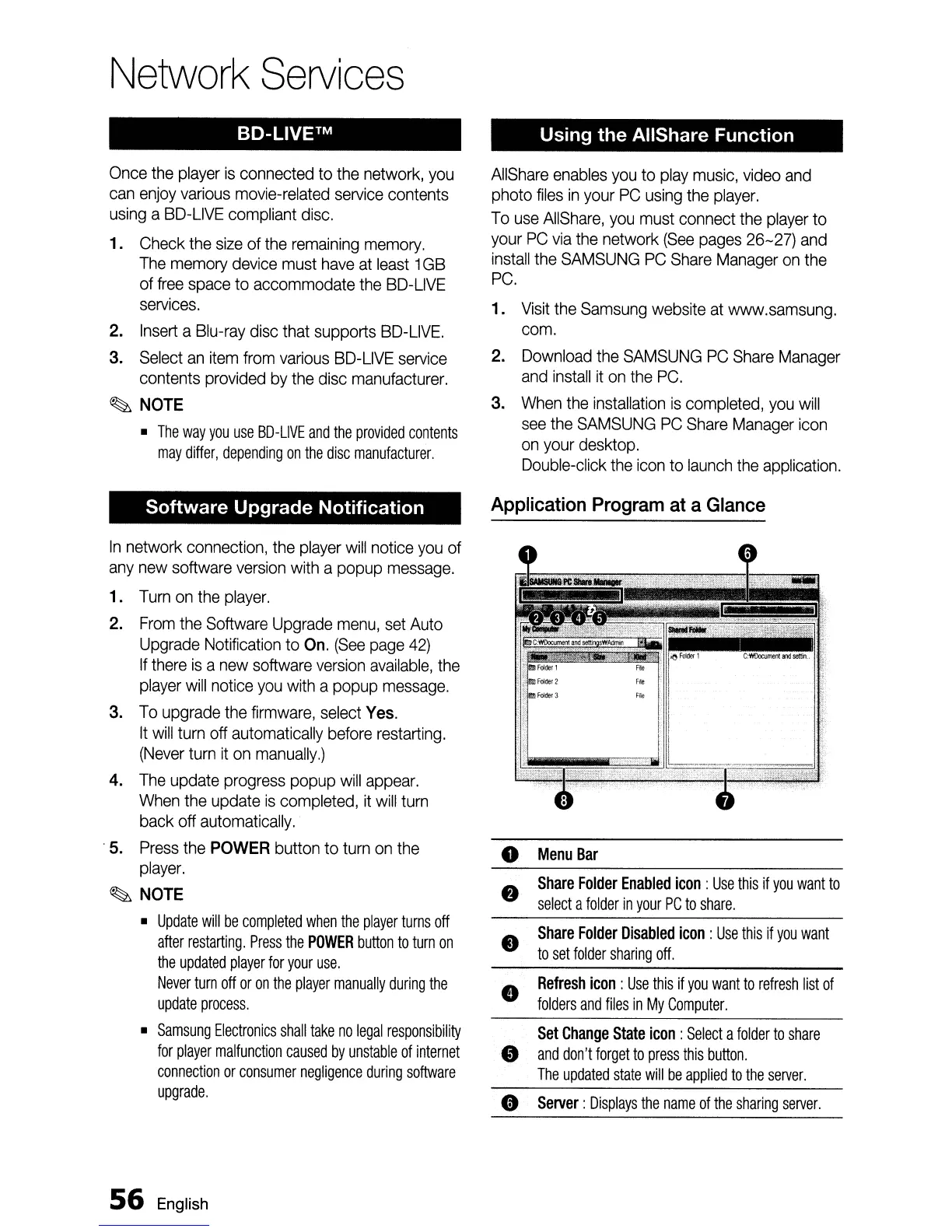
Application Program at a Glance
•
Server:
Displays
the
name
of
the
sharing
server.
o
Menu
Bar
•
Share
Folder
Disabled
icon:
Use
this
if
you
want
to
set
folder
sharing
off.
Share
Folder
Enabled
icon:
Use
this
if
you
want
to
select
a
folder
in
your
PC
to
share.
•
Set
Change
State
icon
:
Select
a
folder
to
share
•
and
don't
forget
to
press
this
button.
The
updated
state
will
be
applied
to
the
server.
8
Refresh
icon:
Use
this
if
you
want
to
refresh
list
of
folders
and
files
in
My
Computer.
In
network connection,
the
player
will
notice
you
of
any
new
software
version
with
a popup
message.
1.
Turn
on
the
player.
2.
From
the
Software
Upgrade
menu,
set
Auto
Upgrade
Notification
to
On.
(See
page
42)
If
there
is
a
new
software
version
available,
the
player
will
notice
you
with
a
popup
message.
3.
To
upgrade
the
firmware,
select
Yes.
It
will
turn
off automatically
before
restarting.
(Never
turn
it
on
manually.)
4.
The
update
progress
popup
will
appear.
When
the
update
is
completed,
it
will
turn
back off automatically.
.
5.
Press
the
POWER
button to
turn
on
the
player.
~
NOTE
•
Update
will
be
completed
when
the
player
turns
off
after
restarting.
Press
the
POWER
button
to
turn
on
the
updated
player
for
your
use.
Never
turn
off
or
on
the
player
manually
during
the
update
process.
•
Samsung
Electronics
shall
take
no
legal
responsibility
for
player
malfunction
caused
by
unstable
of
internet
connection
or
consumer
negligence
during
software
upgrade.
56
English

Table of Contents