EasyManua.ls Logo

Samsung BD-C5900 - Setup Menu; Initial Settings

Samsung BD-C5900
85 pages
Print Icon
To Next Page IconTo Next Page
To Previous Page IconTo Previous Page
Loading...
Setup
Before
Starting
(Initial Settings)
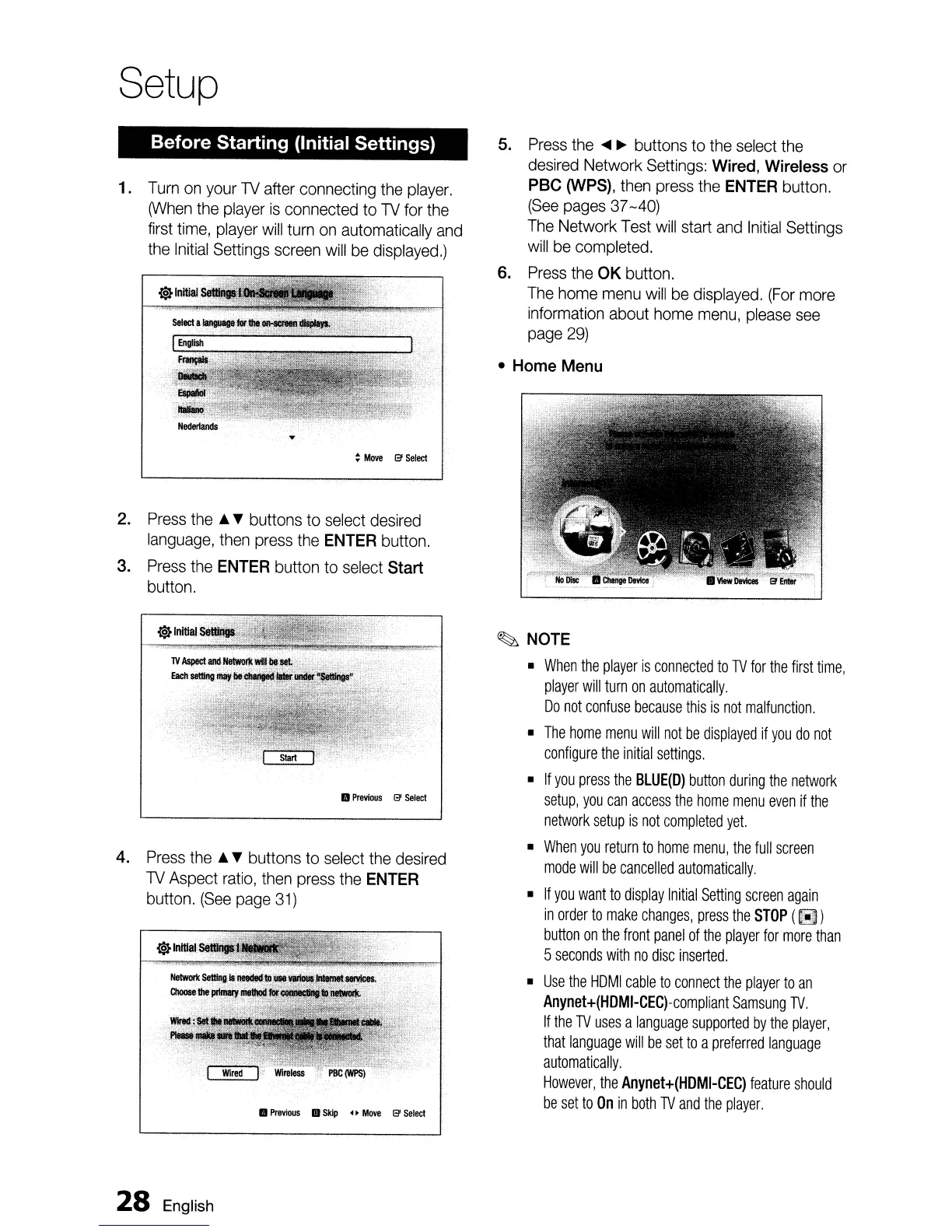
1.
Turn
on
your
lV
after
connecting
the
player.
(When
the
player
is
connected to
lV
for
the
first
time,
player
will
turn
on
automatically
and
the
Initial
Settings
screen
will
be
displayed.)
:
Move
13'
Select
2.
Press
the
A T buttons
to
select
desired
language,
then
press
the
ENTER
button.
3.
Press
the
ENTER
button
to
select
Start
button.
•
Previous
13'
Select
4.
Press
the
A T buttons
to
select
the
desired
lV
Aspect
ratio,
then
press
the
ENTER
button.
(See
page
31)
•
Previous
II
Skip
••
Move
13'
select
28
English
5.
Press
the
....
~
buttons
to
the
select
the
desired
Network
Settings:
Wired, Wireless
or
pse
(WPS),
then
press
the
ENTER
button.
(See
pages
37
-40)
The
Network
Test
will
start
and
Initial
Settings
will
be
completed.
6.
Press
the
OK button.
The
home
menu
will
be
displayed.
(For
more
information
about
home
menu,
please
see
page
29)
• Home Menu
~
NOTE
•
When
the
player
is
connected
to
TV
for
the
first
time,
player
will
turn
on
automatically.
Do
not
confuse
because
this
is
not
malfunction.
•
The
home
menu
will
not
be
displayed
if
you
do
not
configure
the
initial
settings.
•
If
you
press
the
BLUE(D)
button
during
the
network
setup,
you
can
access
the
home
menu
even
if
the
network
setup
is
not
completed
yet.
•
When
you
return
to
home
menu,
the
full
screen
mode
will
be
cancelled
automatically.
•
If
you
want
to
display
Initial
Setting
screen
again
in
order
to
make
changes,
press
the
STOP
(
~
)
button
on
the
front
panel
of
the
player
for
more
than
5
seconds
with
no
disc
inserted.
•
Use
the
HOMI
cable
to
connect
the
player
to
an
Anynet+(HDMI-CEC)-compliant
Samsung
TV.
If
the
TV
uses
a
language
supported
by
the
player,
that
language
will
be
set to
a
preferred
language
automatically.
However,
the
Anynet+(HDMI-CEC)
feature
should
be
set to
On
in
both
TV
and
the
player
.

Table of Contents