Using the Popup Menu Skipping Chapters
o
0')
TITLE
MENU
E.·.·.p~
,-
1\
,
-",
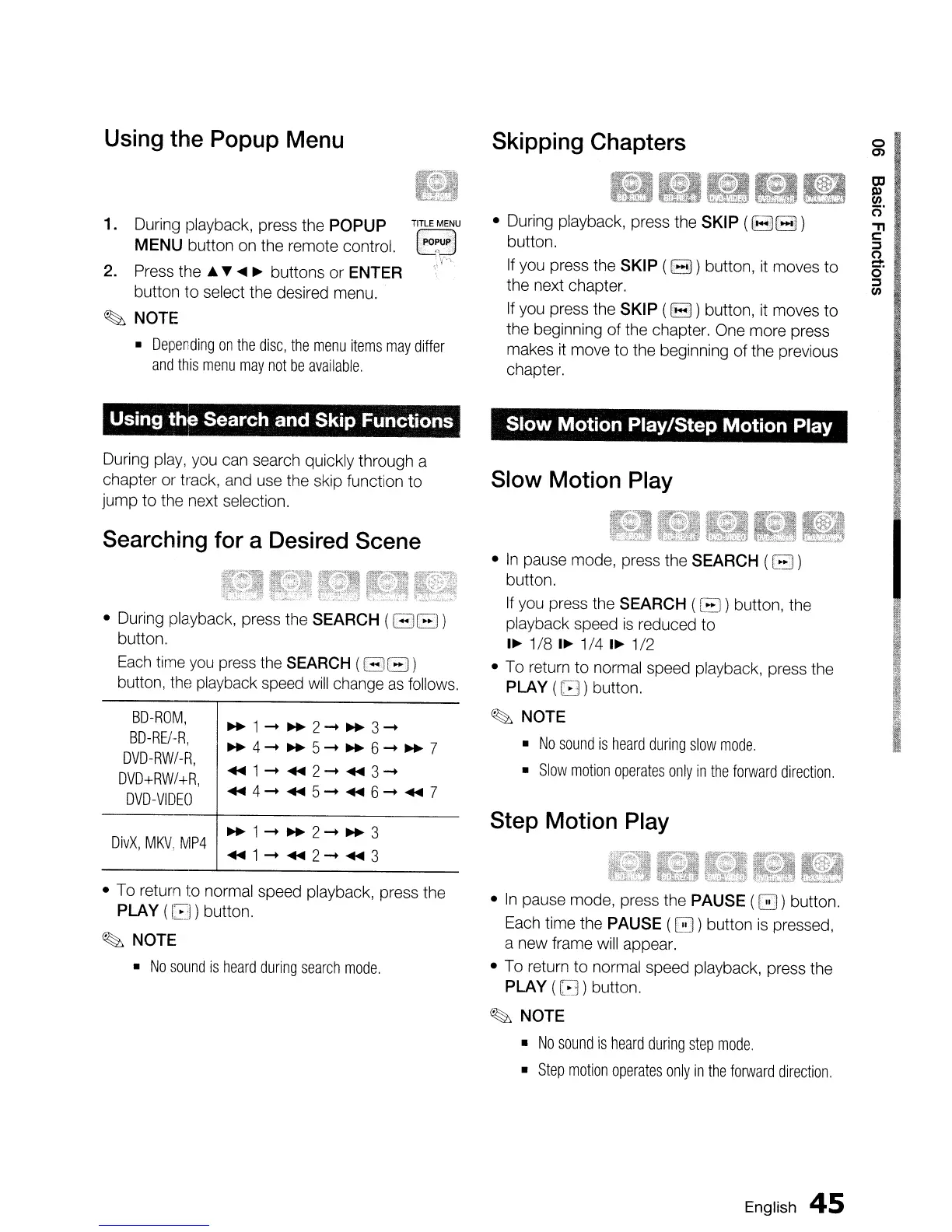
1.
During playback, press the POPUP
MENU
button on the remote control.
2. Press the •
~
....
~
buttons
or
ENTER
button to select the desired menu.
~
NOTE
•
Depending
on
the
disc,
the
menu
items
may
differ
and
this
menu
may
not
be
available.
• During playback, press the
SKIP
(
88
)
button.
If
you press the
SKIP
(B)
button,
it
moves to
the next chapter.
If
you press the
SKIP
(EJ)
button,
it
moves to
the beginning of the chapter. One more press
makes it move to the beginning of the previous
chapter.
Using the Search and Skip Functions
Slow Motion Play/Step Motion Play
Searching for a Desired Scene
During play, you can search quickly through a
chapter
or
tmck, and use the skip function to
jump to the next selection.
I
I
11
I
ill
I
Step Motion Play
•
In
pause mode, press the
SEARCH
(B )
button.
If
you press the
SEARCH
(G)
button, the
playback speed
is
reduced to
I~
1/8
I~
1/4
I~
1/2
• To return to normal speed playback, press the
PLAY
(G)
button.
~
NOTE
•
No
sound
is
heard
during
slow
mode.
•
Slow
motion
operates
only
in
the
forward
direction,
Slow Motion Play
~1-~2-~3
........
1-
........
2-
........
3
~1-+~2-~3-+
~4-~5-~6-~7
........
1-
2-
3-
........
4-
5-+
6-+
........
7
BD-ROM,
BD-RE/-R,
DVD-RW/-R,
DVD+RW/+R,
DVD-VIDEO
DivX,
MKV,
MP4
• During playback, press the
SEARCH
(GEl)
button.
Each
time you press the
SEARCH
(G B )
button, the playback speed
will
change
as
follows.
• To return to normal speed playback, press the
PLAY
(G)
button.
~
NOTE
•
No
sound
is
heard
during
search
mode.
•
In
pause mode, press the
PAUSE
(0)
button.
Each time the
PAUSE
(B )button
is
pressed,
a new frame will appear.
• To return to normal speed playback, press the
PLAY
(G)
button.
~
NOTE
•
No
sound
is
heard
during
step
mode.
•
Step
motion
operates
only
in
the
forward
direction,
English
45


 To Next Page