EasyManua.ls Logo

Samsung BD-C5900 - Using the On-Screen Keypad

Samsung BD-C5900
85 pages
Print Icon
To Next Page IconTo Next Page
To Previous Page IconTo Previous Page
Loading...
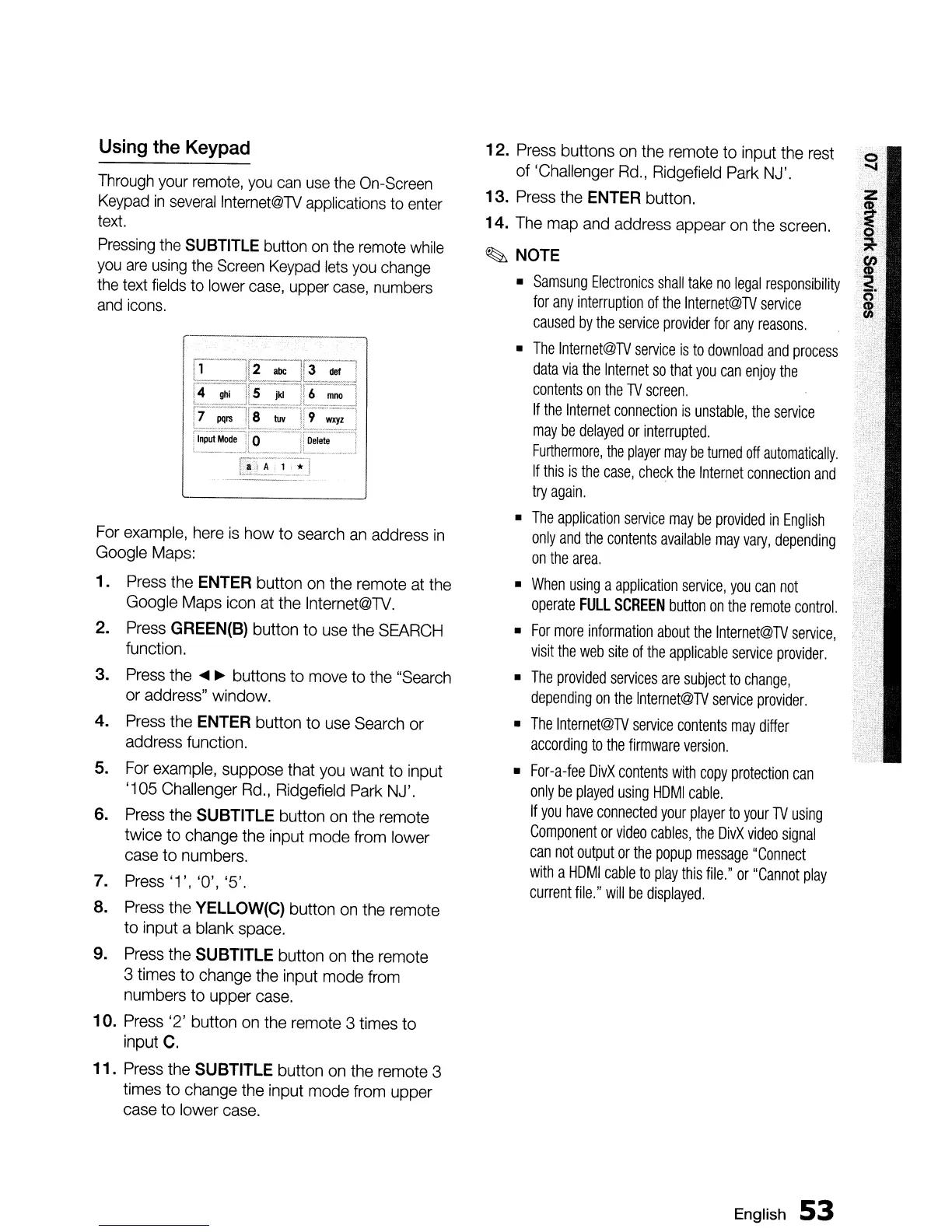
Using
the
Keypad
Through
your
remote,
you
can
use
the
On-Screen
Keypad
in
several
Internet@TV
applications
to
enter
text.
Pressing
the
SUBTITLE
button
on
the
remote
while
you
are
using
the
Screen
Keypad
lets
you
change
the
text
fields
to
lower
case,
upper
case,
numbers
and
icons.
rl'---'"'r2-~-;;;-1!i-";;1
,
__
J,
_.L
.._ ,J
)'
..
- -
..
,,-
..
-.-----,
,
--
1
!4
ghi
Ii
5
jkJ
H6
moo
I
~
__
,~..,J\-
.:'-
l
~---,r------"---··--,
i7
PIlI'S
ii
8
tuv
! 9
wxyz
!
L
~L_.
~_
..
_.
.
..
1
[~~~~.~~~J[~
....
:~=lj~~~~-·~
For
example,
here
is
how
to
search
an
address
in
Google
Maps:
1.
Press
the
ENTER button
on
the remote
at
the
Google
Maps
icon
at
the
Internet@TV.
2.
Press
GREEN{B) button to
use
the
SEARCH
function.
3.
Press
the
....
~
buttons
to
move
to
the
"Search
or
address" window.
4.
Press
the ENTER button to
use
Search
or
address function.
5.
For
example,
suppose that
you
want
to
input
'105 Challenger
Rd.,
Ridgefield
Park
NJ'.
6.
Press
the SUBTITLE button
on
the remote
twice to change the input mode from lower
case
to numbers.
7.
Press
'1', '0', '5'.
8.
Press
the YELLOW{C) button
on
the
remote
to input a blank
space.
9.
Press
the
SUBTITLE button
on
the remote
3
times
to change the input
mode
from
numbers to upper
case.
10.
Press
'2' button
on
the remote 3 times to
input
C.
11.
Press
the
SUBTITLE button
on
the remote 3
times to change the input mode from upper
case
to lower
case.
12.
Press
buttons
on
the
remote
to input the
rest
of 'Challenger
Rd.,
Ridgefield
Park
NJ'.
13.
Press
the
ENTER button.
14.
The
map
and
address appear
on
the
screen.
~
NOTE
•
Samsung
Electronics
shall
take
no
legal
responsibility
for
any
interruption
of
the
Internet@TV
service
caused
by
the
service
provider
for
any
reasons.
•
The
Internet@TV
service
is
to
download
and
process
data
via
the
Internet
so
that
you
can
enjoy
the
contents
on
the
TV
screen.
If
the
Internet
connection
is
unstable,
the
service
may
be
delayed
or
interrupted.
Furthermore,
the
player
may
be
turned
off
automatically.
If
this
is
the
case,
check
the
Internet
connection
and
try
again.
•
The
application
service
may
be
provided
in
English
only
and
the
contents
available
may
vary,
depending
on
the
area.
•
When
using
a
application
service,
you
can
not
operate
FULL
SCREEN
button
on
the
remote
control.
•
For
more
information
about
the
Internet@TV
service,
visit
the
web
site
of
the
applicable
service
provider.
•
The
provided
services
are
subject
to
change,
depending
on
the
Internet@TV
service
provider.
•
The
Internet@TV
service
contents
may
differ
according
to
the
firmware
version.
•
For-a-fee
OivX
contents
with
copy
protection
can
only
be
played
using
HOMI
cable.
If
you
have
connected
your
player
to
your
TV
using
Component
or
video
cables,
the
OivX
video
signal
can
not
output
or
the
popup
message
"Connect
with
a
HOMI
cable
to
play
this
file."
or
"Cannot
play
current
file."
will
be
displayed.
English
53

Table of Contents