Understanding Your Device 24
Capturing Screenshots
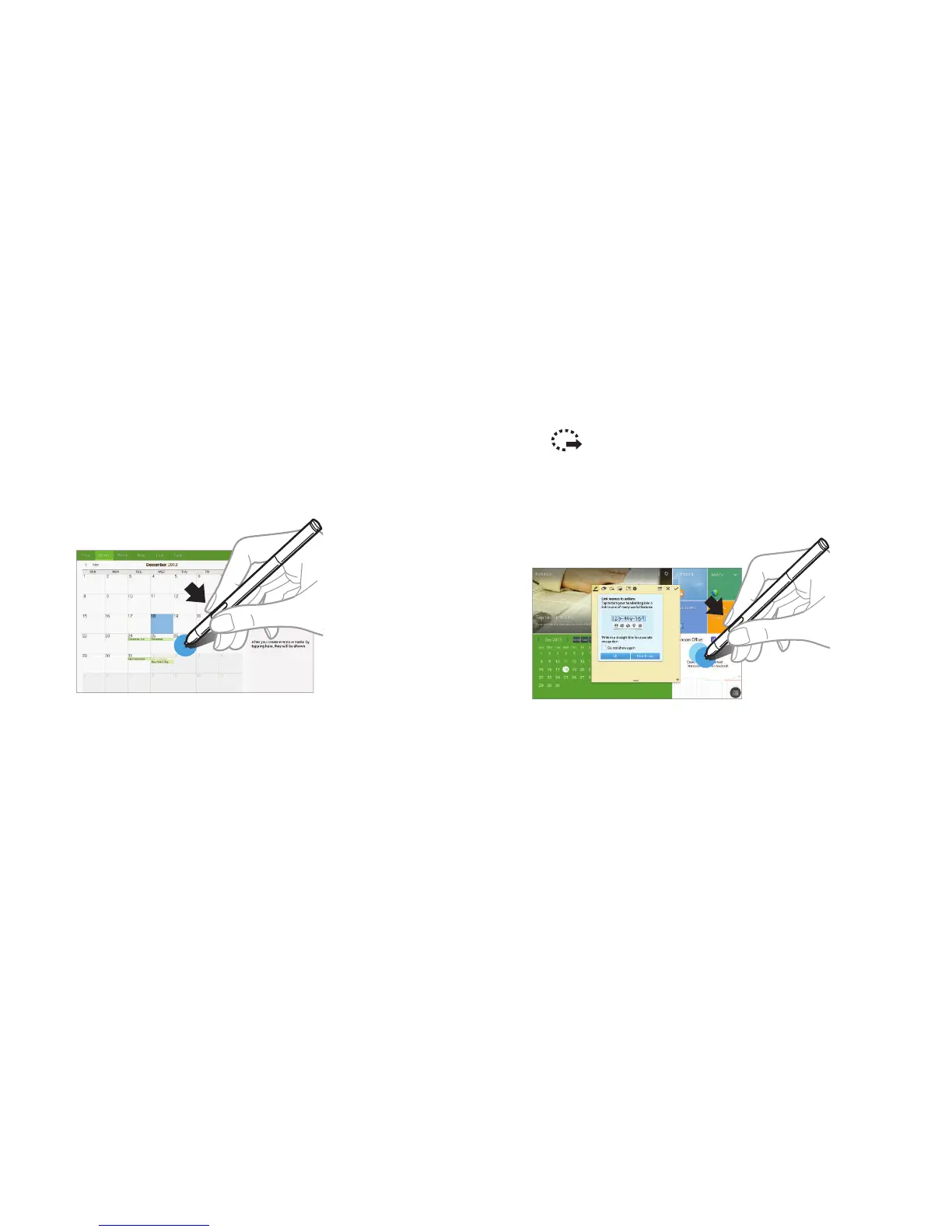
With the S Pen button pressed, touch the screen until you
hear a click.
It is possible to draw or write on or to crop a screenshot. The
edited image is saved in the Gallery ➔ Screenshots folder.
It is not possible to capture a screenshot while using some
applications.
Launching Action Memo
With the S Pen button pressed, double-tap the screen to
launch action memo.
Jot down or draw a note, and then select the memo by
tapping to perform various actions, such as adding
contacts or sending a email. With the memo selected, draw a
line around an area with the S Pen to perform actions with
the selected area.







 To Next Page