25
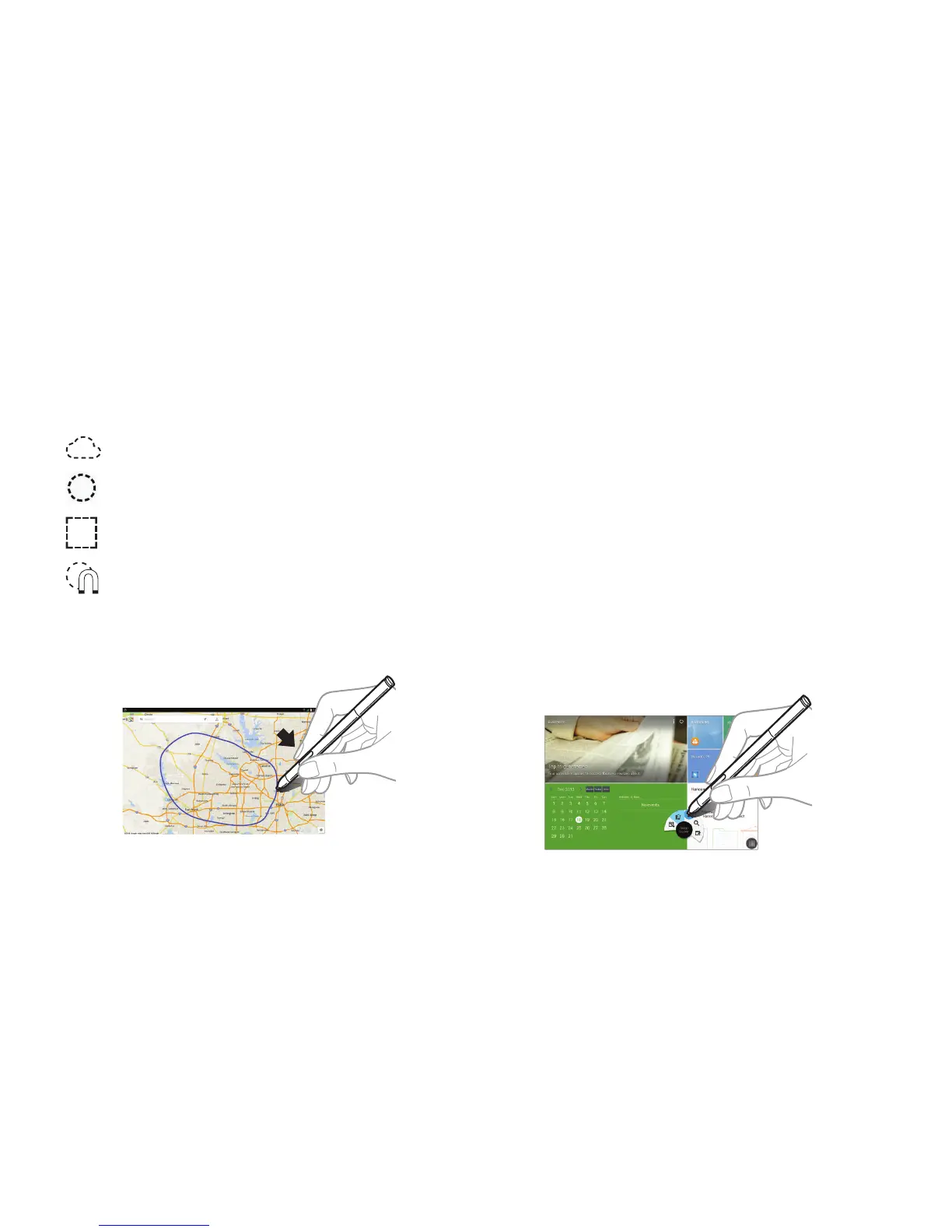
Selecting and Capturing an Image
With the S Pen button pressed, draw a line around an area to
select it.
If necessary, use one of the following options:
Select an application to use with the selected area from the
icons that appear at the bottom of the screen.
Using Air Command
Press the S Pen button while hovering the S Pen over the
screen.
In most cases, general air commands appear on the screen
when pressing the S Pen button.
Use the following actions:
• Action Memo: Launch action memo.
• Scrap booker: Select and capture an image, and then
save the image into Scrapbook.
• Screen Write: Capture a screenshot and edit it with the
SPen.
• S Finder: Launch S Finder.
• Pen Window: Launch multiple applications in specified
areas on the screen.
Restore the original selection.
Convert the selection to circular shape.
Convert the selection to rectangular shape.
Customize the selection.










 To Next Page