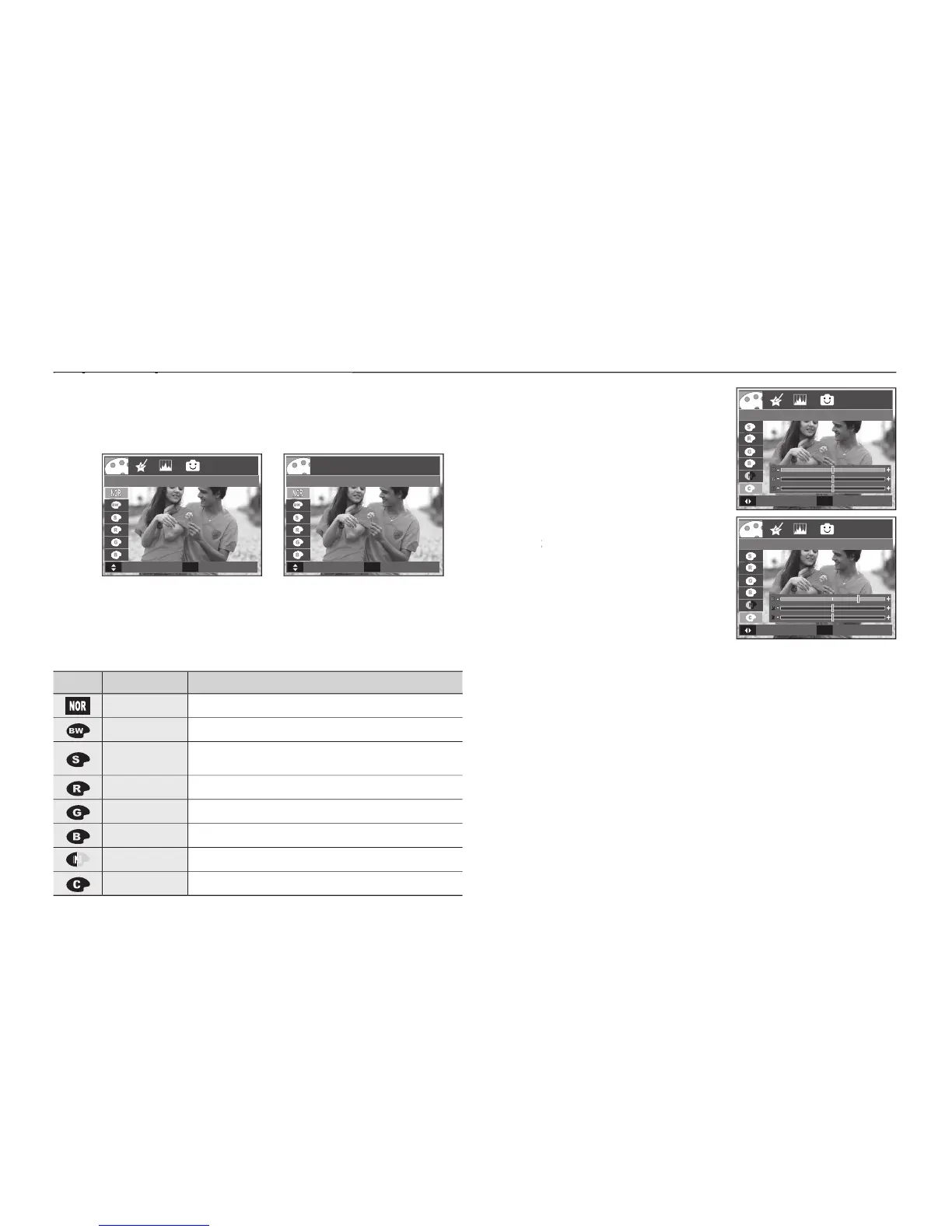
E (Effect) button : Colour
E (Effect) button : Colour
By using the camera’s digital processor, it is possible to add special
button in an available recording mode. (p.41)
Select a desired sub menu by pressing the
button to capture an image.
No colour effect is added to the image.
Captured images will be stored in black and white.
Captured images will be stored in a sepia tone
(a gradient of yellowish brown colours).
Captured images will be stored in a red tone.
Captured images will be stored in a green tone.
Captured images will be stored in a blue tone.
Save the image in negative mode.
Captured image will be saved in set RGB tone.
Custom Color: You can change the
R (Red), G (Green) and B (Blue)
button: Changes the values
In the Auto mode, the Custom Color can’t be selected.
Move
Exit
E
COLOR
Move Exit
E
COLOR
Move
Set
OK
Custom Color
Move
Set
OK
Custom Color



 To Next Page