English-28
Setting up Your PC Software (Based on Widows 2000)
The Windows display-settings for a typical computer are shown below. But the actual screens on your
PC will probably be different, depending upon your particular version of Windows and your particular
video card. But even if your actual screens look different, the same, basic set-up information will apply
in almost all cases. (If not, contact your computer manufacturer or Samsung Dealer.)
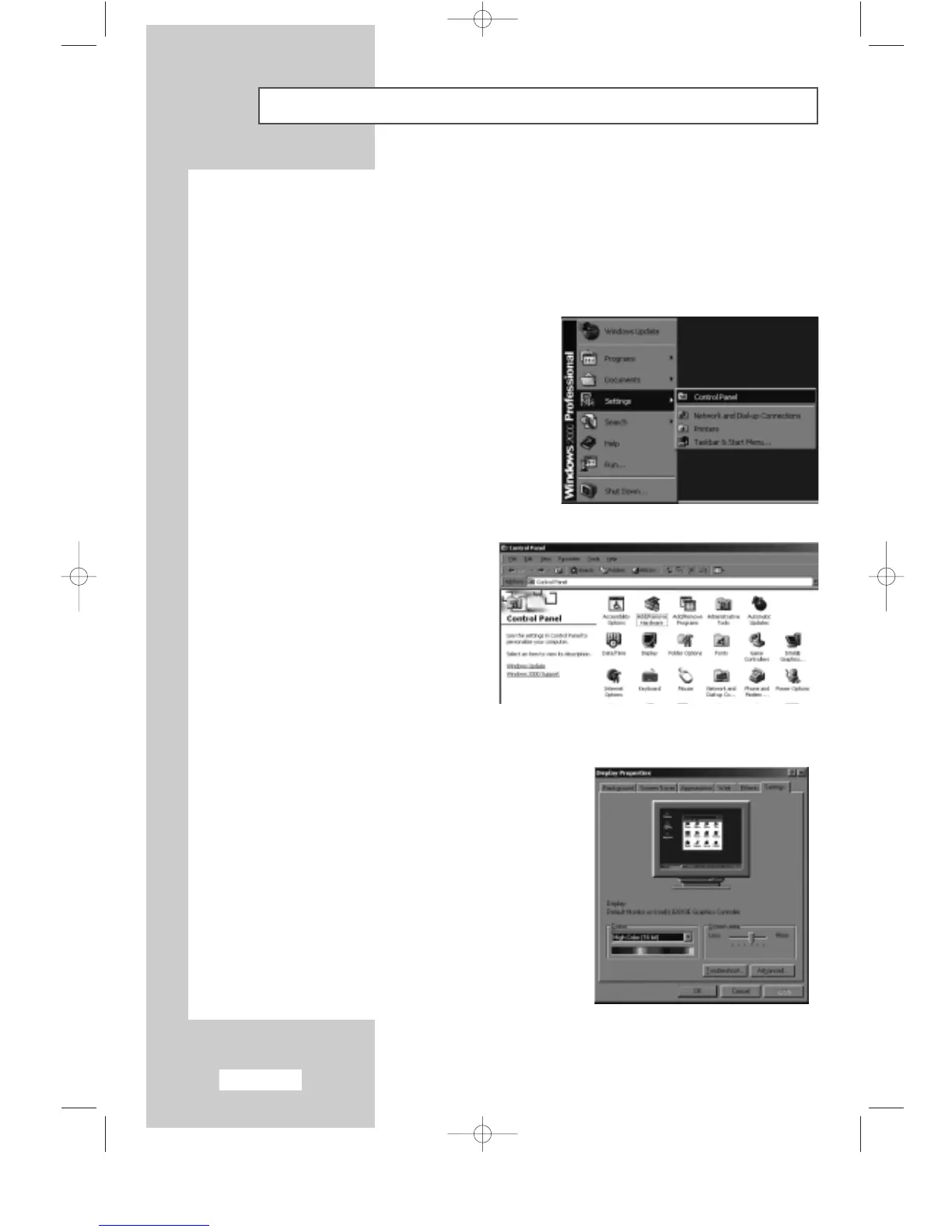
1 First, click on “Settings” on the Windows start menu.
While “
Settings” is highlighted, move the cursor
so that “
Control Panel” is highlighted.
3 Navigate to the “Settings” tab on the display dialog-box.
The correct setting of size (resolution)
- 15” : 1024 x 768 pixels
- 17” : 1280 x 1024 pixels
If a vertical-frequency option exists on your display
settings dialog box, the correct value is “
60” or “60 Hz”.
Otherwise, just click “
OK” and exit the dialog box.
2 When the control panel screen appears,
click on “
Display” and a display
dialog-box will appear.
BN68-00438D-02_en 6/11/03 7:12 PM Page 28


 To Next Page