3-23
Chapter 3.Using The Computer
■
Creating an Album
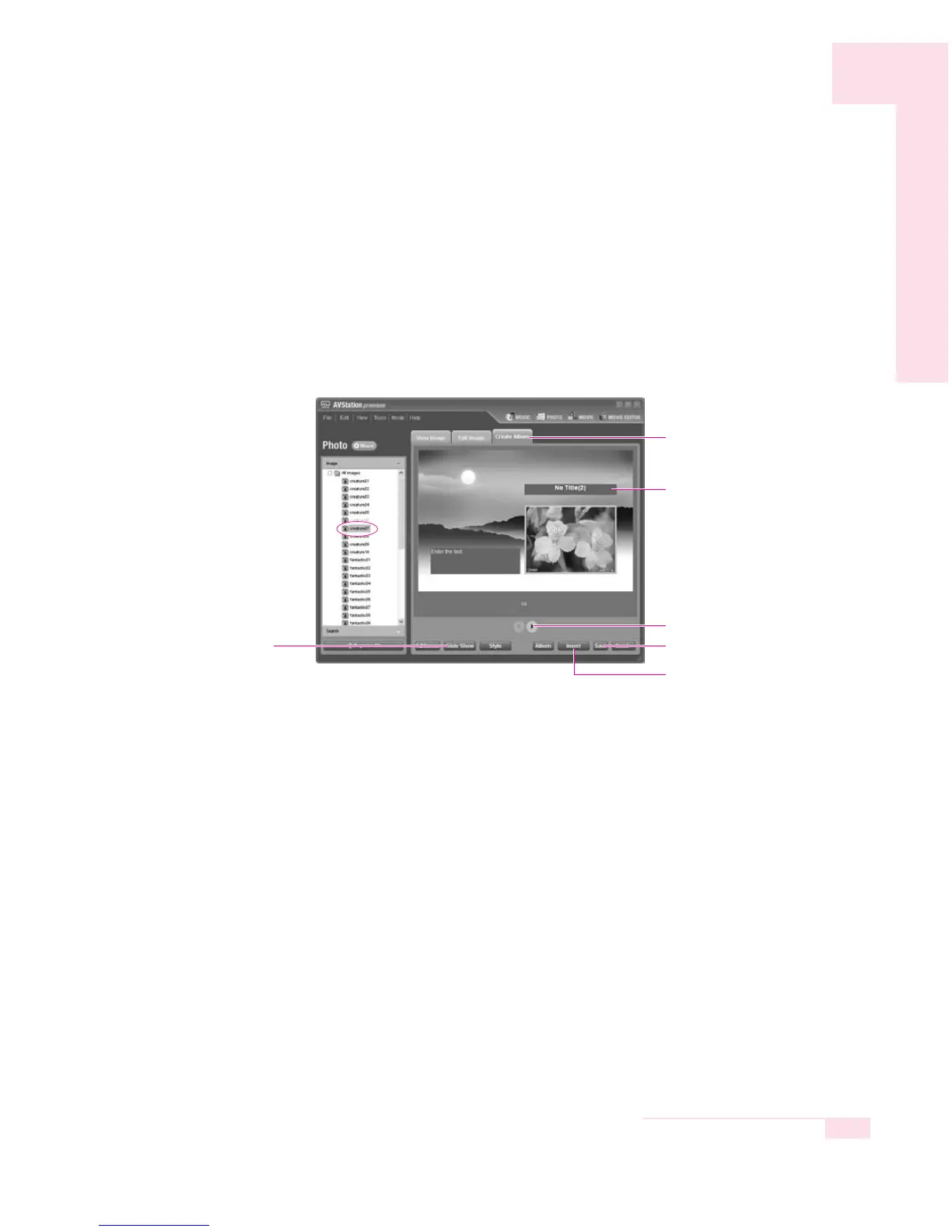
1. Select the Create Album tab.
2. Select an album cover style and click Apply to apply the selected style to the
album cover.
3. Enter the title and contents of the album, insert an image and then click ▶
(Move to next page).
- To insert an image into an album cover, select a file in the All Image pane
on the left and then click the Insert button or double-click the file to be
inserted.
4. Create an album by adding images and image descriptions to the album.
5. When creating an album is complete, click on Save to create the album.
The created album is saved in the My Documents > AVStation premi-
um > Photo > Photo Album folder and will be displayed in the Album
category.
- To view an album, double-click on Image in the left category pane and
double-click on Album. Click on Slide Show in the Image window to view
the images within the album through the Slide Show.
■ Burning an Album onto a CD
1. Double-click on the album to be burnt to CD in the left Album category.
2. Insert a blank CD into the CD-RW drive. When the CD Drive window
appears, click on Cancel.
3. Select Send > Burn CD from the menu at the bottom of the Album window.
4. Enter the CD title in the Burn a CD window and then click OK to burn a CD
with the album.
Create Album Tab
▶
(Move to next page) Button
Enter the Title and
Contents of the Album
Save Button
Insert Button
Slide Show Button


 To Next Page