57
Connecting a Monitor
Using an external display device is useful when you are giving a presentation or watching a video or movie through
your monitor.
Before You Start!
You have to buy a connection cable additionally.
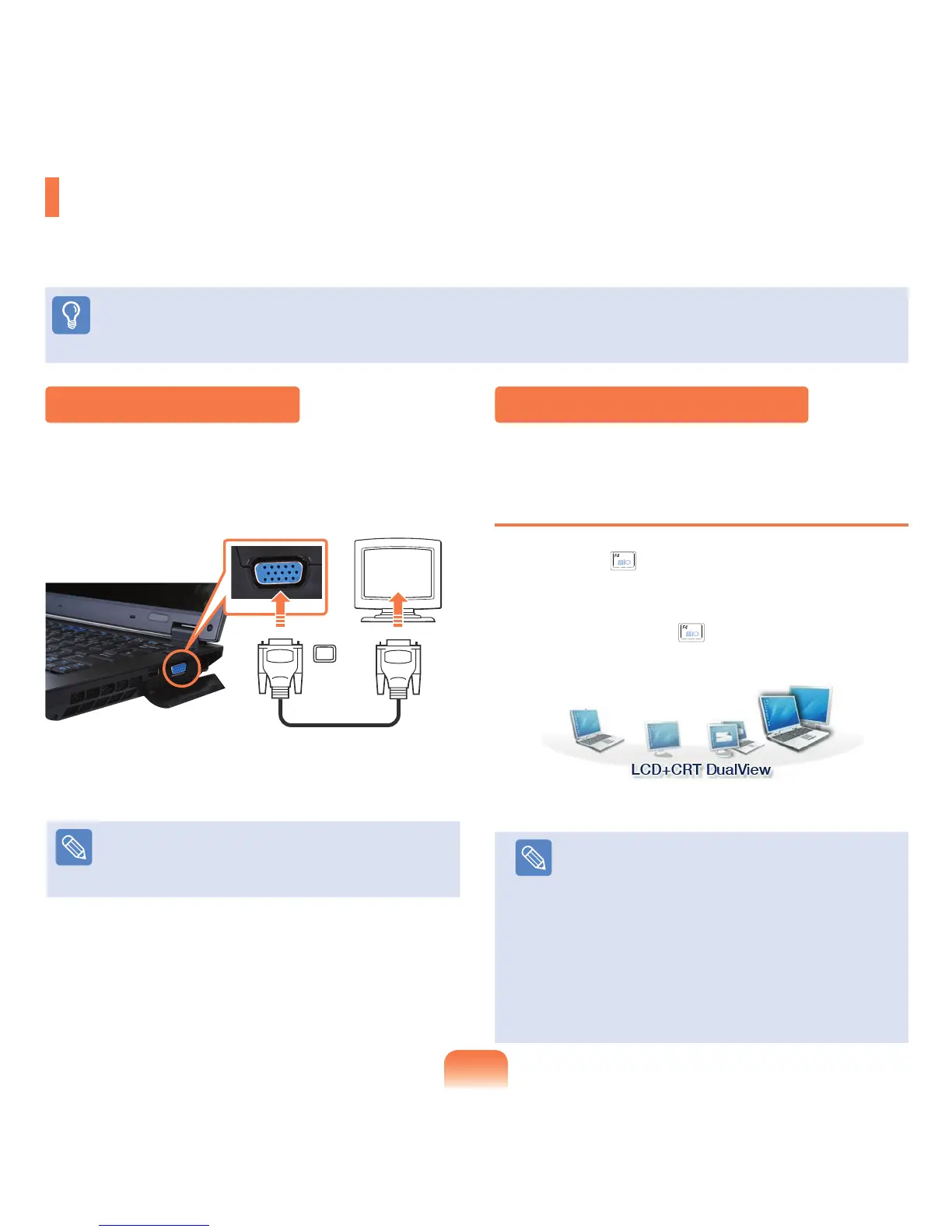
Pull the cover forwards holding the groove at the side to
open it and connect the monitor to the monitor port.
Connecting a Monitor Viewing Through a Monitor
You can switch the display device using the shortcut key.
Switching the Display Device using the
Shortcut Key
Press the Fn + ( ) key combination once. Then the
Easy Display Manager screen appears in which you can
select a display device.
Whenever you press the ( ) key while holding down the
Fn key, the selected option is changed.
Note
LCD: Notebook Screen
CRT: External Monitor Screen
LCD+CRT Clone : Notebook+ External Monitor
Screen
LCD+CRT DualView:
Notebook+ External Monitor
Screen in Dual View
What is Dual View?
Dual View is a function that enables you to view
a computer screen over two display devices. It is
convenient when you need a wide screen.
Example) Selecting LCD+CRT Dual View
Note
You can also connect a TV or projector supporting a
monitor port (15-pin, D-Sub).


 To Next Page