ENGLISH
2020
Preparation
Using the QUICK MENU
✤ QUICK MENU is used to access Camcorder functions by using the
[QUICK MENU] button.
✤ QUICK MENU provides easier access to frequently used menus without
using the [MENU] button.
✤ Functions available using the QUICK MENU are as below:
Camera Mode
■
Setting the Digital Image Stabilizer (DIS) ➥page 55
■
Programed Automatic Exposure Modes (Program
AE) ➥page 49
■
Setting the 16:9 Wide ➥page 54
■
Setting the White Balance (White Balance) ➥page 51
■
Setting the Shutter Speed (Shutter)- Only can be
operated by using the QUICK MENU ➥page 47
■
Setting the Exposure (Exposure)- Only can be operated
by using the QUICK MENU ➥page 47
■
Setting the Back Light Compensation (BLC) ➥page 41
M.Cam Mode
■
Setting the Memory Type (Memory Type) ➥page 70
■
Setting the White Balance (White Balance) ➥page 51
■
Setting the Photo Quality (Photo Quality) ➥page 71
■
Setting the Exposure (Exposure)- Only can be operated
by using the QUICK MENU ➥page 47
■
Setting the Back Light Compensation (BLC) ➥page 41
M.Player Mode
■
Setting the Memory Type (Memory Type) ➥page 70
■
Playing the Moving Images (MPEG) on the Memory Card
(M. Play Select) ➥page 80
■
Deleting Photo Images and Moving Images (Delete)
➥page 76
■
Protection from accidental Erasure (Protect) ➥page 75
■
Marking Images for Printing (Print Mark) ➥page 84
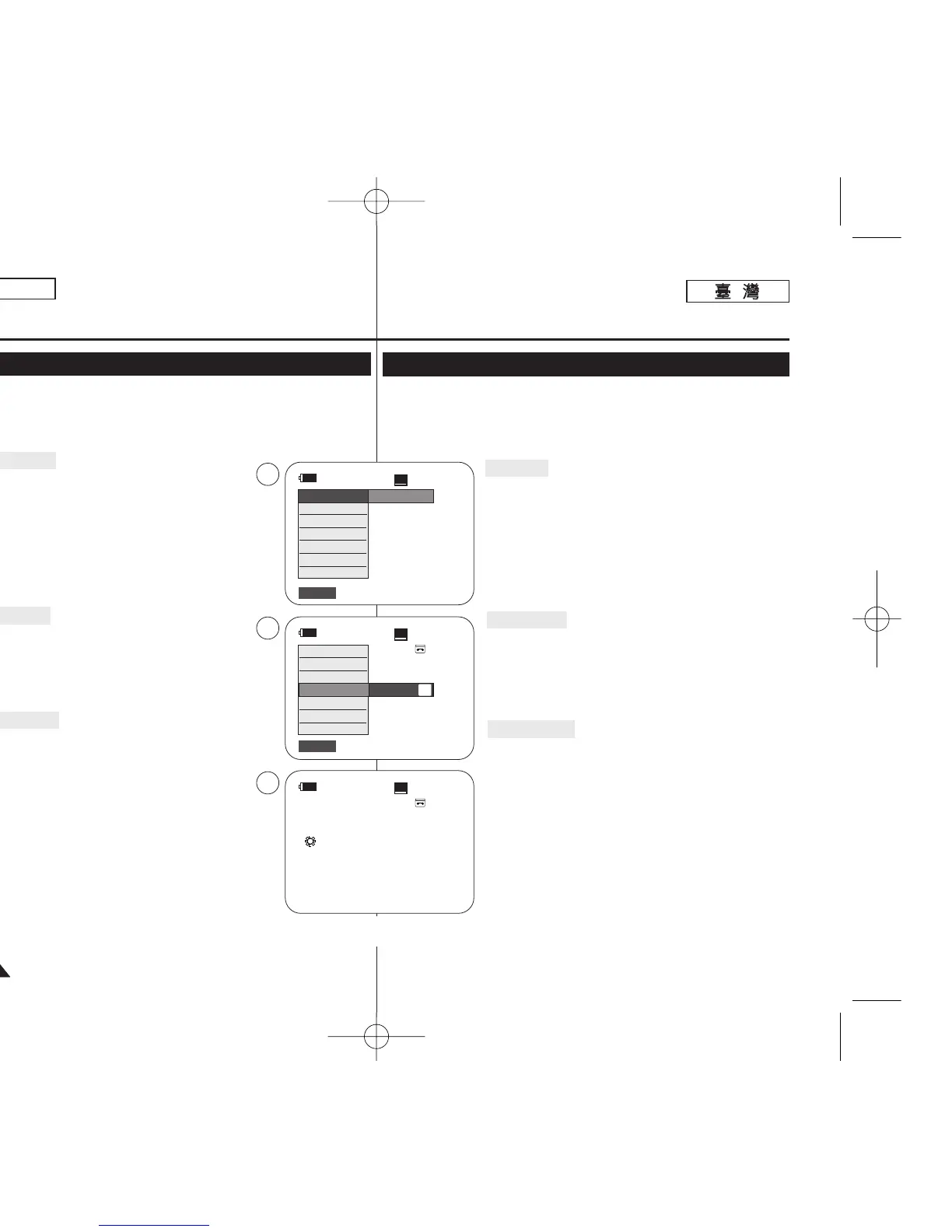
For example: Setting the White Balance
1. Press the [QUICK MENU] button.
The quick menu list will appear.
2. Move the [Zoom] lever to the up or down to select
<White Balance>, then press the [OK] button.
3. Move the [Zoom] lever to the up or down to select
desired mode (Auto, Indoor, Outdoor or Custom WB),
then press the [OK] button.
4. To exit, press the [QUICK MENU] button.
準準備備工工作作
使使用用快快速速選選單單
✤ 秦z過使用 [QUICK MENU]
((快快速速選選單單))
按瞿卽可使用快速選單存取攝錄放影
機的各項功能0
✤ 祐跌t選單提供在不使用 [MENU]
((選選單單))
按瞿的情況下,更方便存取經常使
用的選單的方法0
✤ 祠拗僚跌t選單的可用功能如下:
相相機機模模式式
■
設定數位防手震功能 (DIS) ➥第 55 頁
■
程序自動曝光模式 (Program AE) ➥第 49 頁
■
設定 16:9 寬螢幕 ➥第 54 頁
■
設定白平衡(白平衡)➥第 51 頁
■
設定快門速度(快門)- 僅可透過使用快速選單來操作
➥第 47 頁
■
設定曝光(曝光)- 僅可透過使用快速選單來操作
➥第 47 頁
■
設定 BLC(背光補償)➥第 41 頁
M.Cam
模模式式
■
設定記憶體類型(記憶體類型)➥第 70 頁
■
設定白平衡(白平衡)➥第 51 頁
■
設定相片品質(相片品質)➥第 71 頁
■
設定曝光(曝光)- 僅可透過使用快速選單來操作
➥第 47 頁
■
設定 BLC(背光補償)➥第 41 頁
M.Player
模模式式
■
設定記憶體類型(記憶體類型)➥第 70 頁
■
播放記憶賓上的動態影像 (MPEG)(M. Play 選擇)
➥第 80 頁
■
刪除相片影像和動態影像(刪除)➥第 76 頁
■
保護以防止意外刪除(保護)➥第 75 頁
■
標記要列印的影像(列印標記)➥第 84 頁
例例如如:: 設設定定白白平平衡衡
1. 按下 [QUICK MENU]
((快快速速選選單單))
按瞿0
快速選單淸單將會顯示0
2. 向上或向下移動 [Zoom]
((縮縮放放))
桿以選擇 <White
Balance>
((白白平平衡衡))
,然後按下 [OK]
((確確定定))
按瞿0
3. 向上或向下移動 [Zoom]
((
縮放)桿以選擇所要的模式
((
Auto
//
Indoor
//
Outdoor或 Custom WB
))
,然後按
下 [OK]
((確確定定))
按瞿0
4. 按 [QUICK MENU]
((快快速速選選單單))
按瞿以結束0
60min
0:00:10
SP
STBY
DIS
Program AE
16:9 Wide
White Balance
Shutter
Exposure
BLC
…
†
Auto
60min
0:00:10
SP
STBY
Exit
Q.MENU
Exit
Q.MENU
Off
A
1
2
4
60min
0:00:10
SP
STBY
œ
<When the Outdoor option was selected>
DIS
Program AE
16:9 Wide
White Balance
Shutter
Exposure
BLC
00970F SCD363 TAI~022 1/12/06 3:16 PM 페이지20 001 QMS 1660E




 To Next Page