ENGLISH
5151
Advanced Recording
Setting the White Balance
✤ The White Balance function works in both <Camera> and <M.Cam> modes. (SC-
D363/D364/D365/D366 only) ➥page 19
✤ The White Balance is a recording function that preserves the unique image color of the
object in any recording condition.
✤ You may select the appropriate White Balance mode to obtain good quality image color.
■
<Auto ( )> : This mode is generally used to control the
White Balance automatically.
■
<Indoor ( )> : This controls the White Balance
according to the indoor ambience.
- Under halogen or studio/video lighting
- Subject is of one dominant color
- Close up
■
<Outdoor ( )> : This controls the White Balance according
to the outdoor ambience.
- In daylight, especially for close up and where the subject
is of one dominant color.
■
<Custom WB ( )> : You can adjust the white balance
as you wish based on the shooting environment.
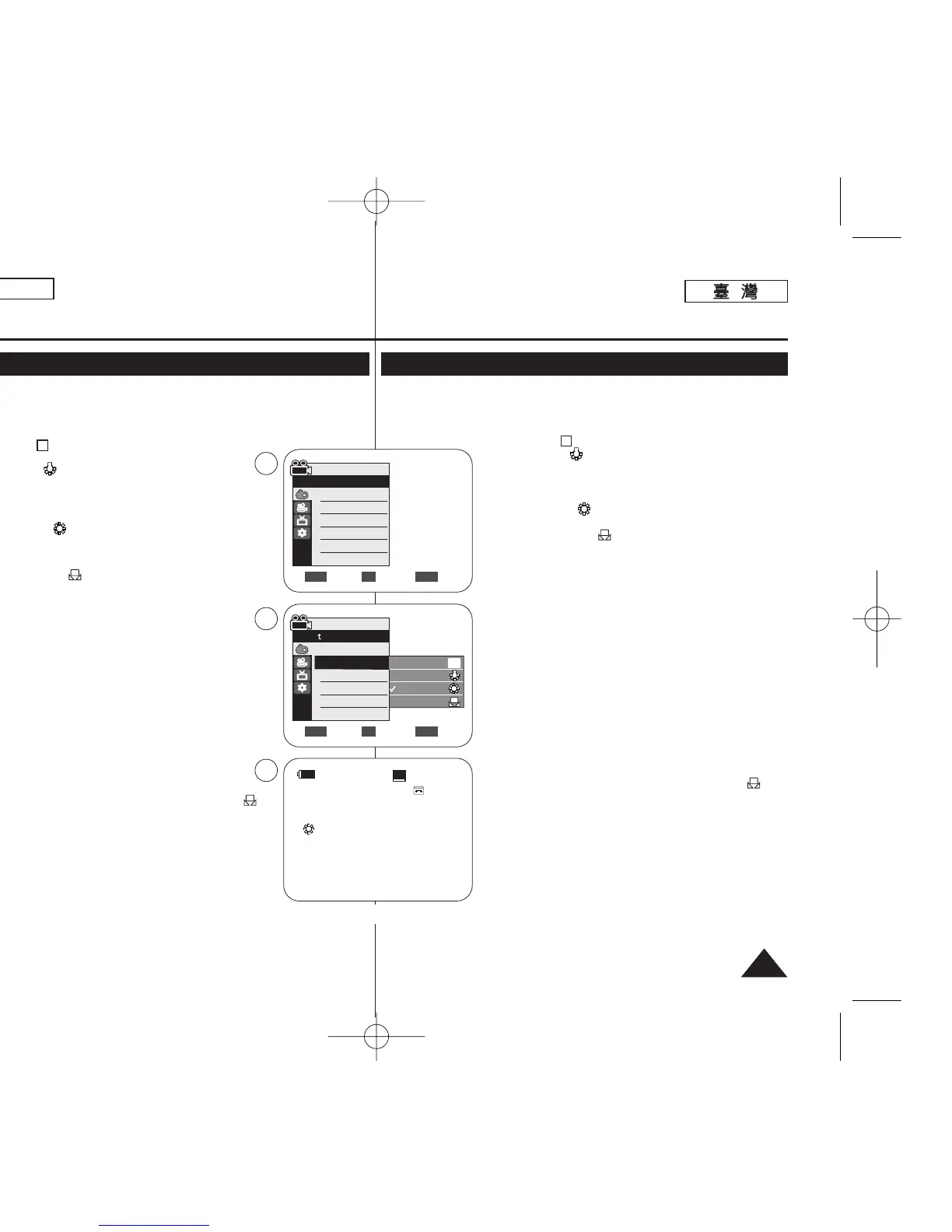
1. Set the [Power] switch to [CAMERA].
2. Set the [Mode] switch to [TAPE] or [MEMORY].
(SC-D363/D364/D365/D366 only)
3. Press the [MENU] button.
■
The menu list will appear.
4. Move the [Zoom] lever to the up or down to select <Camera>,
then press the [OK] button.
5. Move the [Zoom] lever to the up or down to select <White
Balance>, then press the [OK] button.
6. Move the [Zoom] lever to the up or down to select desired mode
(Auto, Indoor, Outdoor or Custom WB), then press
the [OK] button.
■
To explain about the Custom WB:
- Select Custom WB and press the OK button. (“set
white balance” will appear and blinks on the screen.)
- Place the white object under the desired lighting then
press the OK button.
(The OSD will disappear and the Custom WB icon ( )
will be displayed.)
7. To exit, press the [MENU] button.
■
When the <Auto> mode is selected, no icon is displayed.
[ Notes ]
■
Direct accessing the White Balance function is available simply
using the [QUICK MENU] button. ➥page 20
■
The White Balance function will not operate in EASY.Q mode.
■
Turn the Digital Zoom off (if necessary) to set a more accurate
white balance.
■
Reset the white balance if lighting conditions change.
■
During normal outdoor recording, setting to Auto may provide better results.
■
Buttons other than EASYQ, [MENU] and [OK] will not work during setting the Custom WB.
■
Pressing the [MENU] button while setting the Custom WB will cancel the Custom WB
setting and sets the White Balance to Auto.
A
進進階階錄錄製製
設設定定白白平平衡衡
✤ 白平衡功能可在 <Camera> 和 <M.Cam> 模式下操作0
(僅限 SC-D363/D364/ D365/D366)
➥第 19 頁
✤ 白平衡是在任何錄製條件下保持物體獨特影像顔色的錄製功能0
✤ 舅可選擇適當的白平衡模式以取得品質優良的影像顔色0
■
<Auto ( )>: 此模式一般用來自動控制白平衡0
■
<Indoor ( )>: 這將根據室內環境控制白平衡0
- 在鹵光燈或影棚/錄影燈光下
- 主體顔色突出
- 特寫
■
<Outdoor ( )>: 這將根據戶外環境控制白平衡0
■
在陽光下,尤其爲顔色突出的主體拍攝特寫時0
■
<Custom WB ( )>: 舅可以根據拍攝環境調整舅要
的白平衡0
1. 將 [Power]
((電電源源))
開關設定爲 [CAMERA]0
2. 將 [Mode]
((模模式式))
開關設定爲 [TAPE]
((錄錄影影帶帶))
或 [MEMORY]
((記記憶憶賓賓))
0(僅限 SC-D363/D364/ D365/D366)
3. 按下 [MENU] 按瞿0
■
選單淸單將會顯示0
4. 向上或向下移動 [Zoom]
((縮縮放放))
桿以選擇 <Camera>,然後
按下 [OK]
((確確定定))
按瞿0
5. 向上或向下移動 [Zoom]
((縮縮放放))
桿以選擇
<White Balance>,然後按下 [OK]
((確確定定))
按瞿0
6. 向上或向下移動 [Zoom]
((縮縮放放))
桿以選擇所要的模式
((
Auto
((自自動動))
/ Indoor
((室室內內))
/ Outdoor
((戶戶外外))
或 Custom WB
((自自訂訂白白平平衡衡))))
,然後按下 [OK]
((確確定定))
按瞿0
■
若要獲得有關自訂白平衡的說明:
- 選擇 Custom WB,然後按下 OK(確定)按瞿0(”設定
白平衡」” 將會顯示,橙且”設定白平衡”會在螢幕上閃
鹵顯示0)
- 將白色物體置於所要的燈光下,然後按下 OK(確定)
按瞿0(OSD 將會消失,而自訂白平衡圖示 ( ) 則
會顯示0)
7. 按 [MENU]
((選選單單))
按瞿以結束0
■
當選擇了 <Auto> 模式時,將不會顯示任何圖示0
[
附附註註
]
■
舅可以使用 [QUICK MENU]
((快快速速選選單單))
按瞿直接存取白平衡
功能0 ➥第 20 頁
■
白平衡功能不可在簡易拍攝模式下操作0
■
關閉數位縮放(如有必要)以設定更準確的白平衡0
■
在燈光條件變更時重設白平衡0
■
在進行普通戶外錄製期間,設定爲自動將可提供更佳效果0
■
EASYQ/ [MENU]
((選選單單))
和 [OK]
((確確定定))
之外的按瞿,在設定
自訂白平衡期間都將無法操作0
■
在設定自訂白平衡時按下 [MENU]
((選選單單))
按瞿將會取消自訂白平衡設定,
橙將白平衡設定爲自動0
A




 To Next Page