ENGLISH
8686
PictBridge
TM
(SC-D363/D364/D365/D366 only)
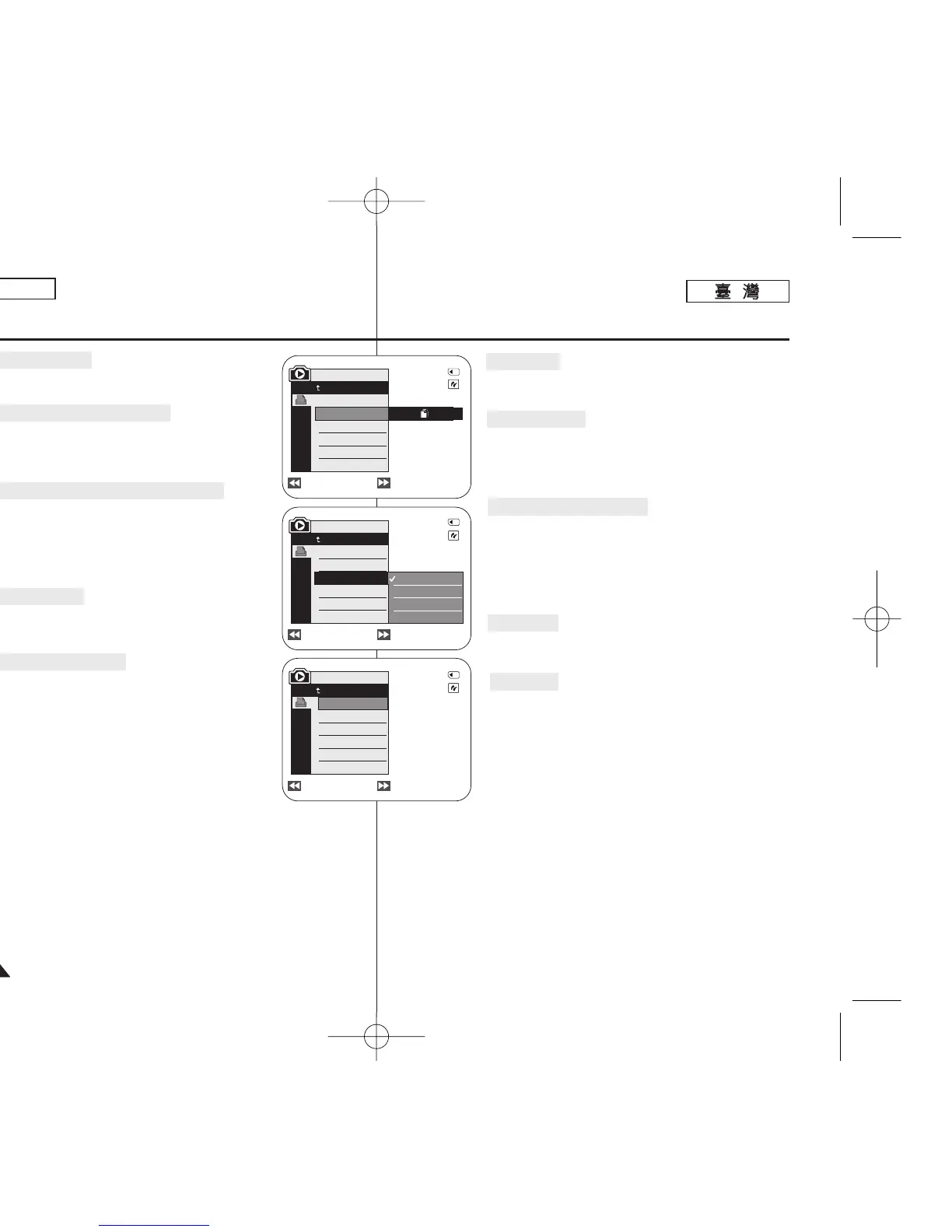
Selecting Images
1. In the <PictBridge> settings menu, press the [
œœœœ
/
√√√√
(REV/FWD)] buttons to select an image to print.
Setting the Number of Prints
2. Move the [Zoom] lever up or down to select <Copies>,
then press the [OK] button.
3. Move the [Zoom] lever up or down to set the number of
prints, then press the [OK] button.
Setting the Date/Time Imprint Option
4. Move the [Zoom] lever up or down to select
<Date/Time>, then press the [OK] button.
5. Move the [Zoom] lever up or down to select the
Date/Time display type, then press the [OK] button.
■
Date/Time display type: <Off>, <Date>, <Time>,
<Date&Time>
Printing Images
Move the [Zoom] lever up or down to select <Print>, then
press the [OK] button, and selected image files will be
printed.
Canceling the Printing
To cancel the image printing, press [OK] button again.
The message “Cancel” appears and the image printing will
be canceled.
[ Notes ]
■
The Date/Time Imprint Option may not supported by all
printers. Check with your printer manufacturer. The
<Date/Time> menu cannot be setup if the printer does
not support this option.
■
The PictBridge
TM
is a registered trademark of CIPA
(Camera & Imaging Products Association), an image transfer standard
developed by Canon, Fuji, HP, Olympus, Seiko Epson, and Sony.
■
PictBridge supporting printers are commercially available.
■
Use the USB cable provided with the Camcorder.
■
Use the AC power adapter for your Camcorder during PictBridge Direct
Printing. Turning your Camcorder off during printing might damage data on
the Memory Card.
■
Printing photo images is supported. Moving images are not available for
printing.
■
You can set various printing options depending on the printer.
■
Please refer to the user’s manual of the printer for details.
Previous Next
Previous Next
M.Player Mode
Back
Print
Copies
Date/Time
Off
Date
Time
Date&Time
Previous Next
M.Player Mode
Back
Print
Copies
Date/Time
Num. 02
2/46
2/46
2/46
M.Player Mode
Back
Print
Copies
Date/Time
100-0002
100-0002
100-0002
選選擇擇影影像像
1. 在 <PictBridge> 設定選單中,按下 [
œœ
/
√√√√
(REV/
FWD)]
((倒倒退退
/
前前進進))
按瞿以選擇要列印的影像0
設設定定列列印印略略數數
2. 向上或向下移動 [Zoom]
((縮縮放放))
桿以選擇 <Copies>,
然後按下 [OK]
((確確定定))
按瞿0
3. 向上或向下移動 [Zoom]
((縮縮放放))
桿以設定列印略數,然
後按下 [OK]
((確確定定))
按瞿0
設設定定日日期期
/
時時間間壓壓印印選選項項
4. 向上或向下移動 [Zoom]
((縮縮放放))
桿以選擇
<Date/Time>,然後按下 [OK]
((確確定定))
按瞿0
5. 向上或向下移動 [Zoom]
((縮縮放放))
桿以選擇日期/時間顯示
類型,然後按下 [OK]
((確確定定))
按瞿0
■
日期/時間顯示類型: <Off>
((關關閉閉))//
<Date>
//
<Time>
//
<Date&Time>
列列印印影影像像
向上或向下移動 [Zoom]
((縮縮放放))
桿以選擇 <Print>,然後按
下 [OK]
((確確定定))
按瞿0
取取消消列列印印
若要取消影像列印,請再次按下 [OK]
((確確定定))
按瞿0
一則
””
Cancel
””((取取消消))
訊息將會顯示,而影像列印也將取消0
[
附附註註
]
■
日期/時間壓印選項橙不受所有印表機支援0 請洽詢舅的
印表機製造商0 若印表機不支援此選項,<Date/Time>
選單可能無法設定0
■
PictBridgeTM 是 CIPA(Camera & Imaging Products
Association,相機與影像産品協會)的註冊商標,是由
Canon/ Fuji/ HP/ Olympus/ Seiko Epson 以及
Sony 所開發影像傳輸標準0
■
PictBridge 支援的印表機在市面上可買到0
■
使用攝錄放影機隨附的 USB 纜線0
■
在 PictBridge 直接列印期間,使用攝錄放影機的交流電
源適配器0
在列印期間關閉攝錄放影機電源,可能會損毁記憶賓上
的資料0
■
支援列印相片影像0 不支援列印動態影像0
■
舅可以設定的各種列印選項視印表機而定0
■
請參閱印表機使用者手冊以獲得詳細資訊0
PictBridge
TM
((僅僅限限
SC-D363/D364/D365/D366
))
00970F SCD363 TAI~094 1/12/06 3:44 PM 페이지86 001 QMS 1660E








 To Next Page