Applications
90
4
On the preview screen, tap the preview thumbnail.
5
Tap .
The video will start playing with a randomly set fast motion section.
Editing fast motion sections
1
On the preview screen, tap the preview thumbnail.
2
Tap .
The video will start playing with a randomly set fast motion section.
3
Tap to pause playback.
4
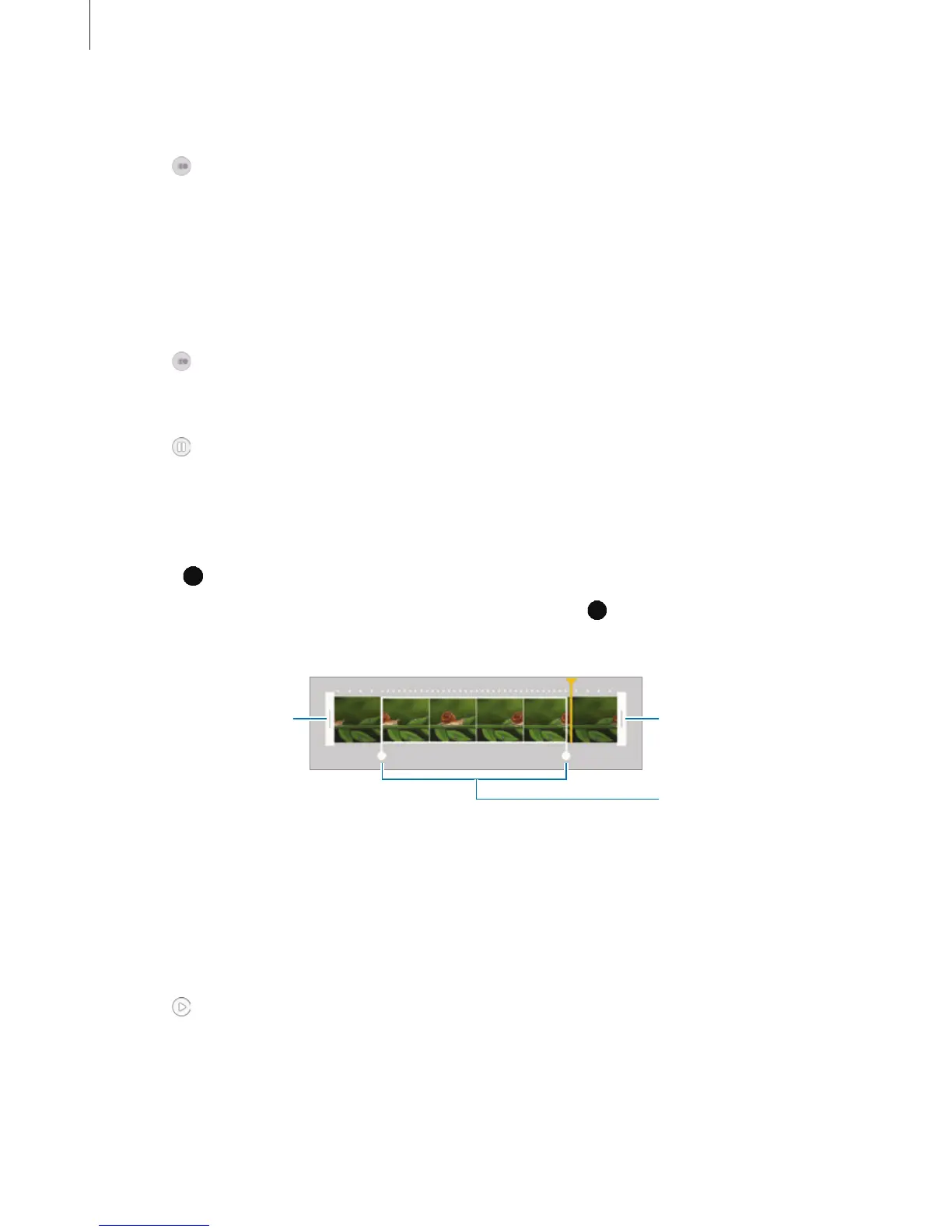
Drag the start bracket and the end bracket to the desired points to set the duration of the
video to be played.
5
Drag to select the area of the video to be played in fast motion.
To set a fast motion section more precisely, tap and hold
, and then drag your finger to
the left or right to move through the section frame by frame.
Fast motion section
End bracket
Start bracket
6
Tap the fast motion section and use the following options:
•
Speed
: Change the playback speed of the selected section.
•
Split
: Divide the section into two parts.
•
Delete
: Delete one of the divided section.
7
Tap to preview the video.
8
Tap
EXPORT
to save the video.






 To Next Page