Applications
115
Switching between screens
To use your smartphone’s actual screen, press the Power key or the Home key on your
smartphone. The virtual screen turns off and the smartphone’s screen turns on.
To return to the virtual screen, click the virtual smartphone screen on the computer or tap
SWITCH TO TABLET
on the tablet. The actual screen turns off and the virtual screen turns on.
You can view and control the virtual screen and the connected device’s screen
simultaneously. On the virtual screen, tap
→
Enable Presentation mode
to turn
on the connected device’s screen. This feature may not be available depending on the
connected device.
Sharing files and clipboard
Copying files to the computer
1
Tap and hold a file to enter edit mode on the virtual smartphone screen.
2
Tick more files to copy.
3
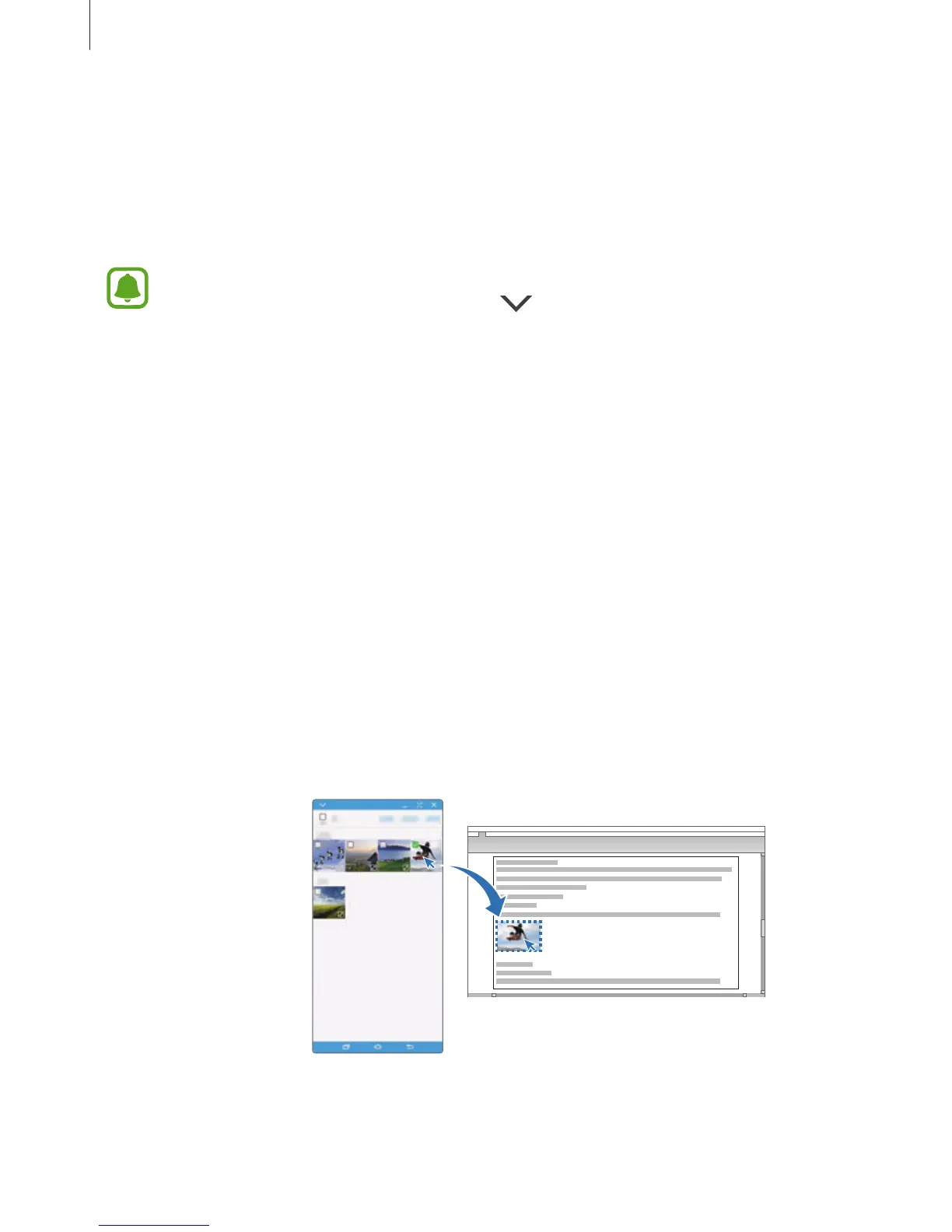
Tap and hold the selected files, and then drag and drop them outside of the virtual
screen.
The files will be copied to the intended location.
For example, when you move an image from your smartphone to an open Word document
on your computer, the image will be inserted into the Word document.




 To Next Page