From here you can adjust whole setting and function of HD-STB.
If you press the MENU button, the menu screen will display.
You can move up and down using CH (UP) / (DOWN) button, move left and right using
PR (LEFT) / PR (RIGHT) button in the menu system.
To select the items, press ENTER. To quit the menu system, press EXIT.
Also, you can use RIGHT button for enter and LEFT button for go back to one step back.
1. Audio/ Video Setting
From here you can adjust Audio/Video settings concerning your TV.
TV Display
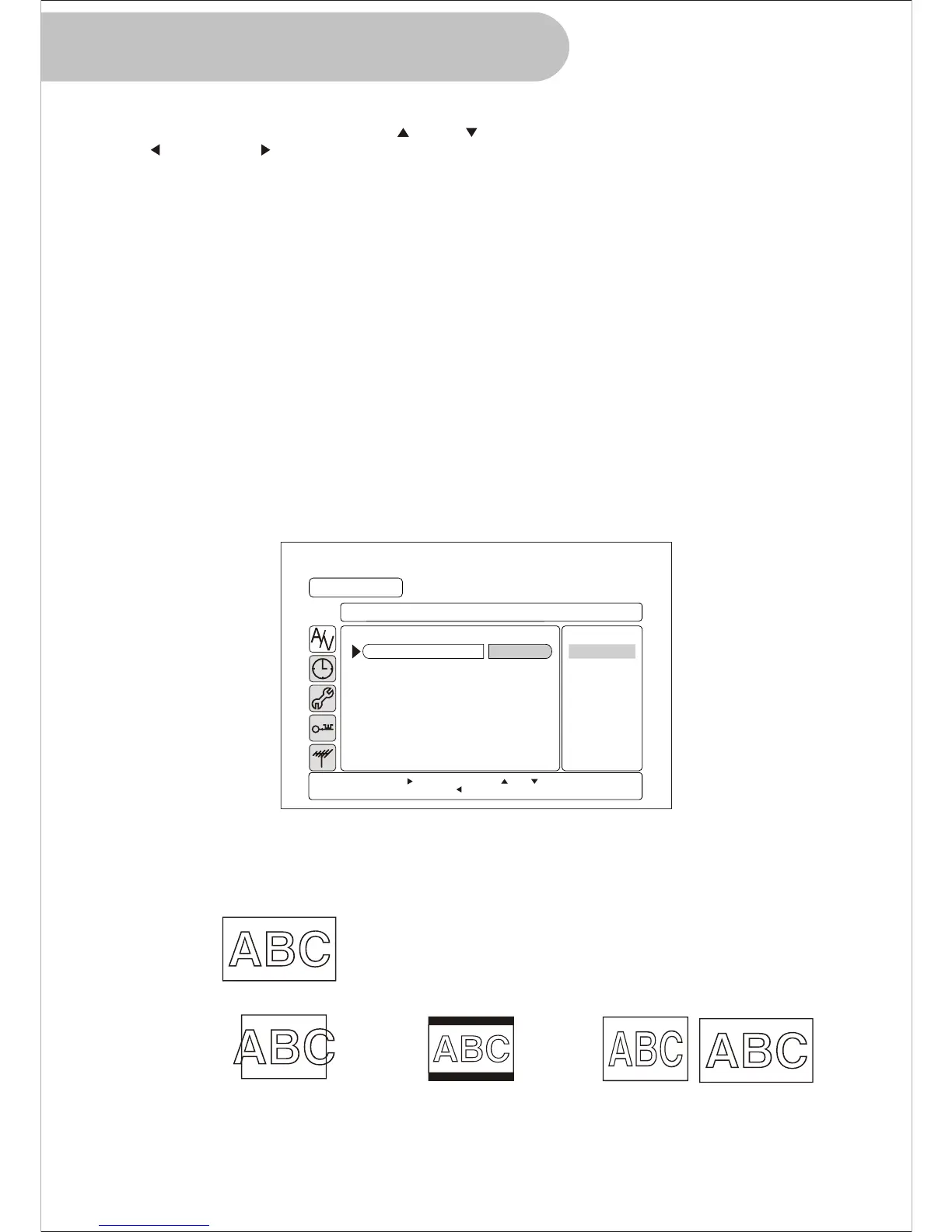
Select best fitting mode for your TV screen.
Also you can set up this function using WIDE button on the remote control.
This function is available only TV, S-Video, SD Video Output when the 16:9 source
is coming from Broadcaster.
1) Press MENU button to display the menu.
Press ENTER or RIGHT to select the Audio/Video Setting menu.
2) Press ENTER or RIGHT to select the TV Display menu.
3) Press UP or DOWN to desired TV Display mode.
You can select 4:3 PS, 4:3 LB or 16:9 mode.
4) Press ENTER or RIGHT to complete TV Display setting.
Select 4:3 PS when you want full screen on 4:3 display.
Select 4:3 LB when you want pre-scaled full original wide screen on 4:3 display.
Select 16:9 when you want wide screen on wide screen TV.
18
Orginal 16:9 Source from Broadcaster
4:3 TV 16:9 SDTV
16:9
4:3 PS
( Pan & Scan)
4:3 LB
(Letter Box)
MENU
A
V
/
AUDIO / VIDEO SETTING
TV Display
Screen H Position
Screen V Position
Audio Preference
Stereo Downmix
MPEG Audio Adj.
Sub Title
4:3 PS
4:3 LB
16:9
4:3 PS
Center
Center
Dolby D
Lt/Rt
On
Off
Press ENTER or to enter. Press or to move.
Press EXIT to exit. Press to go back.
Using the MENU System


 To Next Page