EasyManua.ls Logo

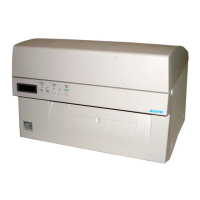
SATO M84PRO - User Manual

SATO M84PRO
135 pages
Print Icon
To Next Page IconTo Next Page
Loading...
PN 9001111A
M84PRO
Thermal Transfer Printer
SERVICE MANUAL

Table of Contents

Other manuals for SATO M84PRO

Questions and Answers

  • C
    Cory WoodAug 18, 2025
    What to do if my SATO Printer shows 'Media end or misselected media type'?
    • T
      Timothy LewisAug 19, 2025
      If your SATO Printer displays 'Media end or misselected media type', replenish the media. Also, ensure that you have selected the correct media type. Try opening and closing the head lever and the media hold down.
  • B
    Beverly EricksonAug 21, 2025
    What to do if my SATO M84PRO Printer says 'Ribbon end or ribbon broken'?
    • N
      nmcintyreAug 21, 2025
      If your SATO Printer indicates 'Ribbon end or ribbon broken', replace the ribbon. Also, try opening and closing the head lever and the media hold down.
  • L
    Laura PenningtonAug 23, 2025
    How to fix a 'Machine Error' on a SATO Printer?
    • J
      Joseph BartlettAug 23, 2025
      If you encounter a 'Machine Error' on your SATO Printer, try cycling the power off and on.
  • M
    Melinda ByrdAug 26, 2025
    How to resolve 'EEPROM read/write error' on SATO M84PRO?
    • R
      Robert BrockAug 26, 2025
      If you are getting an 'EEPROM read/write error' on your SATO Printer, cycle the power off and on.
  • R
    rodney49Aug 28, 2025
    What to do if my SATO M84PRO Printer displays 'Media error'?
    • C
      Casey FrenchAug 28, 2025
      If your SATO Printer shows 'Media error', try opening and closing the head lever.
  • D
    denise83Aug 30, 2025
    What to do if SATO M84PRO shows 'Head open' error?
    • J
      Jessica WashingtonAug 30, 2025
      If the 'Head open' error appears on your SATO Printer, ensure you latch the print head properly.
  • N
    Nicole DunlapSep 1, 2025
    How to fix 'Memory card read/write' error on SATO M84PRO?
    • K
      Kelly DoughertySep 1, 2025
      If your SATO Printer displays 'Memory card read/write' error, format the card and cycle the power.
  • M
    moonjenniferSep 3, 2025
    What to do if my SATO Printer displays 'Memory card battery low'?
    • Z
      Zachary TannerSep 4, 2025
      If your SATO Printer indicates 'Memory card battery low', replace the battery and cycle the power.
  • J
    Jason MccartySep 6, 2025
    What to do if the print head is damaged on my SATO Printer?
    • P
      Patricia RamosSep 6, 2025
      If the print head of your SATO Printer is damaged, replace it and cycle the power.
  • A
    Anthony HutchinsonSep 8, 2025
    How to resolve 'RS232 parity error' on SATO M84PRO Printer?
    • J
      Jessica ReyesSep 8, 2025
      If your SATO Printer displays 'RS232 parity error', match the parity to the system.

Summary

Interface Specifications and Connectivity

Interface Types and Communication Protocols

Describes available printer interfaces (Parallel, Serial, USB, LAN) and their communication protocols.

Printer Configuration Settings

DIP Switch and RS232 Settings

Configures serial port parameters, baud rates, and protocols using DIP switches.

Memory, Protocol, and Reset Operations

Manages memory cards, custom protocols, and performs factory resets and counter clearing.

Troubleshooting Printer Issues

Error Identification and Resolution

Correlates LED indicators, messages, and beep codes with error conditions for diagnosis.

Component Replacement Procedures

Component Replacement Guidelines

Detailed instructions for removing and replacing internal printer components like circuit boards, motors, and print heads.

Adjustment Procedures for Optimal Performance

Factory Resets and Counter Clearing

Printer Reset and Counter Clearing Procedures

Instructions for returning the printer to factory default settings and clearing operational counters.

SATO M84PRO Specifications

General IconGeneral
Print SpeedUp to 10 ips
Print Width4.1 inches
Print MethodThermal Transfer / Direct Thermal
Print Resolution203 dpi
Max. Print Width104 mm
InterfaceSerial, Parallel, USB, Ethernet (optional)
Supported Barcode TypesCode 39, Code 128, Interleaved 2 of 5, Codabar
Supported Media TypesRoll-fed, Die-cut, Continuous, Fan-fold
Media Thickness0.0025 to 0.01 inches
Power SupplyAC 100-240V, 50/60 Hz
Operating Temperature5°C to 40°C (41°F to 104°F)
Storage Temperature-4°F to 140°F (-20°C to 60°C)
Storage Humidity10% to 90% non-condensing
Media Width25.4 mm (1") – 128 mm (5")
Ribbon Width25.4 mm (1") – 128 mm (5")
Operating Humidity25% to 85% RH, non-condensing

Related product manuals