Page 32/70 | May 2015 | 2.0
Tap on Next step.
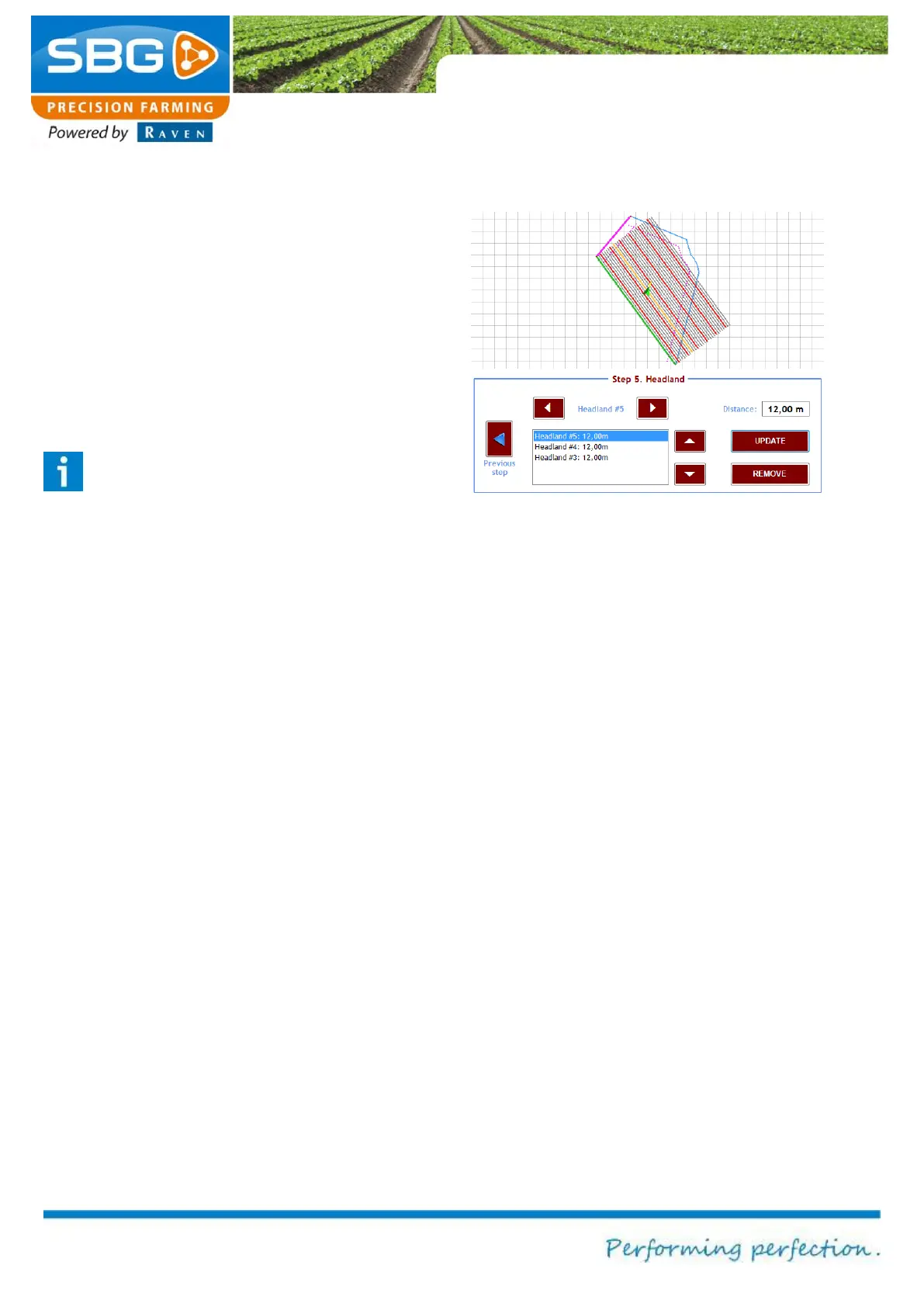
Define the headland line(s). The white arrows on
the left and right of the word Headland #X can be
used to select the desired field sides. The
selected side is marked in violet. The defined
distance is allocated by selecting Update. A
different distance can be defined for each
individual headland turn. It is always possible to
change the headland distances again after they
have been defined.
Tip!
Place a minus sign (-) before the distance
to position the headland line on the other
side of the field boundary.
The operation is now defined.
Tap on READY at the top left of the screen to
save the operation, or on BACK to cancel the
operation.
A message will then be displayed. Selecting YES
enables the operation to be named. If NO is
selected, the operation is loaded but not saved.
The operation is lost as soon as another field is
selected.
Figure 36 Defining an operation - step 5



 To Next Page