Page 52/70 | May 2015 | 2.0
5.3. System set-up
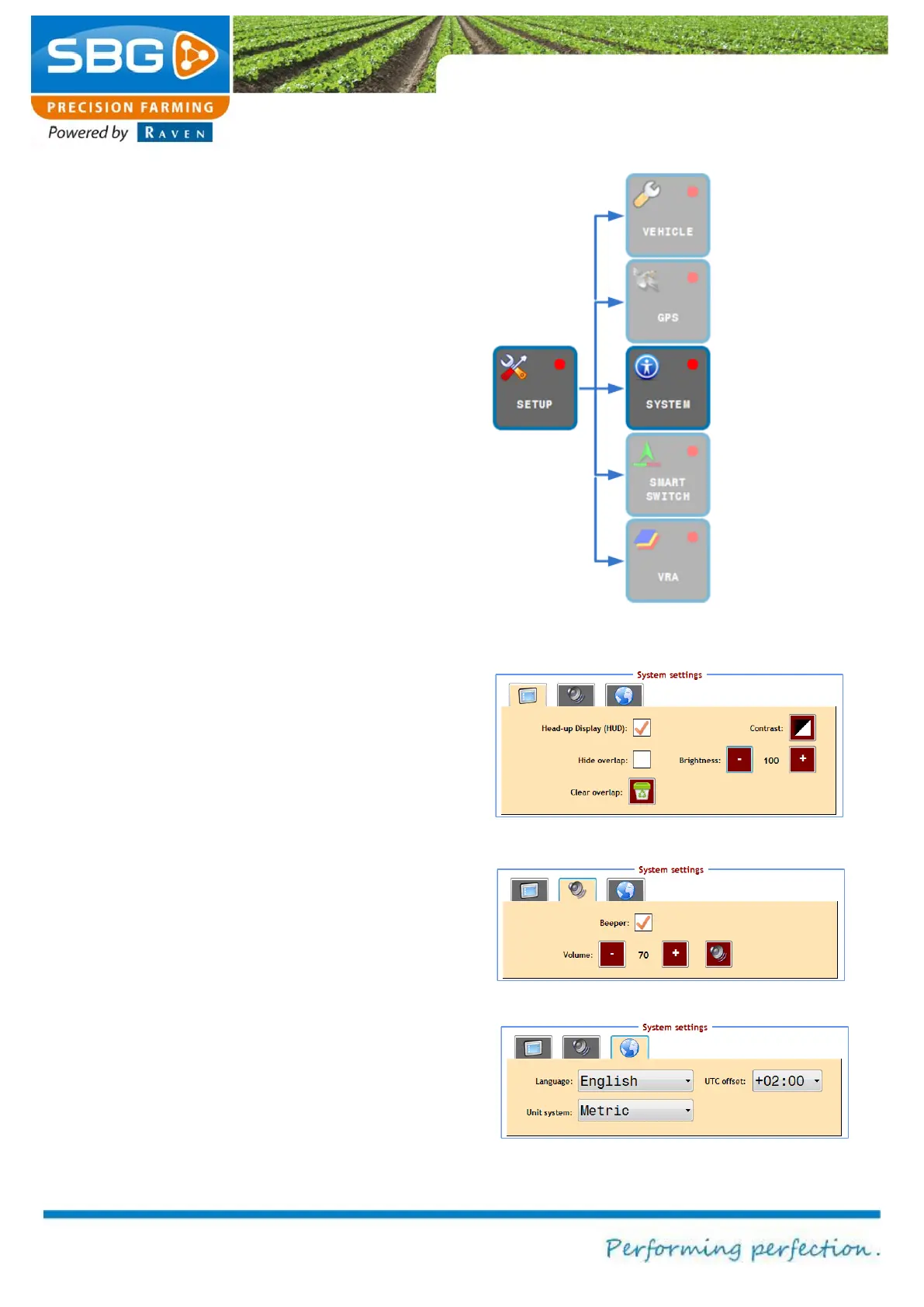
Go to the SYSTEM menu in order to change the
screen and language options (Figure 75).
The Display tab is displayed by default (Figure
76).
Tap on 2D/3D in order to change the field display
(tapping on field display also has the same effect).
Select head-up display (HUD) so that the
position of the Side-Shift cylinder, the disc or the
plough is displayed on the main screen when
controlling the device or plough.
Select Hide overlap to hide the blue colouring on
the screen. Delete overlap can be selected to
delete the blue overlap.
Tap on Contrast to change the background colour
of the field display from black to white and vice
versa. Additionally, use the dim button (on
Geostar terminals) on the right hand side of the
terminal to change the light intensity of the display.
The brightness on a Viper 4 terminal can be
changed with the two keys (‘+’ and ‘-‘) on the right
hand side of the display screen.
Tap on the speaker tab to activate or deactivate
the beeper (Figure 77). The volume can also be
changed.
Tap on the globe tab to change the language,
units (metric/imperial) and the time zone (UTC
offset) on the system (Figure 78).



 To Next Page