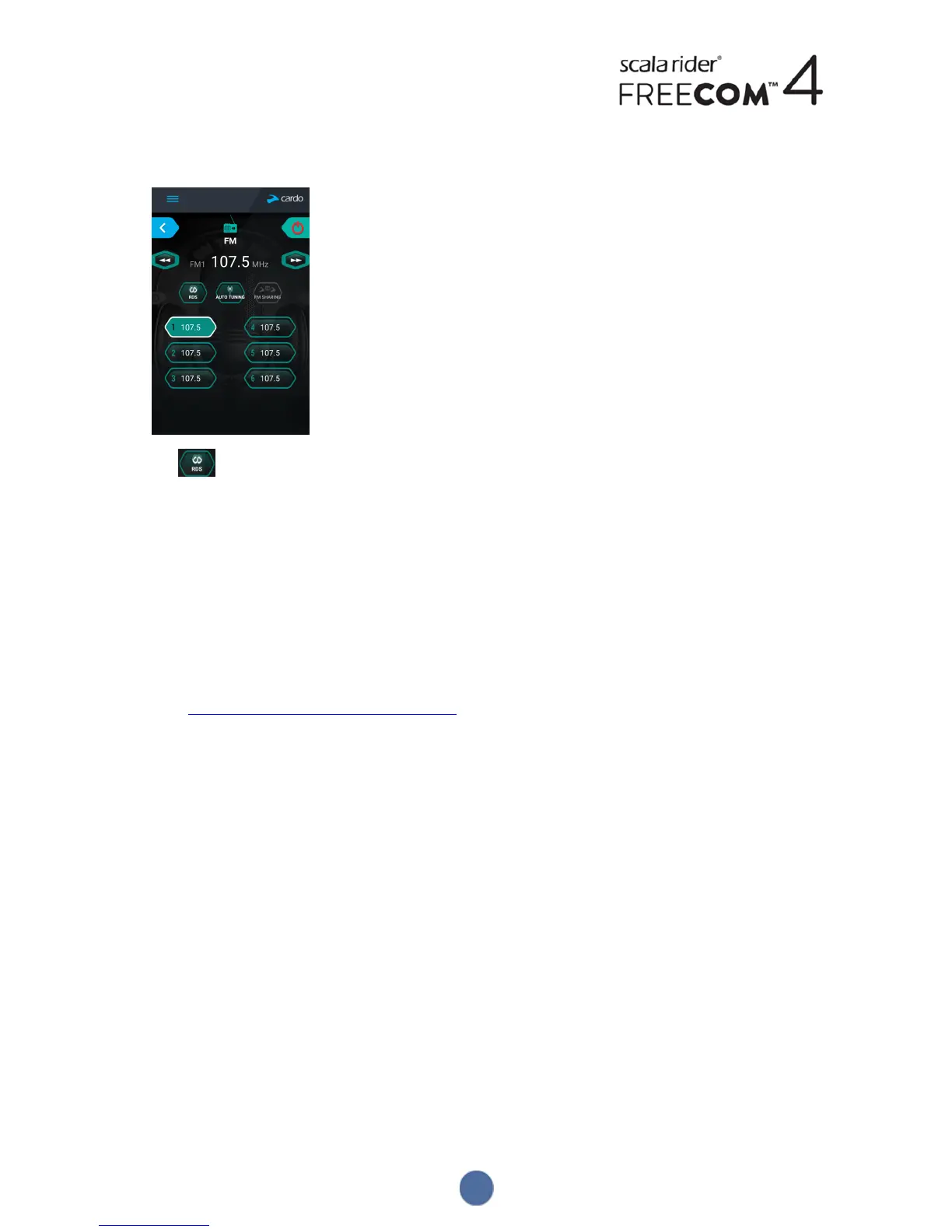
To enable/disable RDS:
1. In the Home screen, tap FM.
2. Tap . RDS is enabled/disabled.
4.2 CONFIGURING YOUR FREECOM4 THROUGH CARDO COMMUNITY
You can configure your FREECOM4 unit by connecting the unit to a computer with the supplied USBcable and
running the Cardo Updater while your computer is connected to the Cardo Community website.
The minimum operating system requirements for the Cardo Updater are:
● Windows® 7
● Mac OS X 10.8
4.2.1 INSTALLING THE CARDO UPDATER ON YOUR COMPUTER
To install the Cardo Updater on your computer:
1. Go to http://cardosystems.com/cardo-community/, register and login.
2. Download the Cardo Updater from the provided link and install it on your computer.
4.2.2 CONFIGURING YOUR FREECOM4 BASIC SETTINGS THROUGH CARDO COMMUNITY
To configure your FREECOM4 through the Cardo Community:
1. Run the Cardo Updater.
2. Using the supplied USBcable, connect your unit to the computer USB port.
3. If this is the first time you are connecting your unit, the Edit my Profile screen appears. Click SETTINGS.
19


 To Next Page