Schaeffler Technologies
BA 68
69
Clicking on a department name in the list will take you to
the [
Department
] level.
Clicking on a machine name in the list will take you to the [
Machine
]
level.
Clicking on an alarm counter in the list will take you to the
[
Alarms & Events
] view.
You can use filters on the lists [
Departments
] and [
Machines with
alarm notifications
], see page 66.
The list under [
My groups
] shows the user-defined groups set up
in the OPTIME app.
The colours used to display the warning level in the lists under
[
Departments
] and [
Machines with alarm notifications
] are deter-
mined from the highest alarm level for an individual characteristic
value that applies to the department or machine.
The sensors in the expanded menus under [
Sensor condition
] are
sorted according to alarm level. Clicking on a sensor in the drop-
down menus under [
Sensor condition
] will take you to the [
Sensor
]
level.
Level
[
Department
]
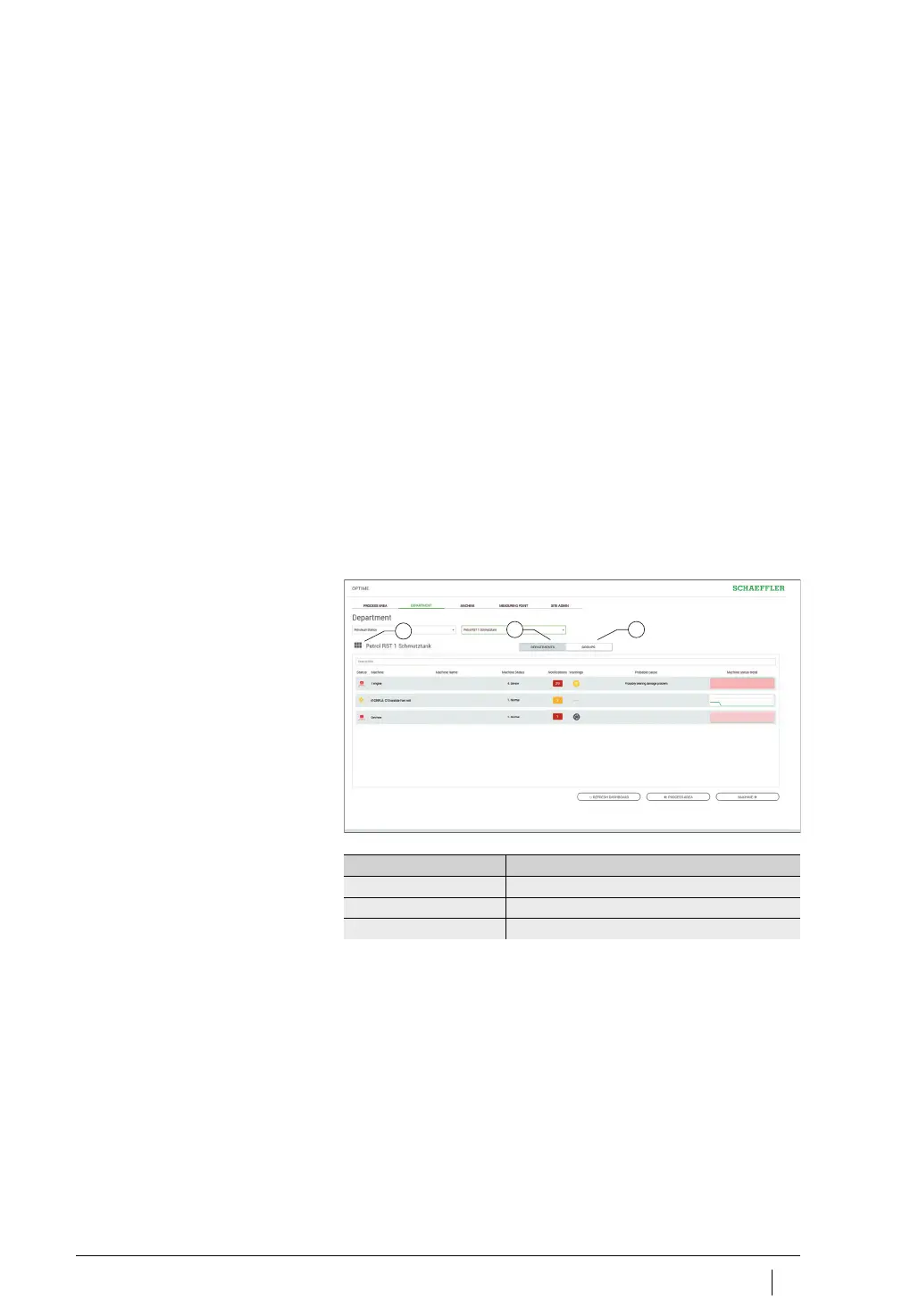
The [
Department
] level shows the user the machines from a selected
department.
Explanations
[
Department name
]
[
DEPARTMENTS
]
[
GROUPS
]
Figure 47
Level [
Department
]
Designation Description
[
Department name
] Displays the name of the department.
[
DEPARTMENTS
] Displays the machines from a department.
[
GROUPS
] Displays the machines in a user-defined group.


 To Next Page