80
BA 68
Schaeffler Technologies
Schaeffler OPTIME
Colour coding and
designations for alarms
Acknowledge alarm notifications
in
[
Alarms & Events
]
Alarm notifications can be acknowledged in the [
Alarms &
Events
] view following validation and selection of remedial
measures.
Click on the [
ACKNOWLEGDE
] button.
To acknowledge all visible alarms on a page following validation
and selection of remedial measures, click on the [
ACKNOWLEGDE
PAGE
]button.
Click on the [
Schaeffler-Tab
] button to return to the previous
dashboard.
An acknowledgement via the [
Alarms & Events
] view is not saved
in the history and can be used to eliminate false alarms.
Note
Using the browser’s [
Back
] button is not recommended, as it resets
the dashboard view and the user must then navigate to the correct
dashboard again.
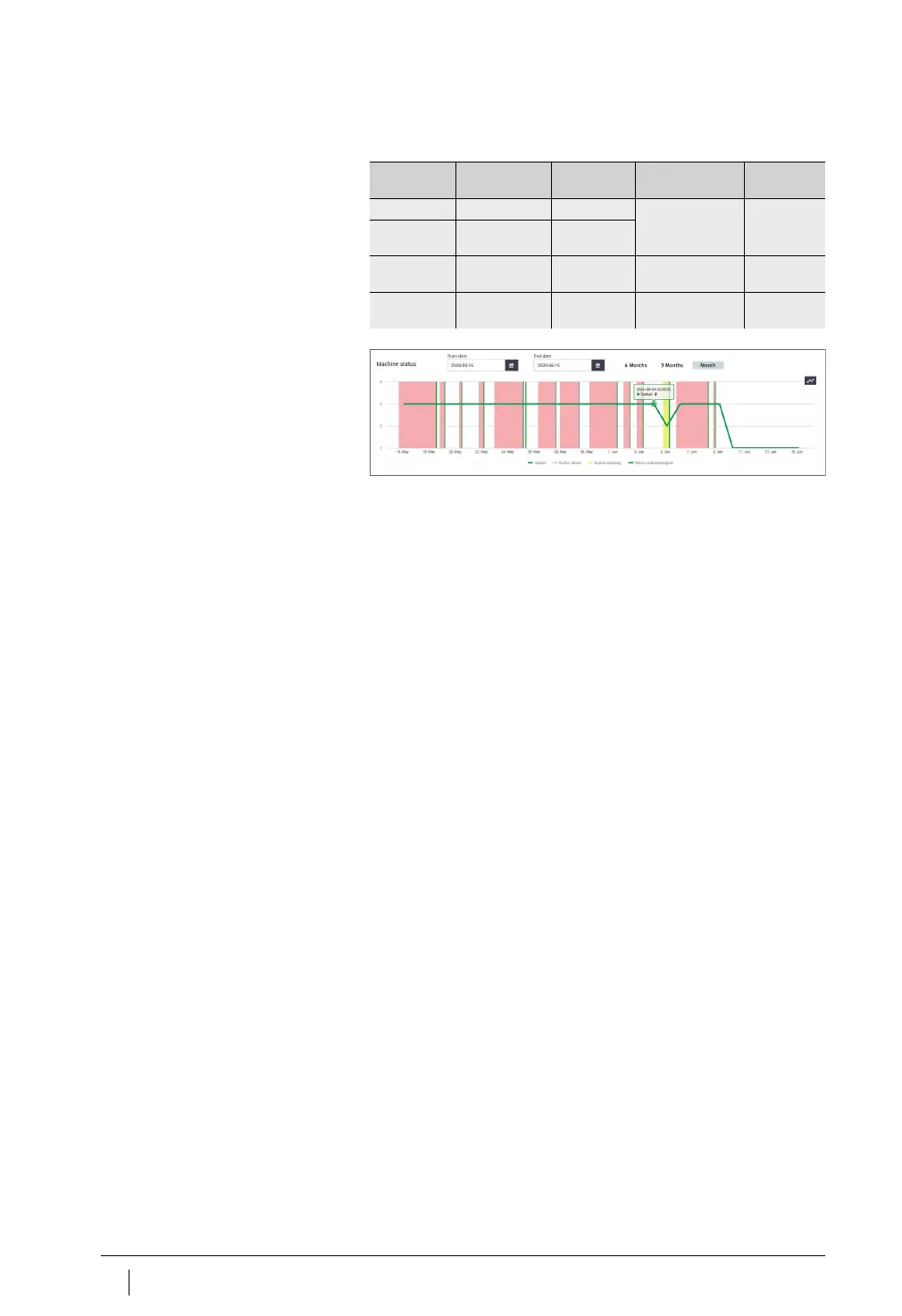
Level in state
diagram
Alarm level Alarm status Colour coding Alarm
notification
1 No alarm Normal Grey symbol –
1 to 2 Low
alarm level
Suspect
2 to 3 High
alarm level
Warning Yellow symbol Pre-alarm
3 to 4 Highest
alarm level
Severe Red symbol Main alarm
Figure 56
State diagram with levels 1 to 4


 To Next Page