PXC 550 | 15
Getting started
Installing the Sennheiser “CapTune” app
To make full use of all the features of your PXC 550 headphones, you need to
install the free Sennheiser “CapTune” app from the AppStore or GooglePlay.
Using the app, you can control the functions of the PXC 550 from your smart-
phone or tablet. Through CapTune you can perform the following operations and
many more:
adjust the connection settings for NFC and USB Audio
view the rechargeable battery and connection information
control and display the currently played media content
adjust the EQ and SAM settings to optimize the sound
use the Music Player
adjust the noise cancellation settings
Switching the voice prompts on and off
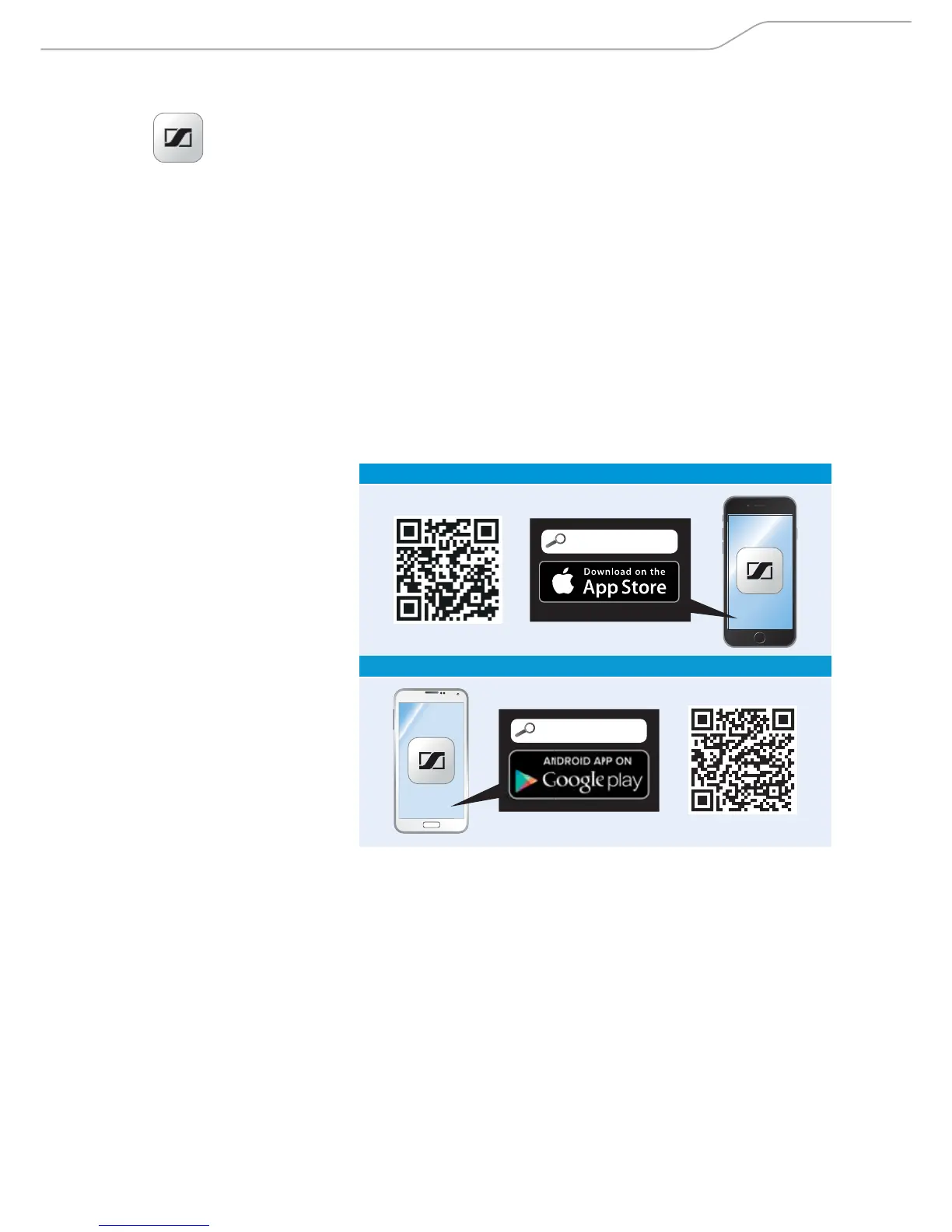
To install the Sennheiser “CapTune” app:
X Download the appropriate app for the device being used and install the app.
To do so, scan the QR code or search for the “CapTune” app through the ap-
propriate app store on your device.
iPhone
CapTune
Android
CapTune
X Connect your smartphone or tablet via Bluetooth to the PXC 550 (see
page 16).
X Start the “CapTune” app and follow the instructions to install the extensions
for the PXC 550.
As soon as the app with the extensions for the PXC 550 is installed, you hear
the voice prompt
“ App co nne cte d” in the headphones. You can now use all
the functions of the PXC 550 and the app.
CapTune







 To Next Page