Quick start guide
3 Using RTK
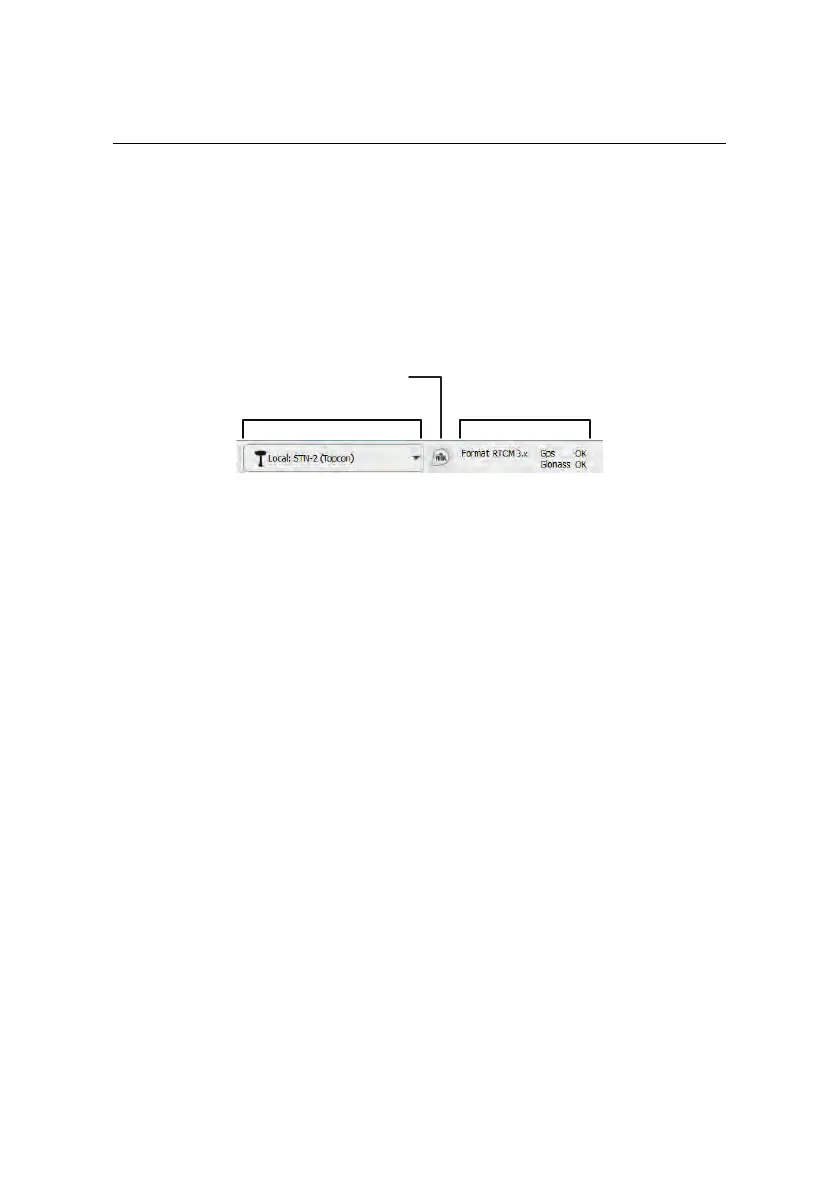
Choose the source of your RTK corrections using the menu on the eMotion toolbar.
The message RTK Source Not Defined appears until you either choose a source or
choose to fly standalone.
Choose RTK Source
Set Up RTK
RTK Status
The status of your RTK corrections, directly from your base station, or indirectly
from a reference station network, is displayed on the toolbar:
Not sufficient eMotion was not sent the data it needs (position and correc-
tion vector)
Timeout eMotion was getting position and correction data, but is no
longer
OK All is well; eMotion is getting position and correction data as
expected
3.1 Using a local base station
Step 1 Connect your base station to the computer on which you installed eMo-
tion following your base station manufacturer’s instructions.
Step 2 Choose your base station from the Choose RTK Source menu on the tool-
bar.
The Set Base Position dialog will appear.
36



 To Next Page