Planning and simulating a flight
1.2 The eMotion interface
Thanks to the powerful tools available within eMotion, designing a mapping flight
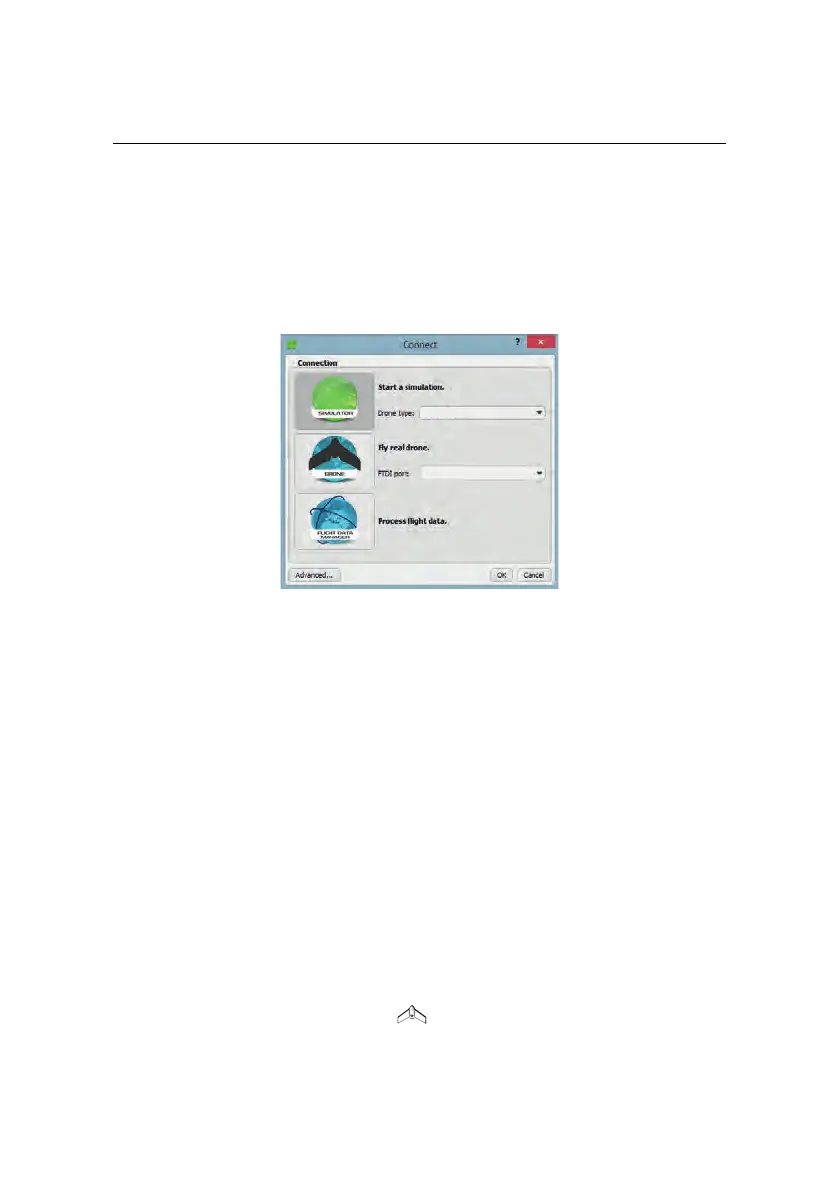
for your eBee RTK is a simple process. To get started, launch eMotion and choose
what you would like to do...
• To run a simulation, select the simulator, choose the drone you want to
simulate and click OK.
• To fly a drone, connect your ground modem to your computer and select
Drone. If you have more than one USB device connected to your PC (for
example, you have a ground modem and GNSS base station), choose the
ground modem you want to connect to from the list and click OK. Other-
wise, just click OK.
• To process flight data you already created, select the Flight Data Manager
and click OK.
We recommend that you plan flights using a simulated drone. Once connected to
a real or simulated drone you will see the main screen of eMotion.
The main screen of eMotion is split into four sections:
• Map Area: The Map Area of eMotion displays a map with the drone’s cur-
rent position, indicated by the symbol. A small Status Panel floats be-
21



 To Next Page