Maintenance, Repair and Troubleshooting
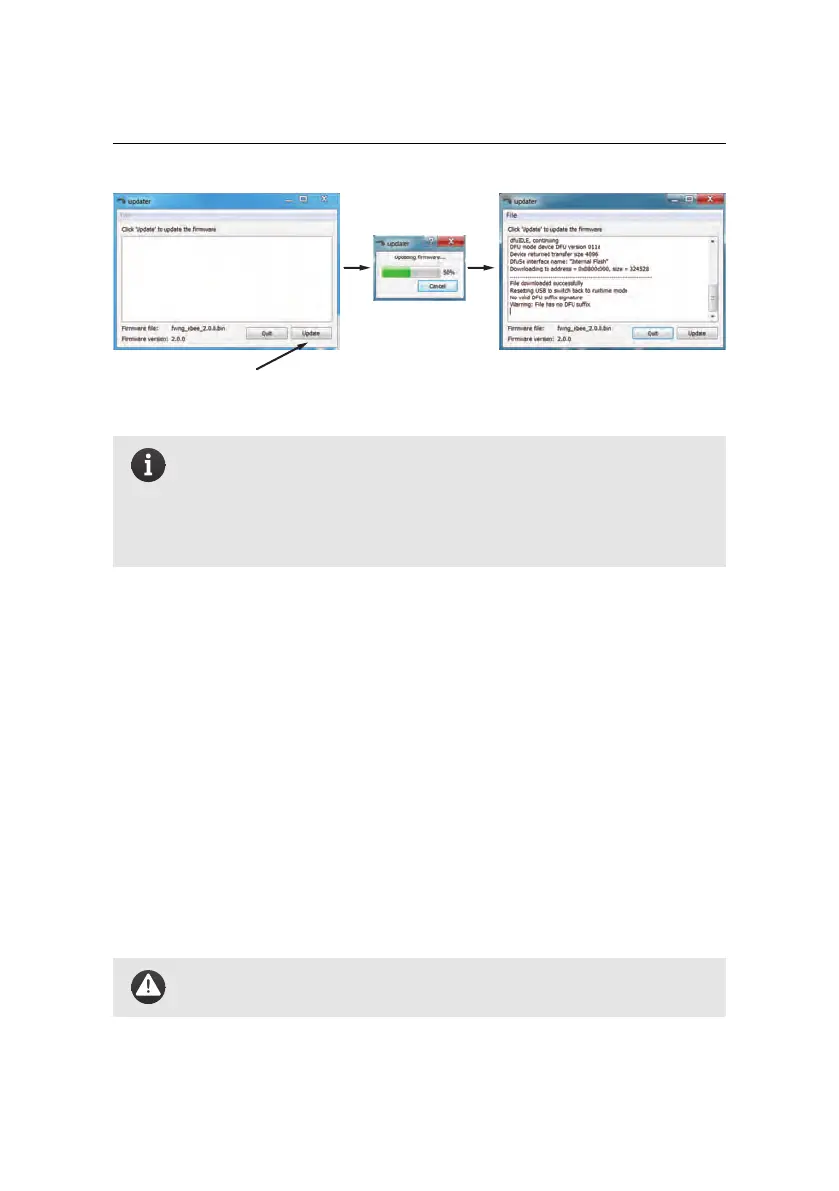
Click Update
Wait for update
to complete
File downloaded
successfully
Note: You may need to install a driver the first time you upgrade your
firmware. Thedriver will be installed automatically but may cause the
firmware update to fail. If this is the case, retry the update process by
clicking ‘Update’ again, without disconnecting the battery or cable
from the drone or closing the ‘Updater eBee RTK’ program.
5. Disconnect the USB cable and the battery.
It is important that both the drone and eMotion have the same software version
for them to work properly together. Make sure that you keep both up-to-date. To
check which version of eMotion you have installed, use the ‘About eMotion...’ item
in the ‘Window’ menu. The eBee RTK firmware version can be seen in the Flight
Parameters tab once connected (see section ‘Flight Parameters tab’ on page 136).
9.2 Cleaning and storage
Use a damp cloth to wipe off dirt from the eBee RTK. In order to avoid structural de-
formation of the wing, it is recommended to store the drone either in its transport
case or on a flat surface at room temperature.
Caution: Never bring the eBee RTK into direct contact with water, as
this may damage the electronics within the drone airframe.
150



 To Next Page