Quick start guide
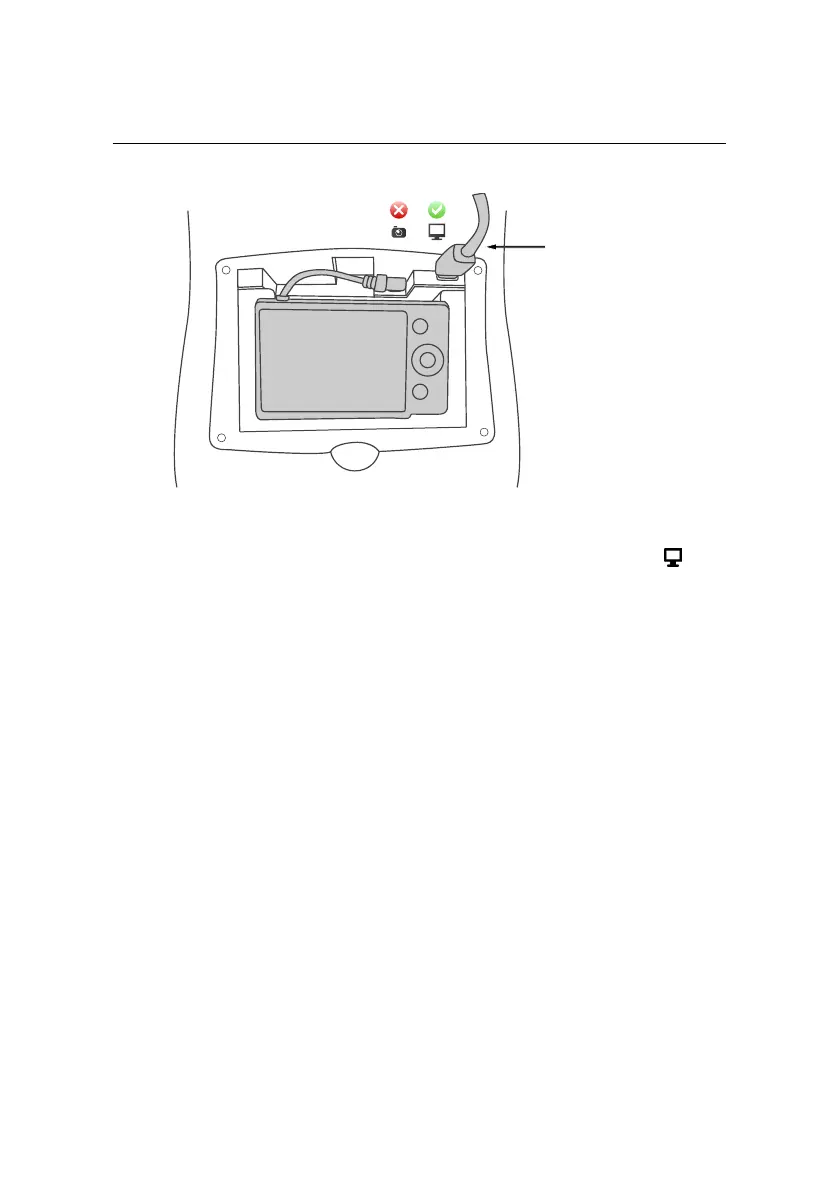
connect USB cable
to autopilot
• Step 3 - Prepare data for import: To import the Drone Flight Log, connect
the supplied USB cable to the eBee RTK’s autopilot, marked with a icon.
Connect the battery to the drone if it is not already connected. The status
LED will become white and a new storage drive will appear on your com-
puter.
To import images, remove the SD card from the camera, insert it into the
SD card reader of your computer and select ‘Import from SD-card reader’.
Alternatively, transfer the images from the camera by lifting it out of its
compartment just enough to connect a USB cable to it and turn the camera
on. Copy all the images into a temporary folder on your computer. Select
‘Import from a specific folder’ and choose the temporary folder.
• Step 4 - Import flight logs: Confirm that the Drone and eMotion Flight
Logs found by the Flight Data Manager are correct. You may select logs
manually if they are not correctly detected.
• Step 5 - Import images: Confirm that the images corresponding to your
flight were found and matched to the Drone Flight Log correctly.
64



 To Next Page