EasyManua.ls Logo

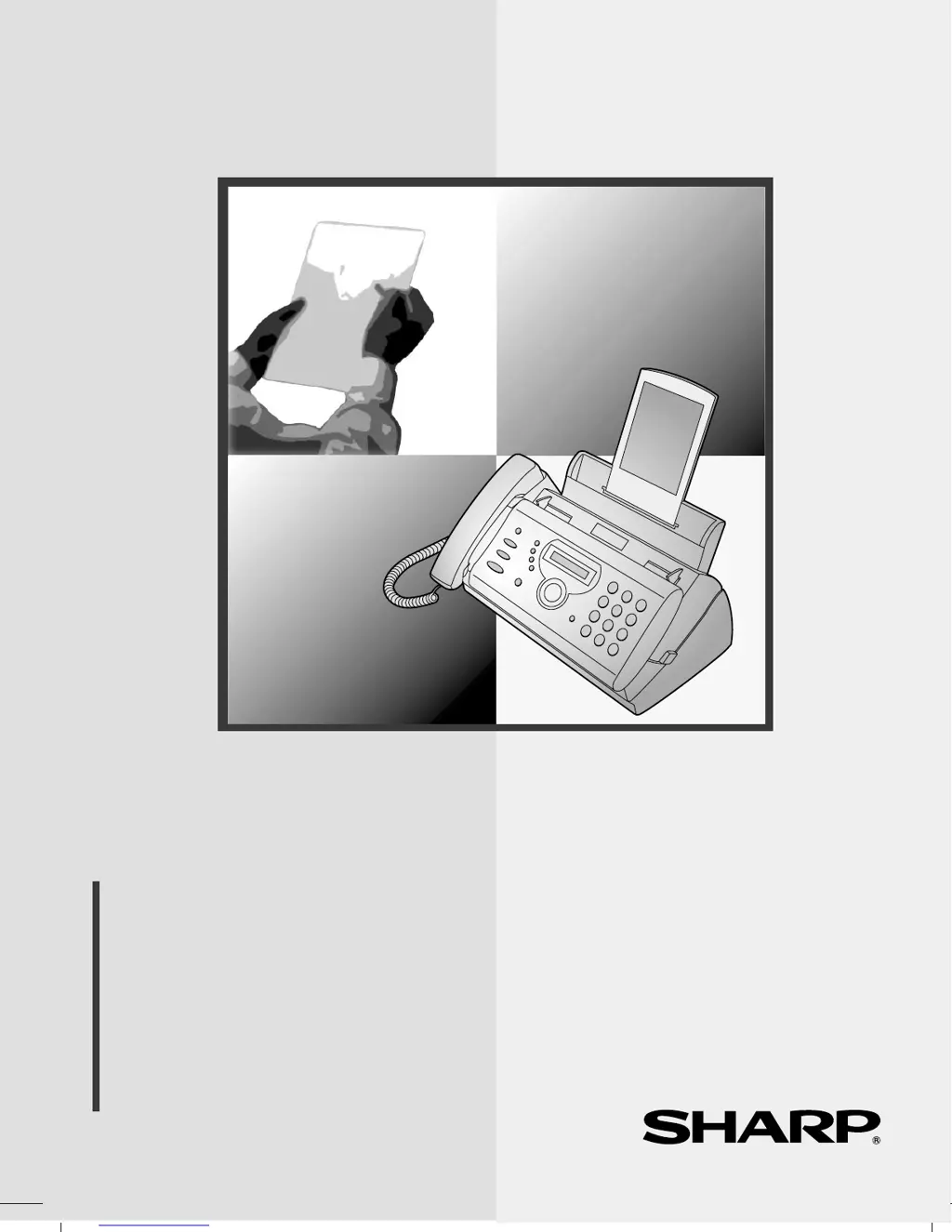
Sharp FO-P610 - User Manual

Sharp FO-P610
87 pages
Print Icon
To Next Page IconTo Next Page
Loading...
MODEL
FO-P610/FO-P630
OPERATION MANUAL
FACSIMILE
1. Installation
2. Sending Faxes
3. Receiving Faxes
4. Making Copies
5. Answering Machine Connection
6. Special Functions
7. Printing Lists
8. Maintenance
9. Troubleshooting

Table of Contents

Other manuals for Sharp FO-P610

Questions and Answers

  • Z
    zserranoAug 30, 2025
    Why is nothing printed at the receiving end from my Sharp FO-P610?
    • D
      Dawn HicksAug 30, 2025
      If nothing prints at the receiving end from your Sharp Fax Machine, ensure the document for transmission is placed face down in the feeder.
  • D
    David MooreSep 8, 2025
    Why doesn't automatic document feeding work on my Sharp Fax Machine?
    • C
      Connor ThomasSep 8, 2025
      If automatic document feeding isn't working on your Sharp Fax Machine, check the size and weight of the document.
  • K
    Kari ReyesAug 29, 2025
    Why is the received document faint on my Sharp Fax Machine?
    • R
      Rita AndersonAug 29, 2025
      If received documents are faint on your Sharp Fax Machine, ask the sender to send documents with higher contrast. If the contrast remains too low, your fax machine may require servicing. Make a copy or print a report to assess your machine’s printing capability.
  • K
    Kyle HenrySep 23, 2025
    Why does my Sharp FO-P610 make a loud howling sound when using the speaker?
    • M
      michellehuntSep 23, 2025
      A loud howling sound (feedback) can occur if you replace the handset while the speaker is on. Turn off the speaker before replacing the handset to prevent this.
  • D
    Dale JosephSep 9, 2025
    What to do if LINE ERROR appears on my Sharp FO-P610?
    • D
      Dustin LaneSep 9, 2025
      If you see 'LINE ERROR' on the display, retry the transaction. If it continues, ensure the cord from the TEL. LINE socket to the wall isn't longer than two meters and that no modems share the line. Check with the other fax machine's functionality and have your telephone line checked for noise. Try a different telephone line. If the problem persists, your fax machine may need service.
  • A
    Alejandro LambSep 13, 2025
    What does 'CHECK FILM/ CHECK COVER/ CHECK PAPER JAM' mean on my Sharp FO-P610?
    • E
      Elijah CoxSep 13, 2025
      These messages indicate a printing problem. Verify the imaging film is loaded correctly or needs replacement. Ensure the operation panel is completely closed by pressing down on both sides. If there's a paper jam, clear it.
  • H
    hhughesSep 18, 2025
    Why does my Sharp FO-P610 Fax Machine print blank pages when receiving?
    • M
      Mallory AcostaSep 18, 2025
      If printing paper comes out blank when receiving, ensure the document is correctly loaded in the transmitting machine's feeder. Make a copy or print a report to confirm your machine's printing ability.
  • L
    Lori CarpenterAug 27, 2025
    What does it mean when my Sharp FO-P610 displays 'FAX RX IN MEMORY'?
    • H
      Heather AllenAug 27, 2025
      The 'FAX RX IN MEMORY' message on your Sharp Fax Machine means a fax has been received in memory. This is because the imaging film needs replacement, you've run out of printing paper, or the paper is jammed. The fax will print automatically once the problem is resolved.
  • J
    Jessica SandersAug 26, 2025
    What to do if my Sharp FO-P610 Fax Machine says 'DOCUMENT JAMMED'?
    • C
      charles80Aug 26, 2025
      If your Sharp Fax Machine displays 'DOCUMENT JAMMED', clear the paper jam. Avoid loading more than 10 pages at once or using documents that are too thick.
  • G
    Gail MillerAug 25, 2025
    What does 'CHECK FILM/ CHECK COVER/ CHECK PAPER JAM' mean on my Sharp Fax Machine and how do I fix it?
    • N
      Nathan IbarraAug 26, 2025
      The alternating message 'CHECK FILM/ CHECK COVER/ CHECK PAPER JAM' on your Sharp Fax Machine indicates a printing problem. Verify the imaging film is loaded correctly or needs replacement. Ensure the operation panel is completely closed by pressing down on both sides. If there's a paper jam, clear it.

Summary

Introduction

Important Safety Information

A Look at the Operation Panel

Control Panel Buttons

Describes the function of each key on the fax machine's control panel.

Installation

Unpacking Checklist

Lists all items included with the fax machine to verify upon setup.

Connecting the Handset

Instructions for connecting the fax machine's handset.

Connecting the Telephone Line

Steps for connecting the fax machine to the telephone line.

Attaching the Paper Tray

Instructions for attaching the paper tray and its extension.

Loading the Imaging Film

Step-by-step guide on how to load or replace the imaging film roll.

Loading Printing Paper

Instructions for properly loading paper into the paper tray.

Entering Your Name and Fax Number

Guide to inputting personal and fax number details for outgoing faxes.

Setting the Date and Time

Procedure to set the date and time, which prints on transmitted pages.

Setting the Reception Mode

Explanation of the four modes for receiving faxes (FAX, TEL, TEL/FAX, A.M.).

Volume Adjustment

How to adjust the speaker and ringer volumes using the arrow keys.

Sending Faxes

Transmittable Documents

Details on the size and weight limits for documents loaded in the feeder.

Loading the Document

Instructions on how to insert documents into the feeder for sending.

Adjusting the Resolution and Contrast

How to change resolution (Standard, Fine, Super Fine, Half Tone) and contrast.

Sending a Fax by Normal Dialling

Step-by-step guide for sending faxes using the handset and dialling.

Sending a Fax by Automatic Dialling

How to store and use auto-dial numbers for sending faxes.

Sending a Fax From Memory

Instructions for scanning a document into memory and sending it later.

Receiving Faxes

Using TEL;FAX Mode

How the fax handles both voice and fax calls automatically.

Pseudo Ring Duration for Tel;Fax Mode

Setting the duration for the special ringing sound for voice calls.

Using A.M. Mode

How the fax operates with an answering machine connected.

Using FAX Mode

How the fax answers and receives faxes automatically.

Using TEL Mode

How to answer all calls manually via handset or extension.

Optional Reception Settings

Settings like Fax Signal Receive and Remote Activation Number.

Substitute Reception to Memory

How incoming faxes are stored in memory when printing is not possible.

Making Copies

Copy Cut-off

Setting to control printing of long documents on a second page or cut off.

Answering Machine Connection

Connecting an Answering Machine

How to physically connect an answering machine to the fax.

Optional A.M. Mode Settings

Advanced settings for optimizing answering machine integration.

Special Functions

Caller ID (Requires Subscription to Service)

How to display caller name and number for incoming calls.

Distinctive Ring (Requires Subscription to Service)

Using different ring patterns for fax vs. voice calls.

Blocking Reception of Unwanted Faxes

Setting up an "Anti Junk Fax" number to block incoming faxes.

Polling (Requesting a Fax Transmission)

How to request a document from another fax machine.

Printing Lists

Telephone Number List

Prints stored fax and phone numbers for automatic dialling.

Setup List

Shows current FUNCTION key settings and personal info.

Caller-ID List

Displays information on recent calls received with Caller ID.

Transaction Report

Details on reports printed automatically after operations.

Transaction Report Print Condition

How to configure when transaction reports are printed.

Help List

A brief guide to operating the machine, printable on demand.

Maintenance

Print Head Cleaning

Instructions for cleaning the print head for optimal performance.

Scanning Glass and Roller Cleaning

Guide for cleaning the scanning glass and rollers for clear images.

Troubleshooting

Problems and Solutions

Lists common problems and their corresponding solutions for various issues.

Messages and Signals

Explains various display messages and their meanings.

Audible Signals

Describes the different tones and beeps the machine makes.

Clearing Paper Jams

Step-by-step instructions for removing jammed documents or paper.

Quick Reference Guide

Sharp FO-P610 Specifications

General IconGeneral
TypePlain Paper Fax
Modem Speed33.6 Kbps
Transmission Speed6 seconds per page
Paper SizeA4, Letter, Legal
Automatic Document Feeder Capacity10 sheets
Print TechnologyLaser
MemoryApprox. 512 KB

Related product manuals