53
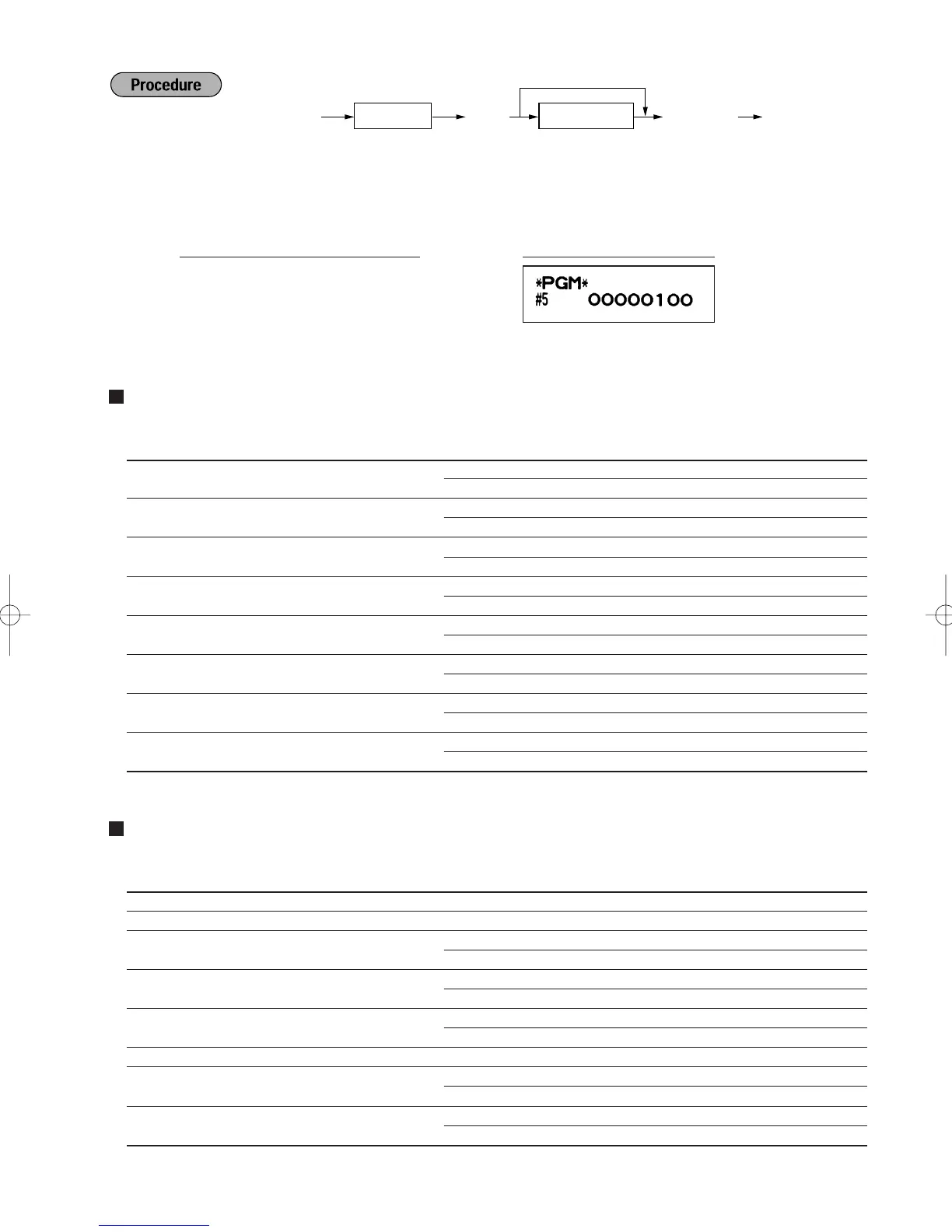
*1 Enter job code using numeric keys specified in each section below.
*2 Data entry details are listed on each table in each section below.
Example: When programming for job code 5 as ABCDEFGH: 00000100.
Function selection for miscellaneous keys
Job code: 5
* Item: Selection: Entry:
A PO in REG mode Allow the PO operation in REG mode* 0
Disallow it 1
B RA in REG mode Allow the RA operation in REG mode* 0
Disallow it 1
C Subtotal void in REG mode Allow the REG mode subtotal void* 0
Disallow it 1
D Indirect void in REG mode Allow the REG mode indirect void* 0
Disallow it 1
E Direct void in REG mode Allow the REG mode direct void* 0
Disallow it 1
F Refund key availability Allow the REG mode refund entry* 0
Disallow it 1
G No sale in REG mode Allow the no sale operation in REG mode* 0
Disallow it 1
H Fractional quantity availability Allow fractional quantity entry 0
Disallow it* 1
Print format
Job code: 6
* Item: Selection: Entry:
A Always enter 0. (Fixed position) 0
B Always enter 0. (Fixed position) 0
C Time print on all receipts/journals Allow time printing* 0
Disallow it 1
D Date print on all receipts/journals Allow date printing* 0
Disallow it 1
E Consecutive no. print on all receipts/journals Allow consecutive no. printing* 0
Disallow it 1
F Always enter 0. (Fixed position) 0
G Zero skip for PLU/UPC report Disallow zero skip 0
Allow zero skip* 1
H Zero skip for full sales, clerk, Disallow zero skip 0
hourly and daily net reports Allow zero skip* 1
s
5
@
00000100
sA
PrintKey operation example
s @
*
2
ABCDEFGH*
1
Job code
As
To set “00000000”
A42S_3 FOR THE MANAGER 09.10.14 9:11 AM Page 53


 To Next Page