Insert a scene in a chase
1. Record the scene or chase you wish to insert (now your scene is stored in the edit buffer). As described
on page 15/16: Creating a scene/chase.
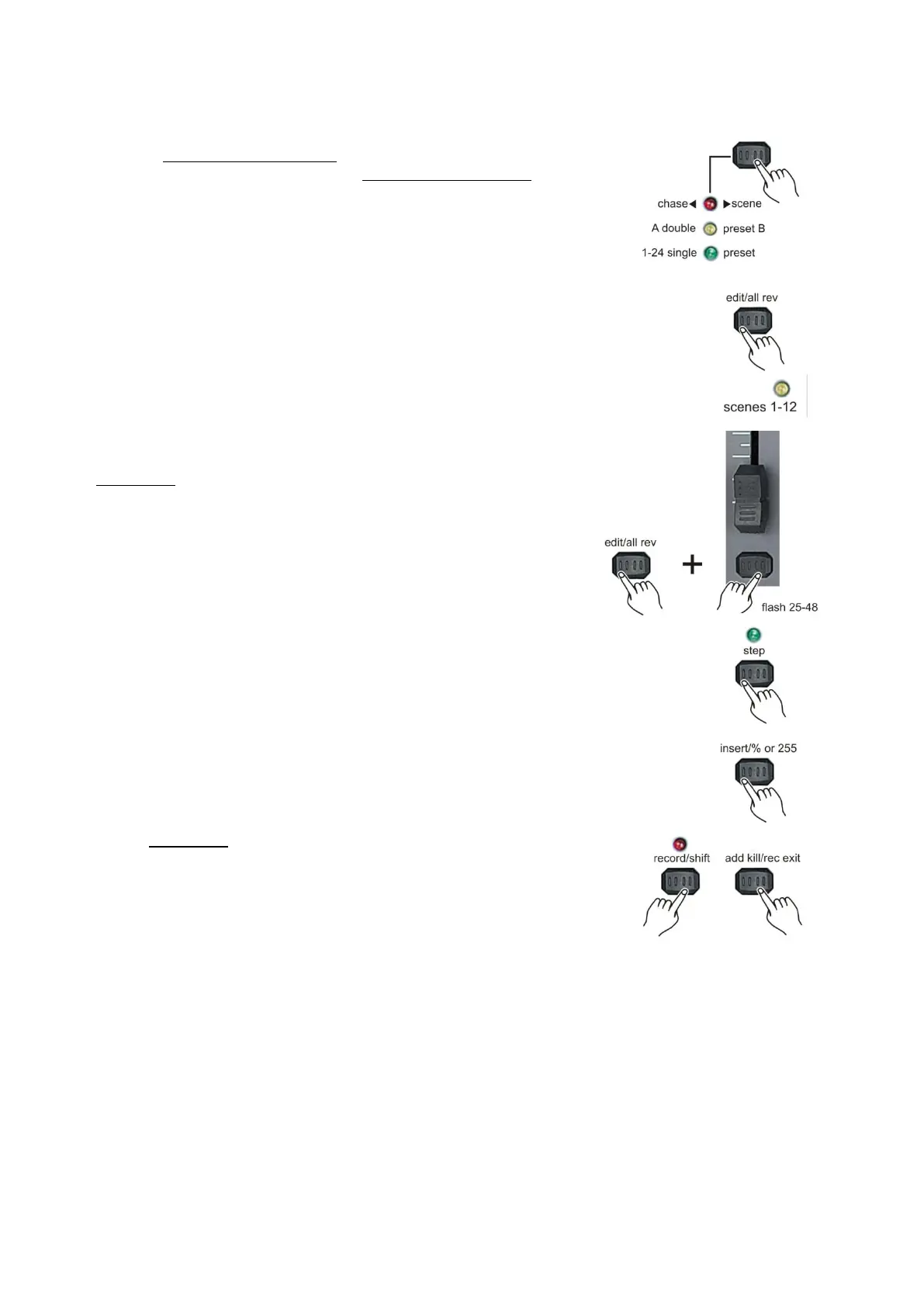
4. Select the chase < > scene mode by tapping the
Mode Select/rec speed (5) button. The chase <> scene mode
gives you access to the to the 24 channels of the selected page.
5. Push and hold the edit/all rev (13) button.
6. While holding the edit/all rev (13) button, tap
the flash (3) button corresponding with the chase
in which you want to delete a scene.
7. Release the edit/all rev (13) button. The relevant
scene/chase LED will light, indicating that the chase
is in edit mode.
8. Tap the step (17) button until you reach the scene
you want to insert your new scene before.
9. Tap the insert/% or 255 (10) button to insert the step
you've created before.
10. Exit the edit mode.
Notes:
Part of entering the edit mode is selecting which chase or scene you wish to edit. See section on
edit enable for further instructions.
All LEDs will flash to indicate a successful insert of the scene.



 To Next Page