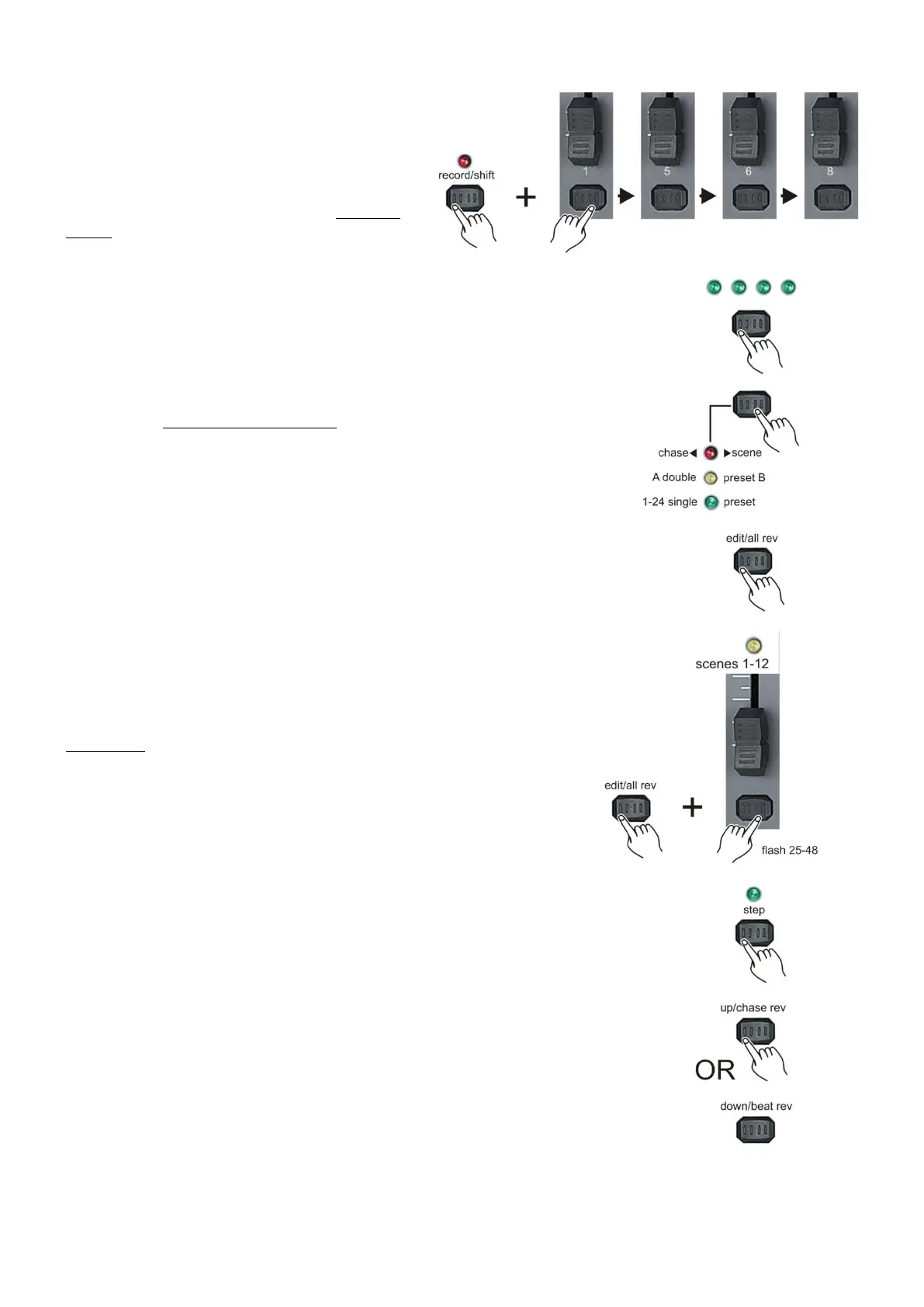
Edit a scene/chase
1. While holding the record/shift (14) button,
tap the flash (3) buttons #1-5-6-8 in sequence.
2. Release the record/shift (14) button. The
record LED will light. Now you are in Program
mode (record enable).
3. Use the page (8) button to select the page
where the scene/chase you want to edit is in.
4. Select the chase < > scene mode by tapping
the Mode Select/rec speed (5) button give you
control of all 24 channels of the first page.
5. Push and hold the edit/all rev (13) button.
6. While holding the edit/all rev (13) button, tap the
flash(3) button corresponding with the scene/chase
you want to edit.
7. Release the edit/all rev (13) button. The relevant
scene LED will light, indicating that the scene is in
edit mode.
8. Tap the step (17) button until you reach the scene you
want to edit.
9. Push and hold the up/chase rev (6) button if you want
to increase the output value of a DMX channel.
Push and hold the down/beat rev (28) button if you want
to decrease the output value of a DMX channel.



 To Next Page