Shure Incorporated
27/70
1.
2.
3.
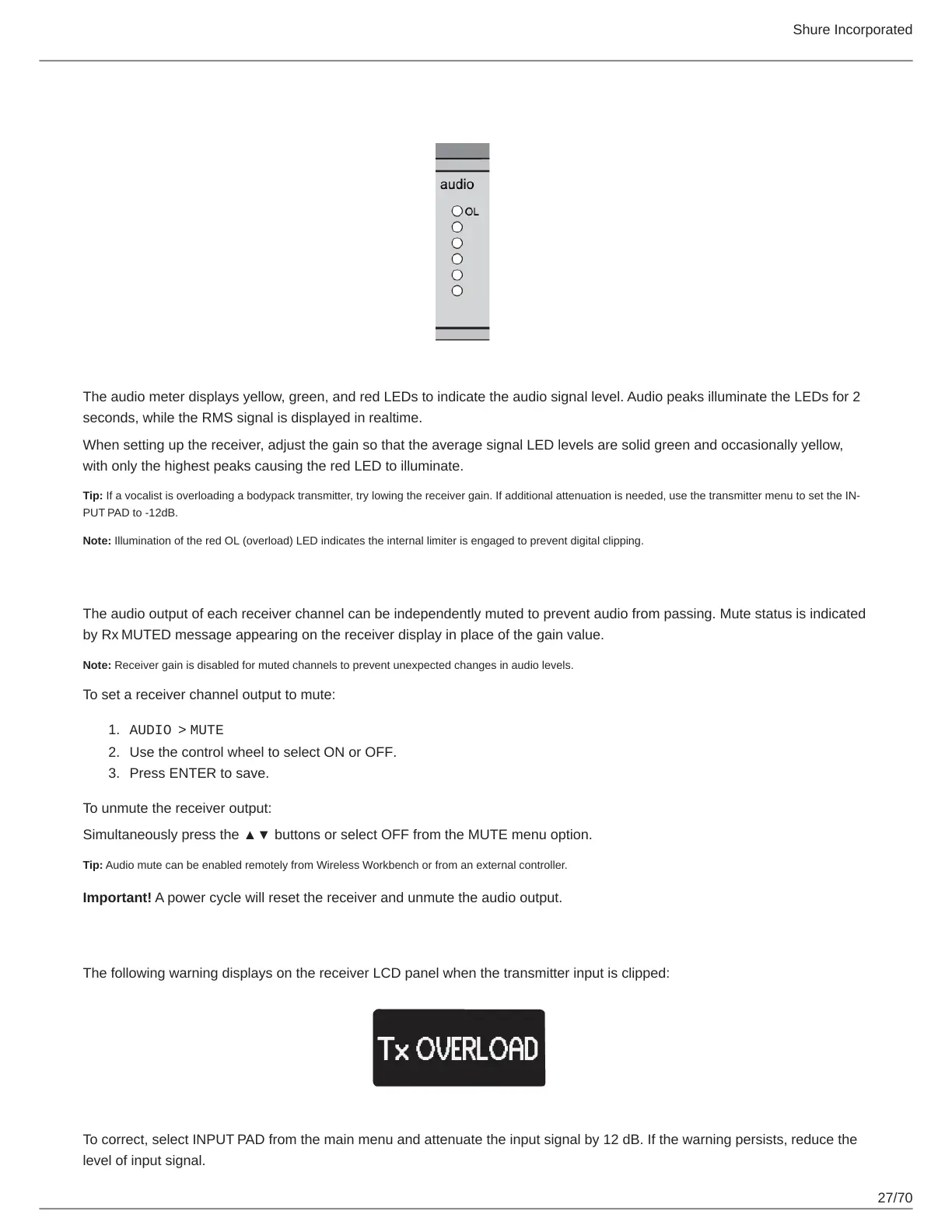
Reading the Audio Meter
The audio meter displays yellow, green, and red LEDs to indicate the audio signal level. Audio peaks illuminate the LEDs for 2
seconds, while the RMS signal is displayed in realtime.
When setting up the receiver, adjust the gain so that the average signal LED levels are solid green and occasionally yellow,
with only the highest peaks causing the red LED to illuminate.
Tip: If a vocalist is overloading a bodypack transmitter, try lowing the receiver gain. If additional attenuation is needed, use the transmitter menu to set the IN
PUT PAD to -12dB.
Note: Illumination of the red OL (overload) LED indicates the internal limiter is engaged to prevent digital clipping.
Muting a Receiver Channel Audio Output
The audio output of each receiver channel can be independently muted to prevent audio from passing. Mute status is indicated
by Rx MUTED message appearing on the receiver display in place of the gain value.
Note: Receiver gain is disabled for muted channels to prevent unexpected changes in audio levels.
To set a receiver channel output to mute:
AUDIO > MUTE
Use the control wheel to select ON or OFF.
Press ENTER to save.
To unmute the receiver output:
Simultaneously press the ▲▼ buttons or select OFF from the MUTE menu option.
Tip: Audio mute can be enabled remotely from Wireless Workbench or from an external controller.
Important! A power cycle will reset the receiver and unmute the audio output.
Transmitter Input Clip
The following warning displays on the receiver LCD panel when the transmitter input is clipped:
To correct, select INPUT PAD from the main menu and attenuate the input signal by 12 dB. If the warning persists, reduce the
level of input signal.



 To Next Page