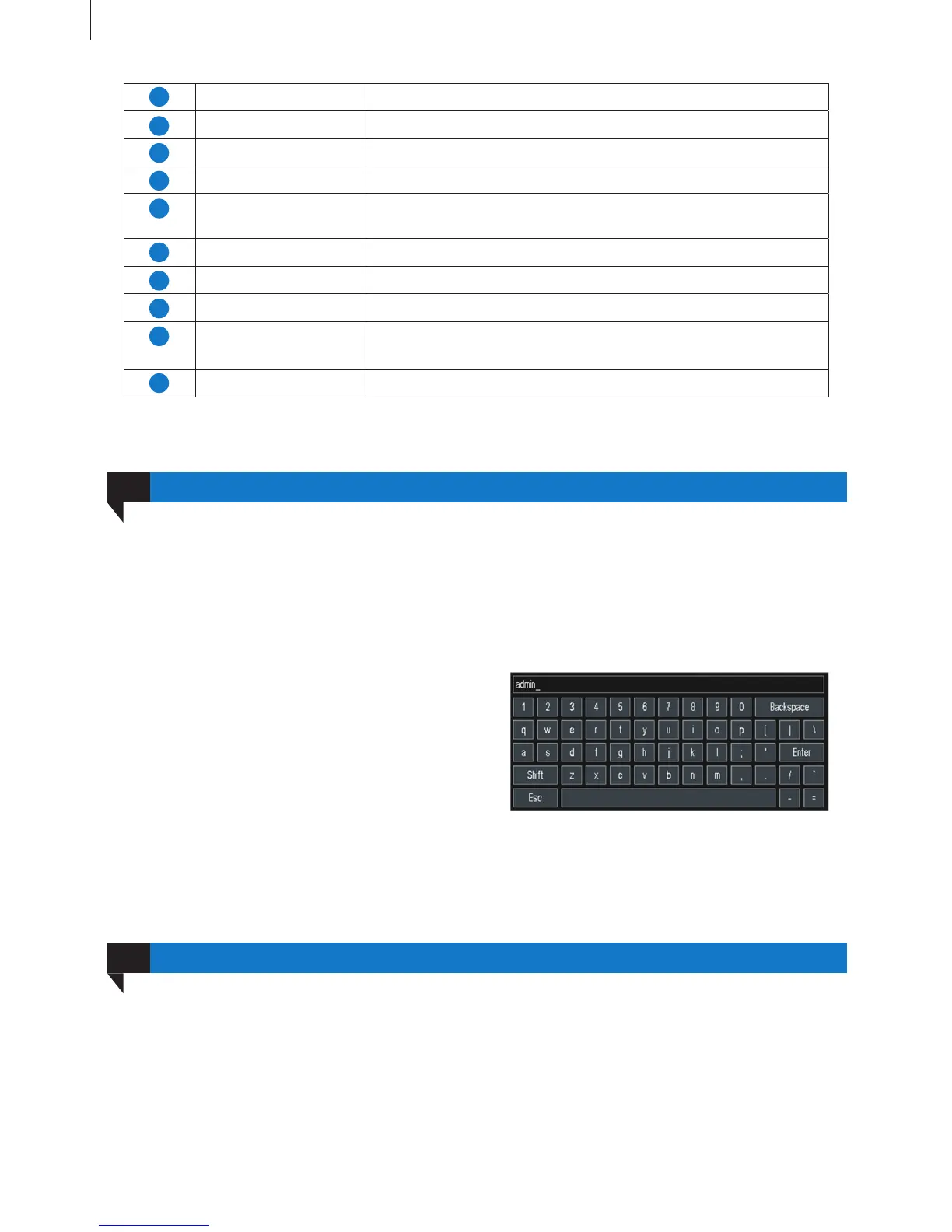
Fig 2-10
Login
07
17
It supports USB mouse through the USB ports.
In live: Double-click left button on one camera to be full screen display. Double-click again to return to the
previous screen display.
Click right button to show the control menu. Here are all control and setup. Click right mouse again to hide
the control menu.
In setup: Click left button to enter. Click right button
to cancel setup, or return to the previous.
If want to input the value, move cursor to the blank
and click. An input window will appear as Fig 2-10.
It supports digitals, letters and symbols input.
In playback and backup: Click left button to choose the options. Click right button to return to live mode.
Getting Started
E-ZOOM Button To electronic amplify the single channel.
MENU Button To enter the sub menu.
Multi Screen Button To choose multi-screen display mode.
Single Screen Button To choose single -screen display mode.
Direction and
Enter Button
Direction Button: move cursor to select items.
AUDIO Button To enter the audio adjustment interface.
Fn Button Reserved function keys.
SNAP Button To snap the live pictures.
Playback Control
Button
To control playback, pause/play, single-frame play, rewind, stop,
fast forward.
PTZ Button To enter the PTZ control interface.
Control with Mouse
06
User needs to login rst after system start, otherwise you cannot do any other operations except changing
the screen display mode. Double-click any preview window or click on any menu item to pop up the login
window. Input user name and password, then click “Login” button to continue operation, as shown in Fig
2-11:
11
13
15
17
9
12
14
16
18
10



 To Next Page