1.2.6 Snap
Click this button to snap current image.
1.2.7 Manual Alarm
Click “Alarm” button to trigger the alarm, click “Clear” button to stop the alarm. If user ticks off “Trigger”,
it will alarm in accordance with the setting of alarm out. Click Exit button to exit the current interface.
1.3 Status
1.3.1 Event
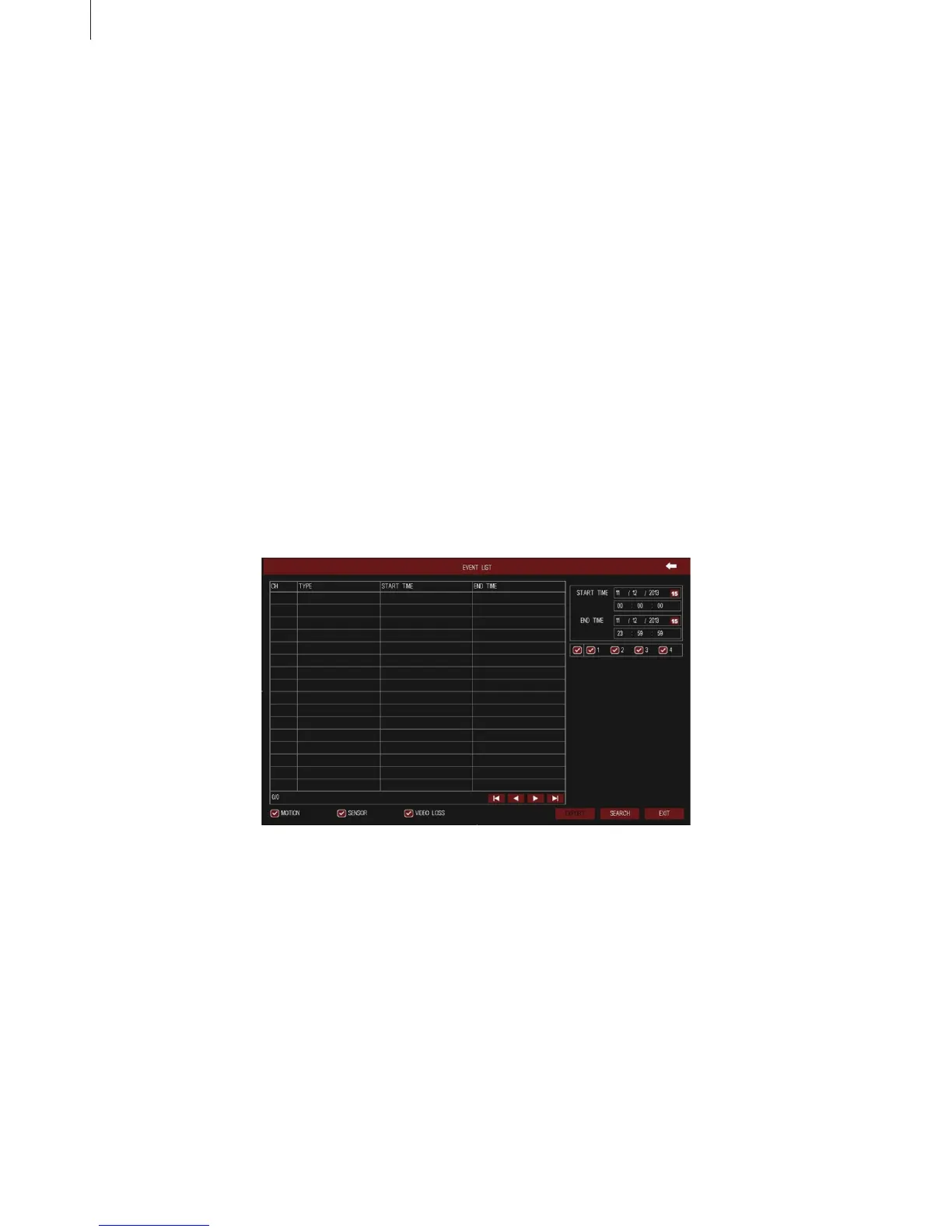
Click “Event” button to pop up the event list window, as shown in Fig 3-5.
In this interface, select the start & end time and channels which need to check event information, set
the event type (motion, sensor, video loss), then press Search button, the searched event information
will be displayed in the event list. User can check the recorded event information, and export these
informations to a removable storage device if needed.
1.3.2 Network
Click “Network” button to pop up the network information window. In this interface, user can check the
network parameters, including HTTP port, server port, IP address, DDNS server, status, etc.
1.3.3 Users
Click “Users” button to pop up the online user list window. In this interface, user can check all user
information. Click “Refresh” button to refresh the current online user list. After clicking “Disconnect”
button, the client cannot search for device.
Fig 3-5
22
Menu Setup Guide



 To Next Page