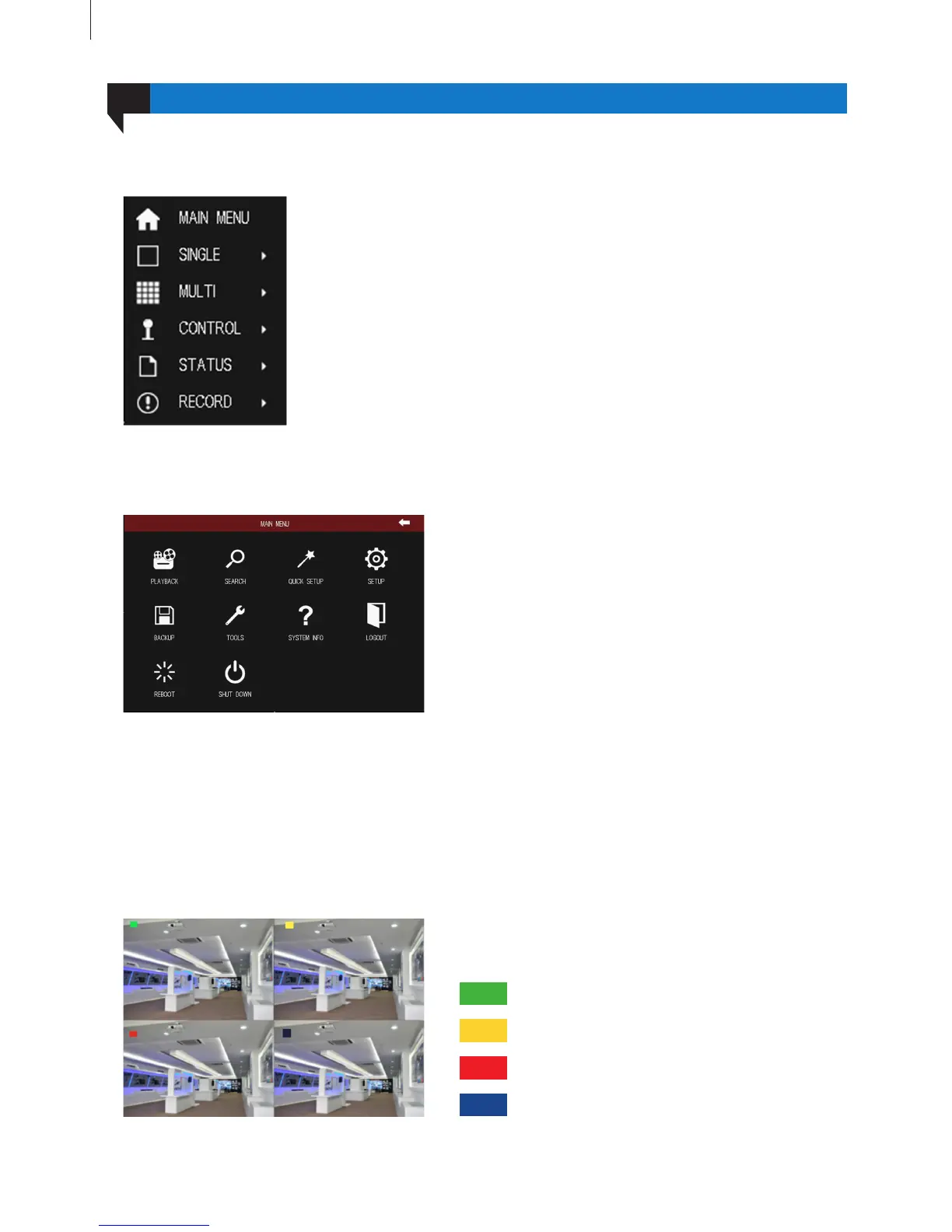
Press MENU button on the front panel or operate with remote controller also can display the main menu.
The prompts of live preview are as follows:
Fig 3-1
Fig 3-2
Fig 3-3
20
1.1 Live Preview
Green
Red
Yellow
Blue
Manual record
Alarm record
Motion detection record
Schedule record
Right clicking in the live preview interface will show the menu seen in Fig 3-1:
Single: Click this button to pop up the single channel selection box. Switch to
a full screen display of the selected channel.
Multi: Click this button to pop up the multi-channel selection box. Switch
between different display options. Images can be dragged to any place to
display in the live interface.
Control: Click this button to pop up the control selection box, refer to 3.1.2
Control.
Status: Click this button to pop up the status selection box, refer to 3.1.3
Status.
Record: Record current video or playback the recorded les.
Main Menu: Click this button to pop up a window as shown in Fig 3-2.
Control Menu
01
Menu Setup Guide



 To Next Page