Note:
Controlling your smart device with the remote control
When the projector projects the contents from your MHL compatible smart device, you can use
the remote control to control your smart device.
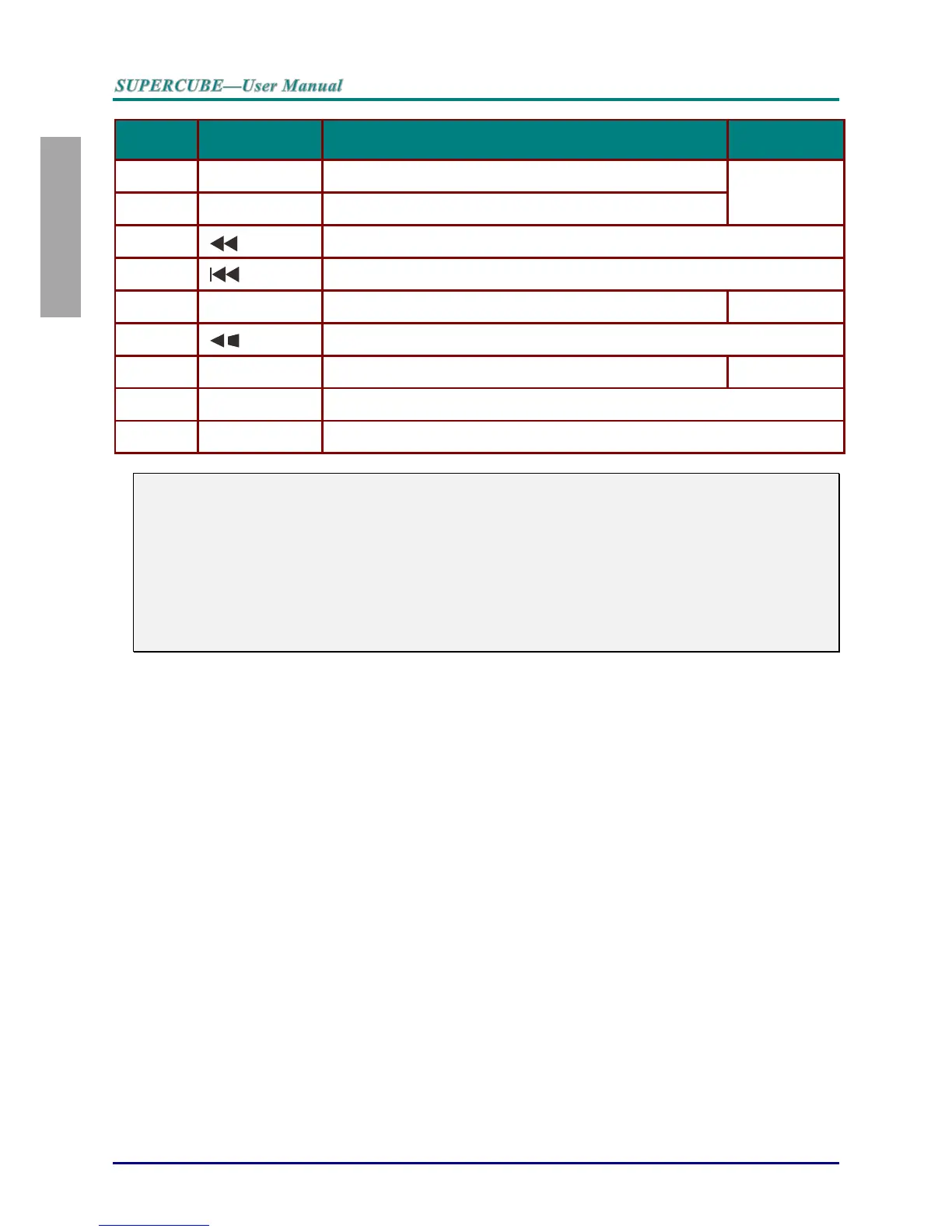
To enter the MHL mode, the following buttons are available for controlling your smart device,
Arrow keys (▲Up, ▼Down, ◄ Left, ► Right), MENU/EXIT, MHL control buttons.
When the projector is under MHL mode, The keypad on projector should be with the same
definition of the key on remote control.
Remote Control Operating Range
The remote control uses infrared transmission to control the projector. It is not necessary to point the
remote directly at the projector. Provided you are not holding the remote perpendicular to the sides or
the rear of the projector, the remote will function well within a radius of about 7 meters (23 feet) and
15 degrees above or below the projector level. If the projector does not respond to the remote control,
move a little closer.
Projector and Remote Control Buttons
The projector can be operated using the remote control or the buttons on the top of the projector. All
operations can be carried out with the remote control; however, the buttons on the projector are
limited in use.


 To Next Page