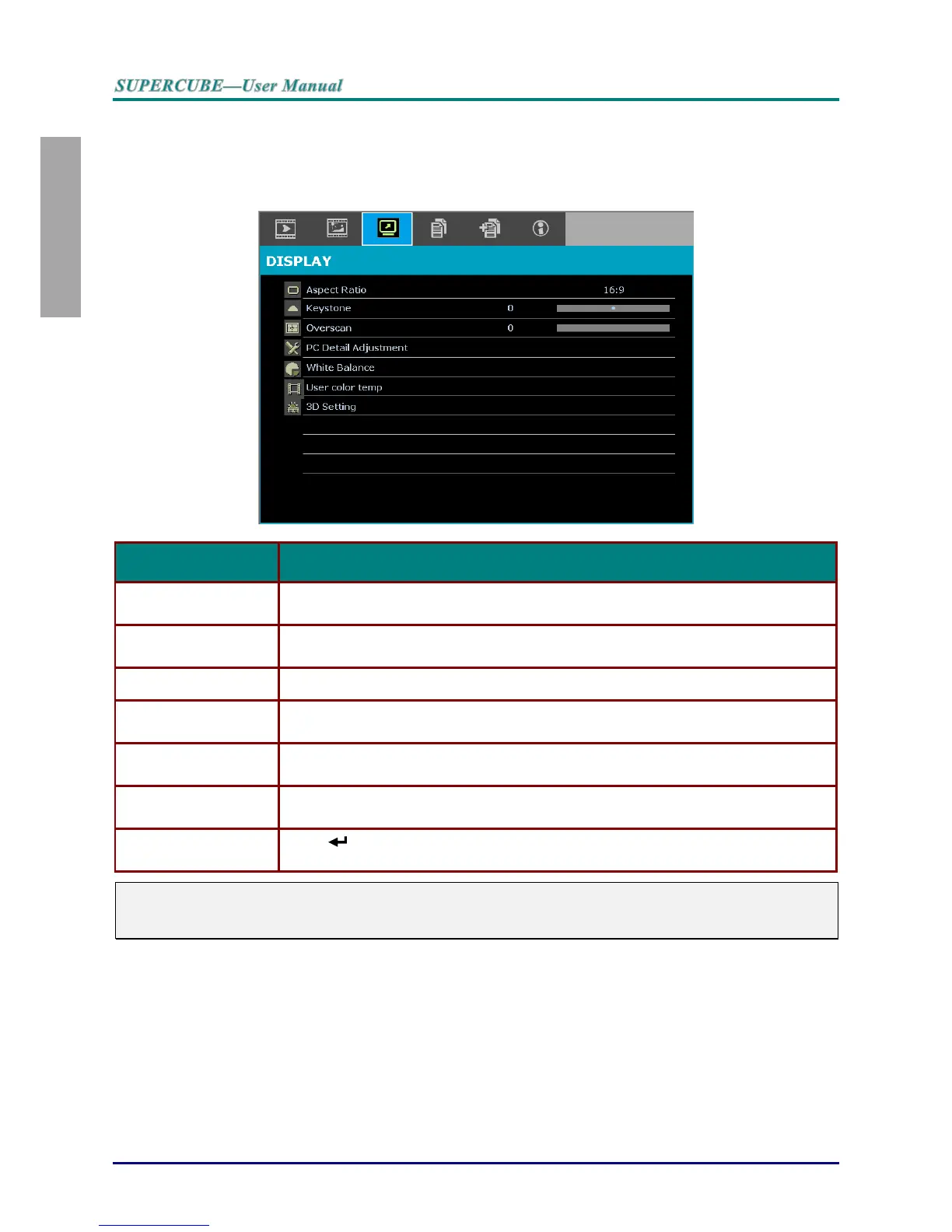
DISPLAY Menu
Press the MENU button to open the OSD menu. Press the cursor ◄► button to move to the
DISPLAY menu. Press the cursor ▲▼ button to move up and down in the DISPLAY menu.
Press ◄► to change values for settings.
Press the cursor ◄► button to set the Aspect Ratio.
Press the cursor ◄► button to adjust the Keystone.
Press the cursor ◄► button to adjust the Overscan.
Press the ENTER button to enter the PC Detail Adjustment sub menu.
See PC Detail Adjustment on page 25.
Press the ENTER/ ► button to enter the White Balance sub menu.
See White Balance on page 26
Press the ENTER button to enter the User Color Temp sub menu.
See User Color Temp on page 27
Press (Enter) / ►to enter the 3D menu. See page 28 for more information on
3D Setting.
Note:
To enjoy the 3D function, first enable the Play Movie in 3D setting found in your DVD device under the
3D Disc Menu.


 To Next Page