Note:
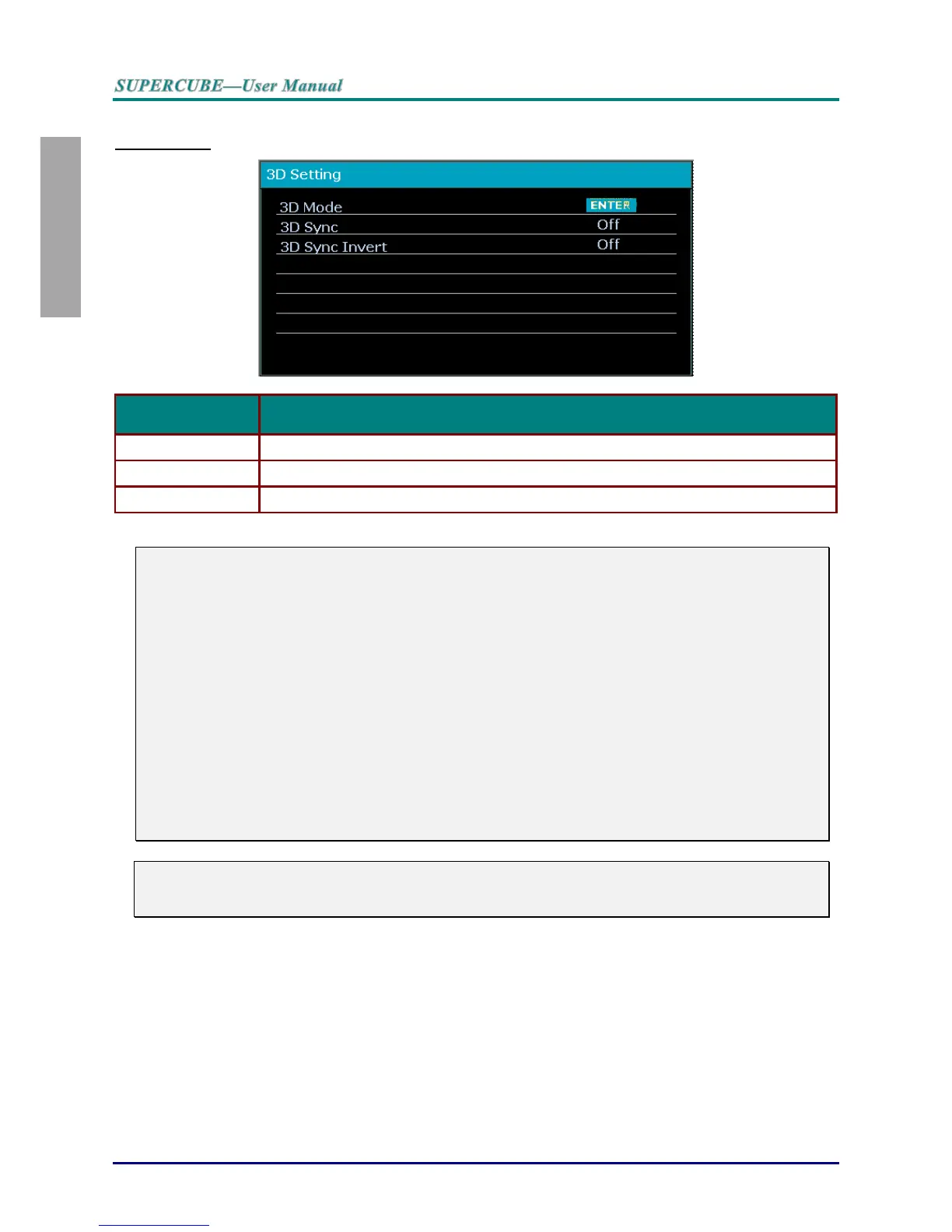
1. The 3D OSD menu item is gray if there is no appropriate 3D source. This is the default setting.
2. When the projector is connected to an appropriate 3D source, the 3D OSD menu item is enabled for
selection.
3. Use 3D glasses to view a 3D image.
4. You need 3D content from a 3D DVD/BRD or 3D media file.
5. You need to enable the 3D source (some 3D DVD content may have a 3D on-off selection feature).
6. You need RF shutter glasses. With RF 3D shutter glasses, you have to connect the emitter to the 3D
SYNC connector on the rear panel.
7. The 3D mode of the OSD needs to match the type of glasses.
8. Power on the glasses. Glasses normally have a power on -off switch.
Each type of glasses has their own configuration instructions. Please follow the configuration
instructions that come with your glasses to finish the setup process.
Note:
Since different types of glass (RF 3D) have their own setting instructions, Please follow the guide to
finish the setup process.


 To Next Page