13
To assign a custom label to an input, rotate
the volume knob until “CUSTOM” is highlighted
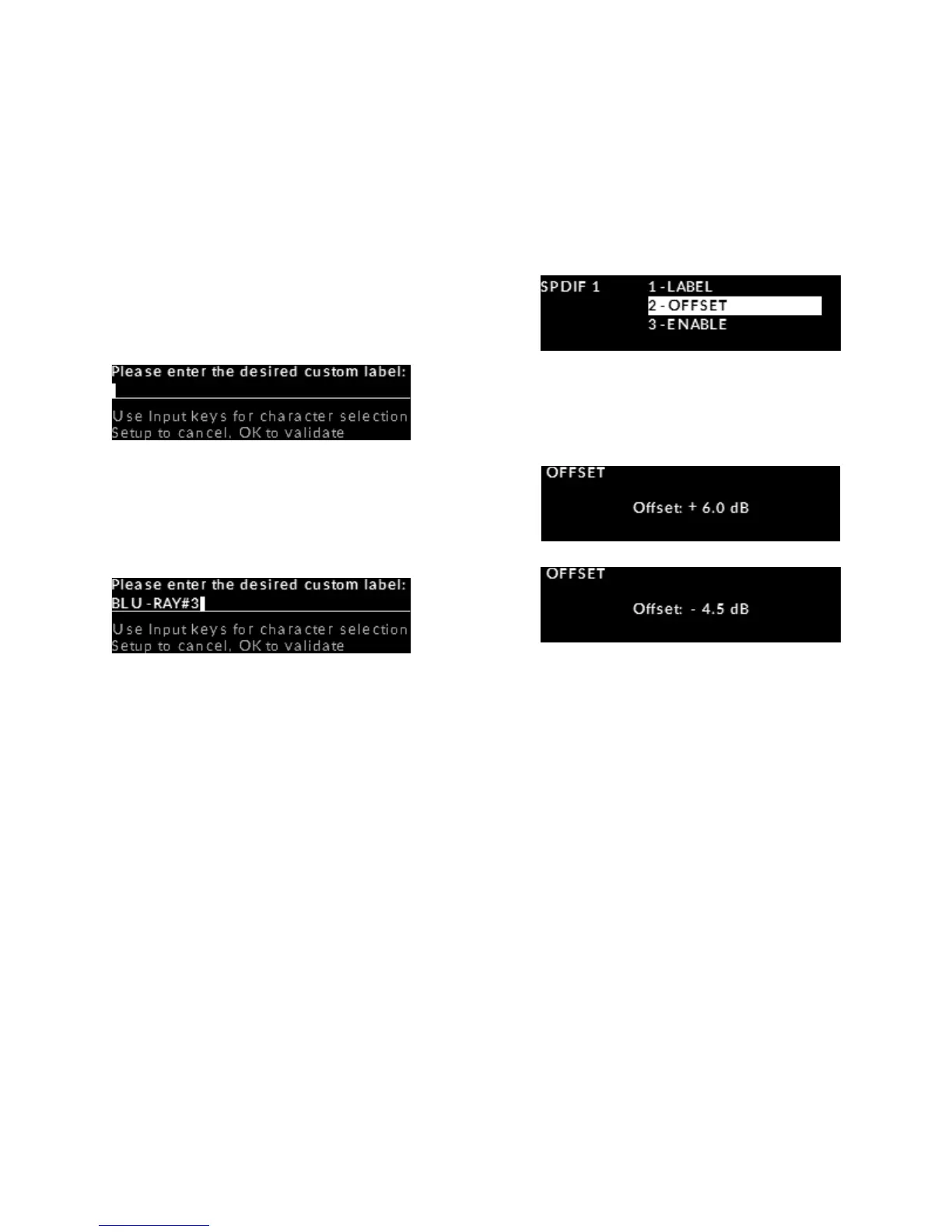
then press the “OK” button. The display will show
“Please enter the desired custom label:“ followed
by “_________________” on the next line.
Rotate the volume control clockwise to scroll
through the 26 letters of the English alphabet, rst in
uppercase and then lowercase, followed by
the numbers 0 through 9, and nally a variety
of symbols including the space character.
When you see the character you wish to use, press the
“Input ” button to select it and move to the input
next character position; Repeat this step for up to a
maximum of 12 characters for your custom label.
If at any time you want to change a previously
entered character, simply press the “ Input” button
to go back one character at a time; This acts like
the backspace character on a standard keyboard.
Once you are nished entering your custom label,
press ”OK” and “SAVED” will briey appear on the
display followed by the SPDIF input options menu
(refer to the display image in the previous step #3).
Adjusting an input’s oset volume
Next we will adjust the volume “OFFSET” for the
“BLU-RAY#3” labelled input (originally “SPDIF1”).
The purpose of this setting is as follows: it ensures
that all of devices that you connect to your 240i each
perform at the same volume level. It allows you to
compensate for the dierent output levels amongst
the various devices that you will be connecting
to the 240i. Therefore, each time you switch inputs,
you will not need to adjust the volume to compensate
for volume level dierences between these devices.
To adjust the volume “OFFSET” for this input, rotate
the volume control until “OFFSET” is highlighted
on the display, then press “OK” and “+6.0dB” will
appear on the display.
To increase the “OFFSET” value, rotate to the volume
control clockwise;To decrease the “OFFSET” value,
rotate the volume control counter clockwise.
The “OFFSET” adjustment occurs in 0.5dB increments
and the range is from –“10dB” to +”10dB”. Once you
have decided on an oset value, in this case “-4.5dB”,
press the “OK” button.
“SAVED” will briey appear on the display followed
by returning to the “SPDIF 1” input options menu.
Disabling an unused input
The third available option for this input is the ability
to disable the input if you don’t intend to use it.
The advantage of disabling inputs that you don’t plan
to use is as follows:
When scrolling through the inputs with either the
included CRM-3 remote control or front panel in-
put buttons, only the inputs that are set to “ENABLE”
will be available – this is more ecient. The default


 To Next Page