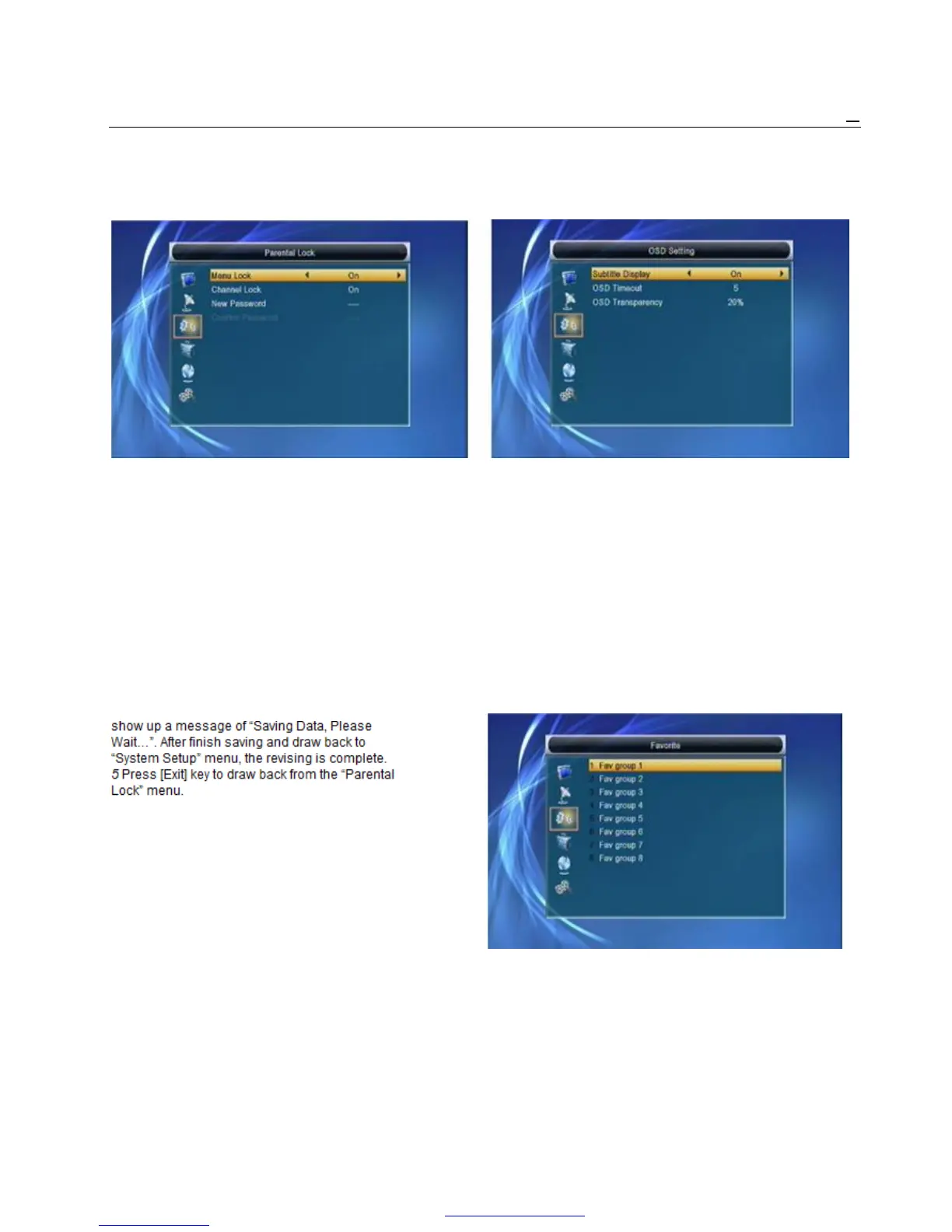
pop an dialogue for you to input the password. 5.6 OSD Setting
Default password is “0000”. When you input the When you input to “OSD Setting” menu, you will see a
correct password, you will see a screen like below: screen like below:
2 Menu Lock determining that when users wish to 1 OSD Timeout: When you switch channels in full
enter “Edit Channel/Installation/Tools” menu, screen, there will show up some information about
whether have to input Password or not. If the current channel on the lower of the screen. And
have to key in password, set “No” means unlock. regarding to the duration of these information
3 Channel Lock determining that when users wish to show up on the screen, you can press [Volume
play the lock channels, whether have to input the Up/Volume Down] key to set the time. The range
password or not. If the setting is “Yes”, play the of the duration is “1 second ~ 10 seconds”.
channels with lock mark will show up a dialogue 2 OSD Transparency: You can press [Volume
on the screen and ask for the password. If the Up/Volume Down] key to select the values. There
setting of “Channel Lock” is “No”, the Lock are 5 levels of transparency, 10%, 20%, 30%, and
function will invalid. 40% and “NO” (means no transparency function).
4 New Password is used for revising password; you 3 Press [Exit] key to draw back from the “OSD
can input the new password in this item by using Setting” menu.
number keys directly. After you filled in 4 digital
numbers, the highlight will auto skip to Confirm 5.7 Favortie
Password and ask you to input the new password When you input to “Favorite” menu, you will see a
again. If the password is correct, the screen will screen like below:
When press [OK] key, you can rename the favorite
group’s name. It will display the dialogue like below:



 To Next Page