smartmeter T20 31
2. Press the F4 key. The display shows a warning telling you that format-
ting will delete all data from the USB data storage device. The prompt
asks you to confirm that you want to proceed.
3. Press ◄/► to select
YES and press OK to confirm your selection.
12 Saving a Screenshot
If a USB data storage device is connected to the meter, you can save a
screenshot of the display to the data storage device anytime (e.g. to doc-
ument measuring values).
Press the key.
A screenshot of the display is saved to the USB data storage device in
a bmp file.
13 Checking the TV Signal
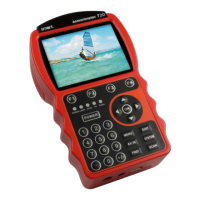
Switch the smartmeter T20 to TV mode to check the TV signal.
After switching the meter on (or after factory reset), the meter displays the
main menu.
Press the
EXIT key to switch to TV mode. The display shows a mes-
sage saying that there are no channels installed.
There are no stations saved, the station list (channel list) is empty.
13.1 Searching for Stations automatically
Follow these steps to fill the channel list:
1. Press MENU to enter the main menu.
2. Enter the
TP Search
submenu. Press OK to confirm your selection.
3. Press the
F4 key (auto search). Auto search starts.
, to start an auto search directly
from TV mode.
13.2 Searching for Stations manually
In unfavourable signal conditions, you can also search for stations manu-
ally.


 To Next Page