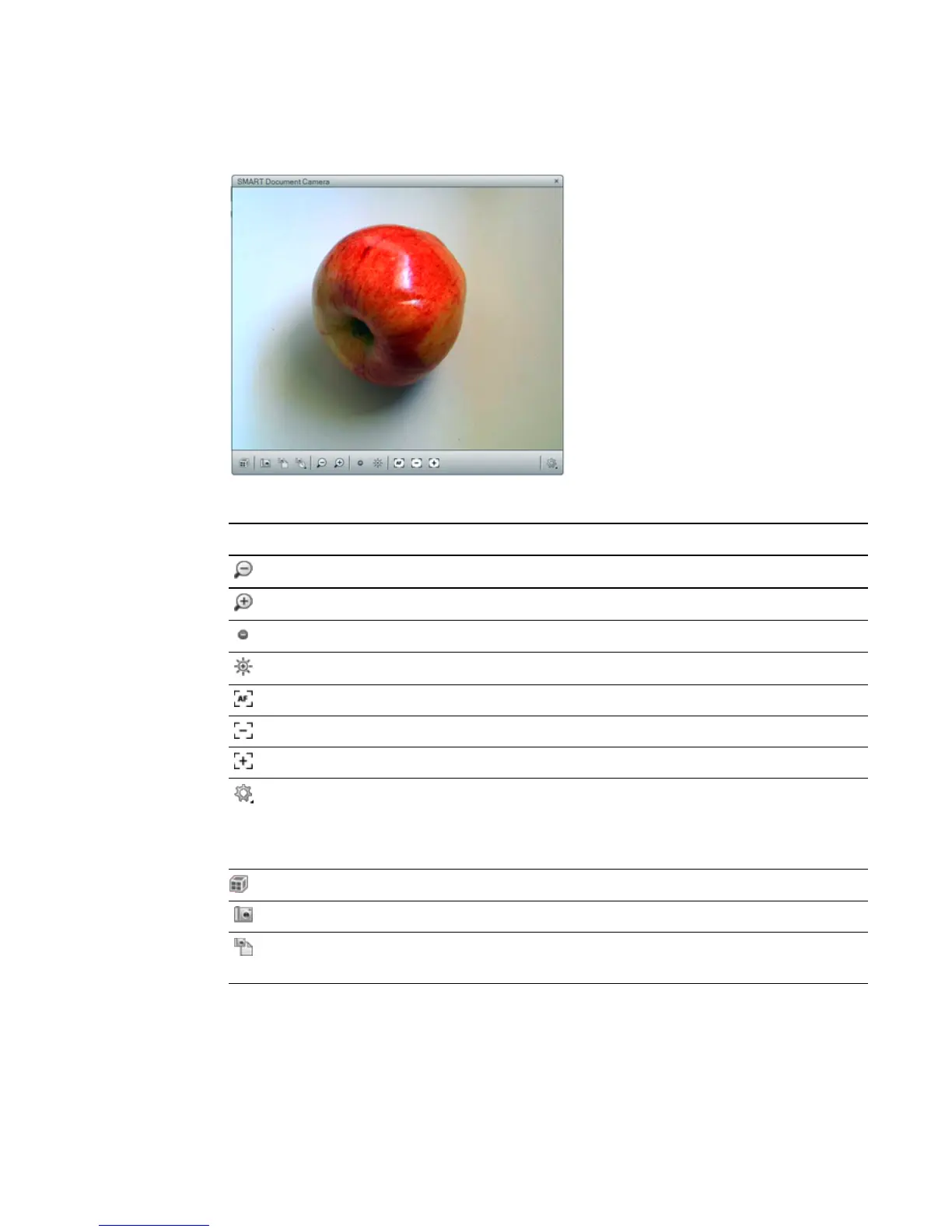
4. Place the object or objects you want to display under the camera.
5. Press any of the following on the menu bar to adjust the image.
Menu option Description
Zoom out.
Zoom in.
Decrease brightness.
Increase brightness.
Focus automatically.
Focus out manually.
Focus in manually.
Change the appearance of the image: rotate it 180º, define the image color,
black and white or film negative. You can also start and stop Microscope
mode and start Mixed Reality Tools for SMARTDocumentCamera
automatically.
Start Mixed Reality.
Insert a screen capture on the current page and then close the window.
Capture an image and insert a screen capture on a new page and keep the
current window open.
C H A P T E R 5
Using your SMARTDocumentCamera with SMART Notebook software
48



 To Next Page