To navigate a 3D scene
1. Select a 3D model.
2. Press the 3D model’s menu arrow, and then select Enter 3D Scene.
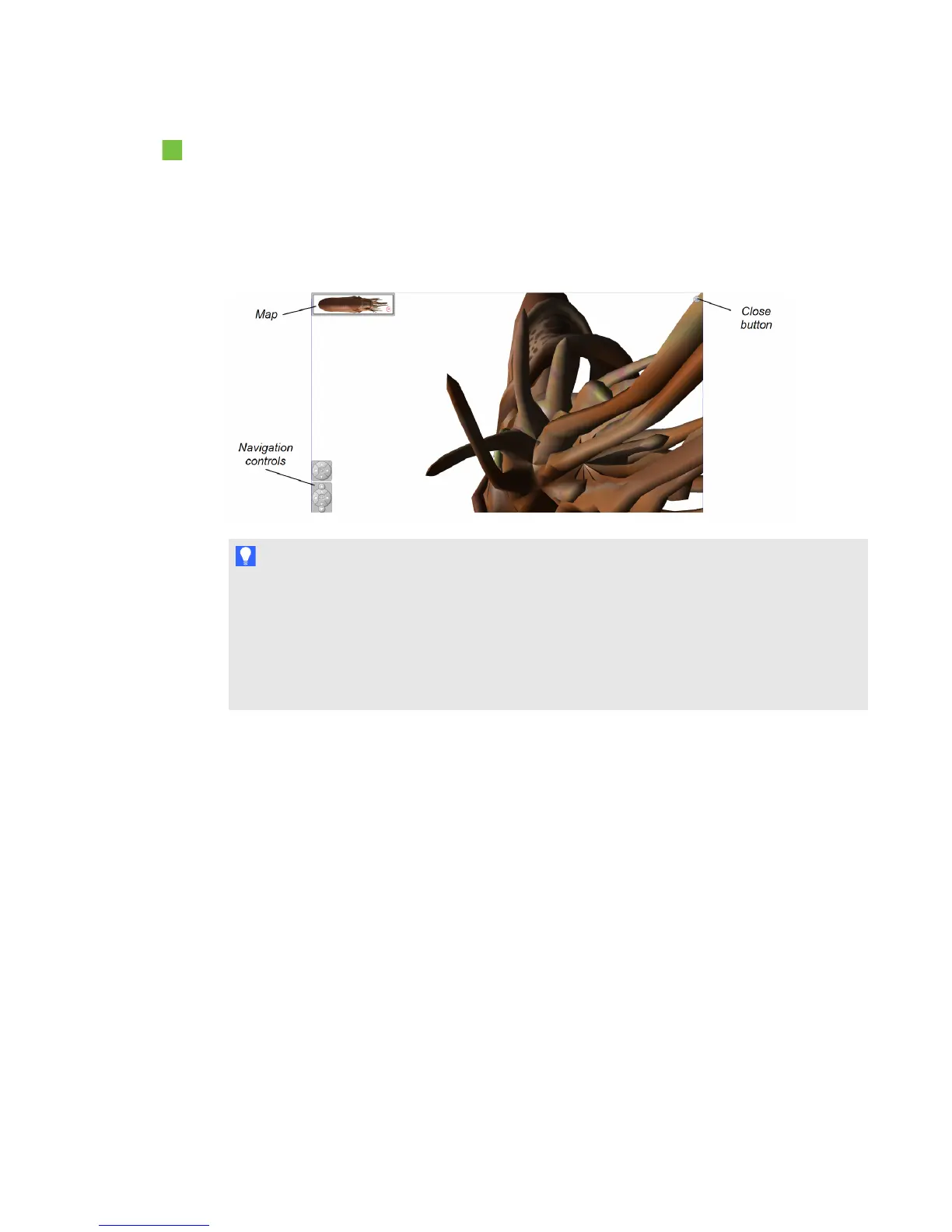
SMARTNotebook software displays the 3D scene in Full Screen mode. A map of the 3D scene,
navigation controls and the Close button appear.
T I P S
o
You can press the gray border of the map to drag it to another area of the page if it’s
covering materials you want to present. You can also resize the map by pressing and
dragging the gray border in the lower-right corner.
o
You can press the gray background or center icon of a navigation control to drag it to
another area of the page if it’s covering materials you want to present.
C H A P T E R 7
Using 3DTools for SMARTNotebook software and Mixed Reality Tools
67



 To Next Page